

Track SEO changes on one page against its Google traffic
EdgeComet Page Analysis records each change to one page's SEO tags and shows it next to the page's Google clicks, impressions and position. You see the date a title, meta description, H1, canonical, robots directive or structured data changed, what it was, what it became, and how the page's search traffic moved after it. Also called SEO change tracking or page change history.
The changes come from the copies bots received. Nobody has to log a release, and a change made outside your process, such as a plugin update or a hotfix, shows up too.
How EdgeComet detects a change
EdgeComet compares the recorded states of the page. Each time it renders or fetches the page for a bot or for the pre-cache, it records the page's SEO tags, and a new state begins when any tracked field or the status code differs from the state before.
- Fields Page Analysis tracks: Title, Meta Description, Canonical, Meta Robots, Index Status, H1s, H2s, H3s, Hreflang, Structured Data (the schema.org types) and the status code.
- The date: a change is dated by the day EdgeComet first saw the new state.
- Status changes: when the page moves between a 2xx status and a redirect or an error, the entry lists the status change. The tags that vanish with an error page are not reported as changed.
- Which copy: the same copy the Overview tab describes, rendered when your site needs rendering. See Which copy of the page the Overview tab describes.
A change appears once EdgeComet renders or fetches the page again: when a bot requests it after its cached copy expires, or when pre-cache refreshes it. To record a change right away, click Re-cache. See Re-cache: store a new copy and see what changed and How EdgeComet keeps cached pages fresh.
Recent changes: what changed on the page, and when?
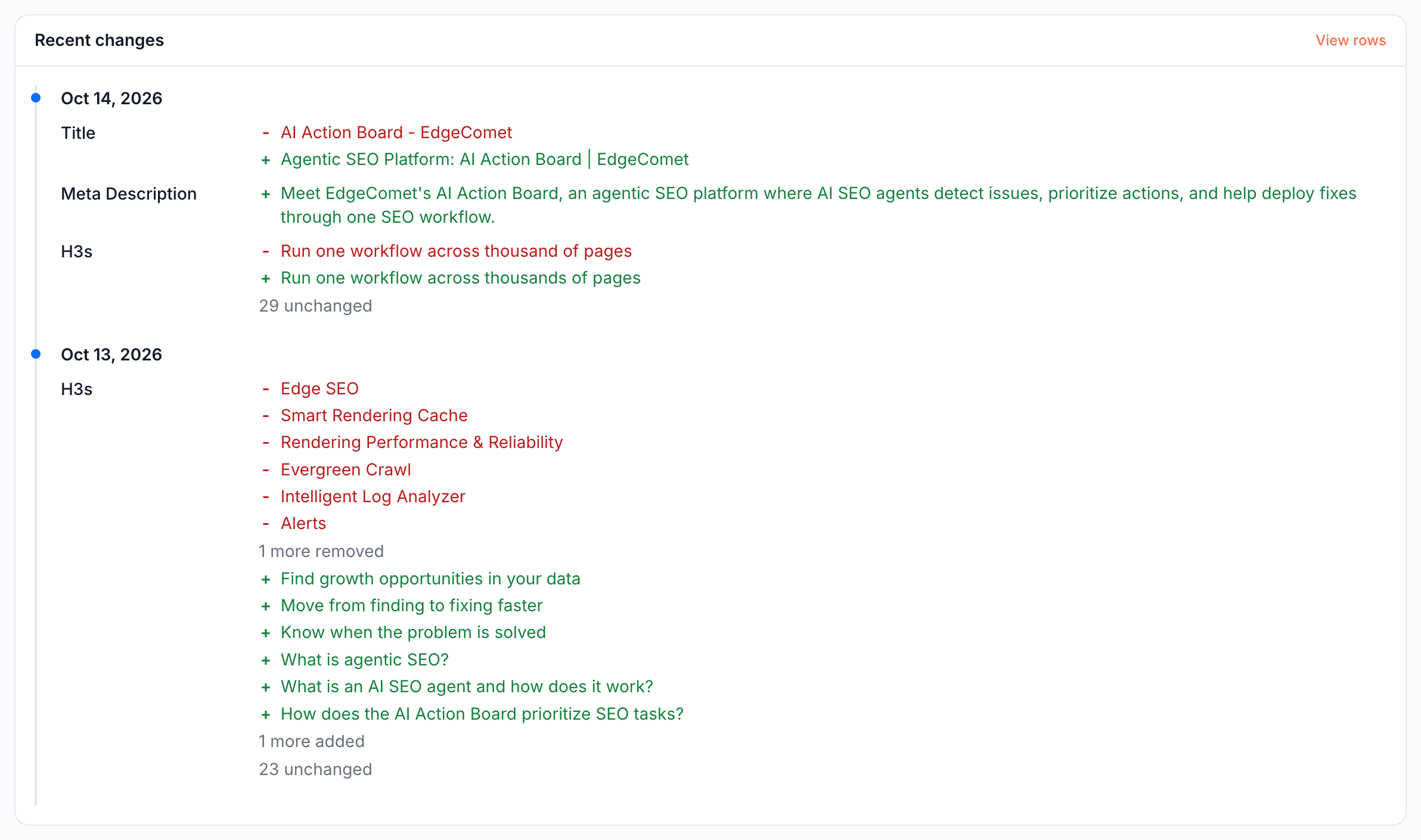
The Recent changes card on the Overview tab lists the page's latest changes, newest first. Each entry is a date, then every field that changed on it:
- Text fields: the old value marked "-" and the new value marked "+". A field that lost its value reads "now empty".
- Lists (headings, hreflang, structured data): the items removed and added, then how many stayed, such as "29 unchanged". Long lists end with "N more removed" or "N more added". Items that only moved read "reordered, N unchanged".
- Status code: the old and new status, with the target of a redirect.
View rows opens the page's changes in the Change log of the Changes report. A page with no changes has no Recent changes card.
SEO change markers on the search chart
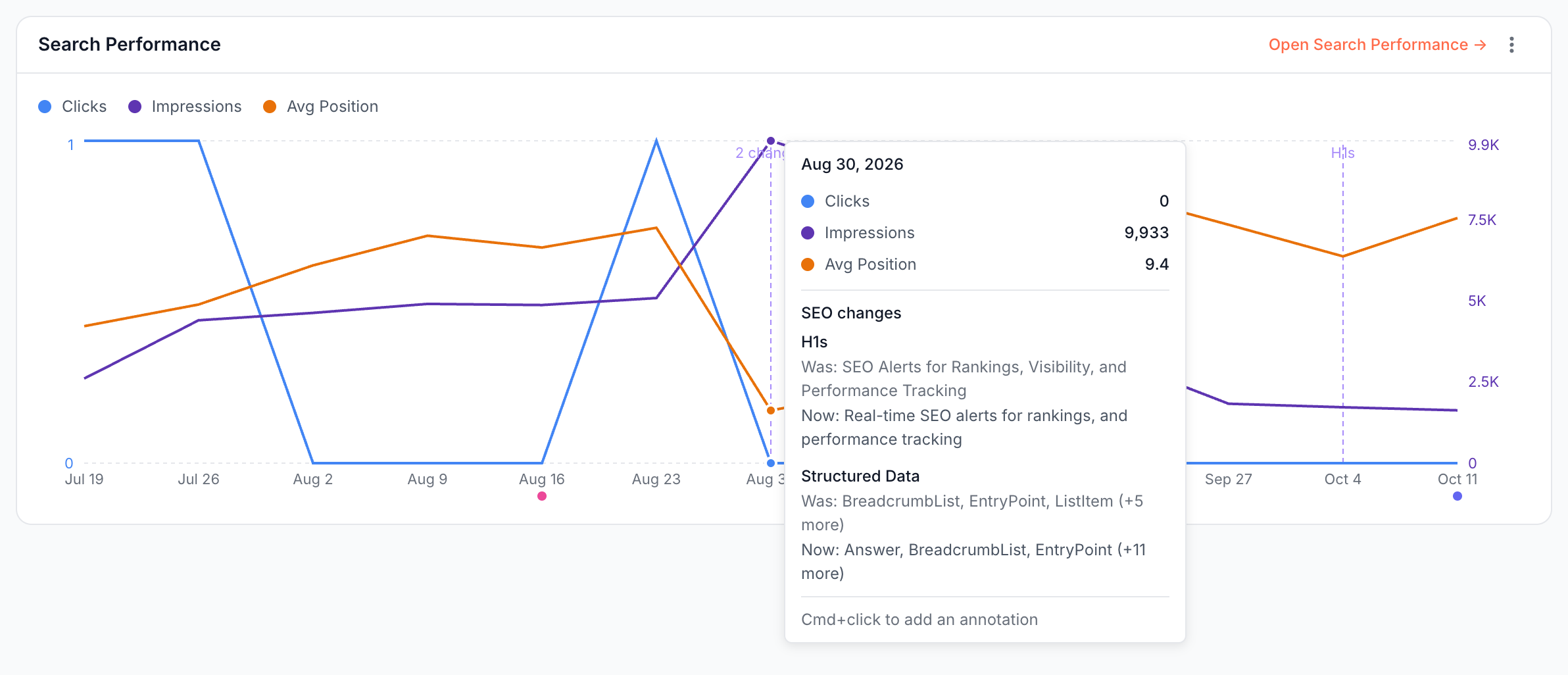
A dashed vertical line on a Page Analysis search chart marks a date the page changed. The line is labeled with the field name, such as H1s, or with the number of changes, such as 2 changes. Markers appear on three charts:
- Overview tab: the Search Performance card.
- Search Performance tab: the Clicks, Impressions & Position chart.
- Keyword dialog: each keyword's daily trend. See Did a change move one keyword?
Hover the date to read the change. The tooltip lists SEO changes with each field, "Was:" and "Now:". The markers cover changes to the title, meta description, H1s, canonical, robots directives, index status, hreflang, structured data and status code.
On a long period the chart groups days into weeks or months, and the marker sits on the week or month that holds the change.
Annotations next to the markers
Colored dots under the date axis are chart annotations, such as Google ranking updates and your team's notes. See Annotations. A Google update in the same week as your change points to a second possible cause of a traffic move.
Did a change move one keyword?
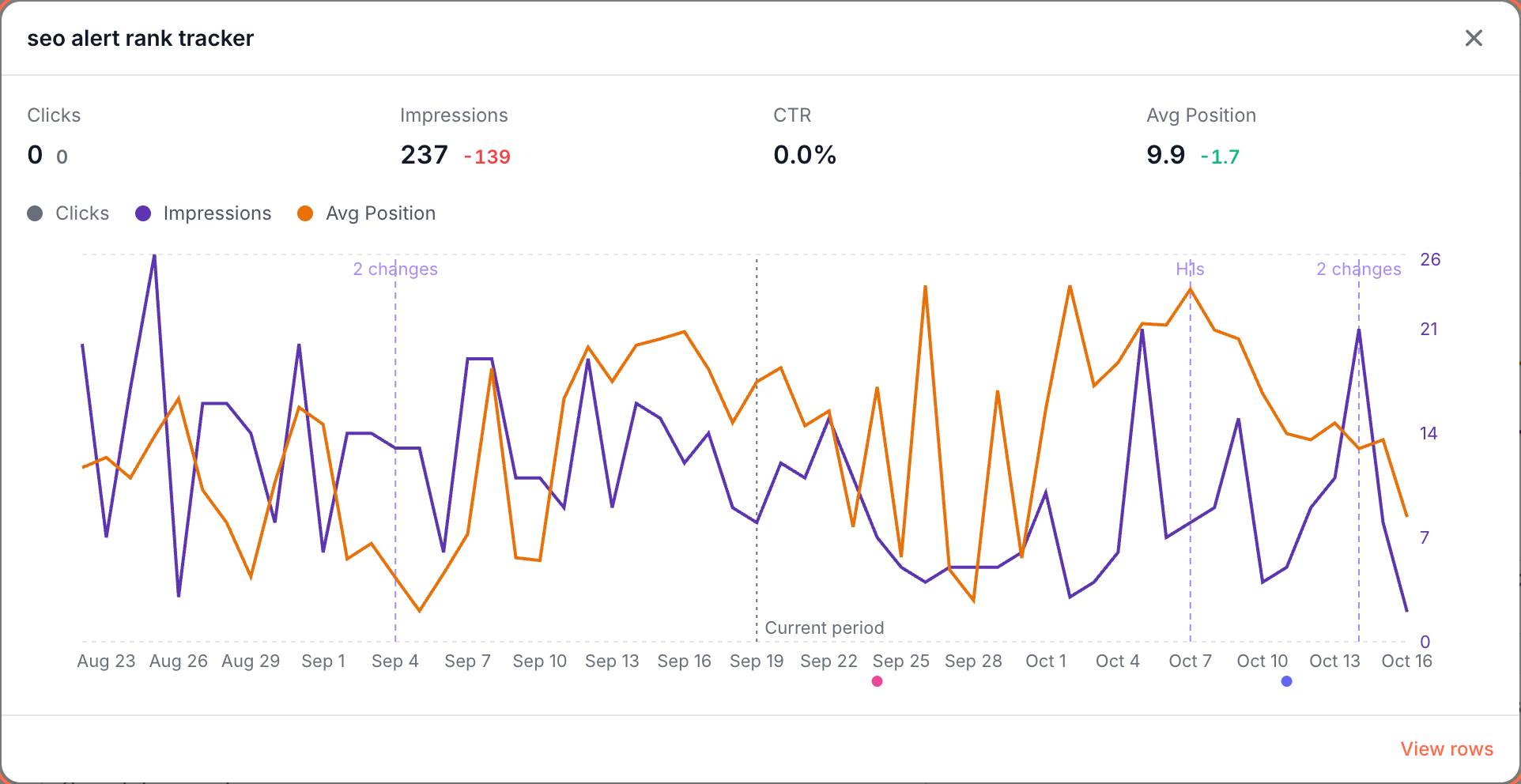
The keyword dialog draws one keyword's daily clicks, impressions and position on this page, with the page's change markers. Open it from a keyword row on the Search Performance tab.
A dotted Current period line splits the previous period from the current one, which shows the keyword before and after a change in one view. A move right after a marker points to that change. See Keyword dialog.
How to read it
- No traffic move yet after a marker. Google acts on a change only after it fetches the page again. Check Last Googlebot Visit and the Googlebot Search line in Bot Visits for a visit after the change. See Page Overview.
- Impressions rise and average position gets worse. Usually the page started ranking for more queries, most of them at lower positions. Open the Search Performance tab to see which keywords are new.
- The position line goes up. Average position is drawn on a reversed scale: a line going up means a better ranking.
- A change nobody planned. An emptied title, a new noindex or a canonical that switched usually comes from a release or a plugin. Compare the date with your deploys.
- A Google update dot on the same dates. The traffic move may come from the update and not from your change. Compare with pages you did not change.
What to do next
- Undo a bad change without a release: set the old title, description or robots directive at the edge with Rewrite titles, meta descriptions and robots tags.
- Get alerted next time: a Pages changed alert fires when the status code, indexability, canonical, title, H1 or other facts you follow change. See Get alerted when titles, canonicals or noindex change.
- Make sure bots get the new version: check the copy in See the cached HTML bots receive for one page, and click Re-cache if it is older than your change.
- Check whether other pages changed too: see Review SEO changes across your site by priority, and Site releases for the same change on many pages.
Where to find it
In the dashboard: Page Analysis > Overview, cards Search Performance and Recent changes, and Page Analysis > Search Performance for a URL.