

SEO briefs, research and exports in Outputs
A document is a file the EdgeComet AI SEO agent writes for you: a content brief, a developer brief, article edits, a research write-up or an export. Action Board > Outputs > Documents lists every document on the site, newest first, with the finding and the conversation it came from. Also called SEO deliverables.
Every document opens in a reader and exports to Google Docs, Google Sheets or a file. A document never changes your site; it is a deliverable for a person.
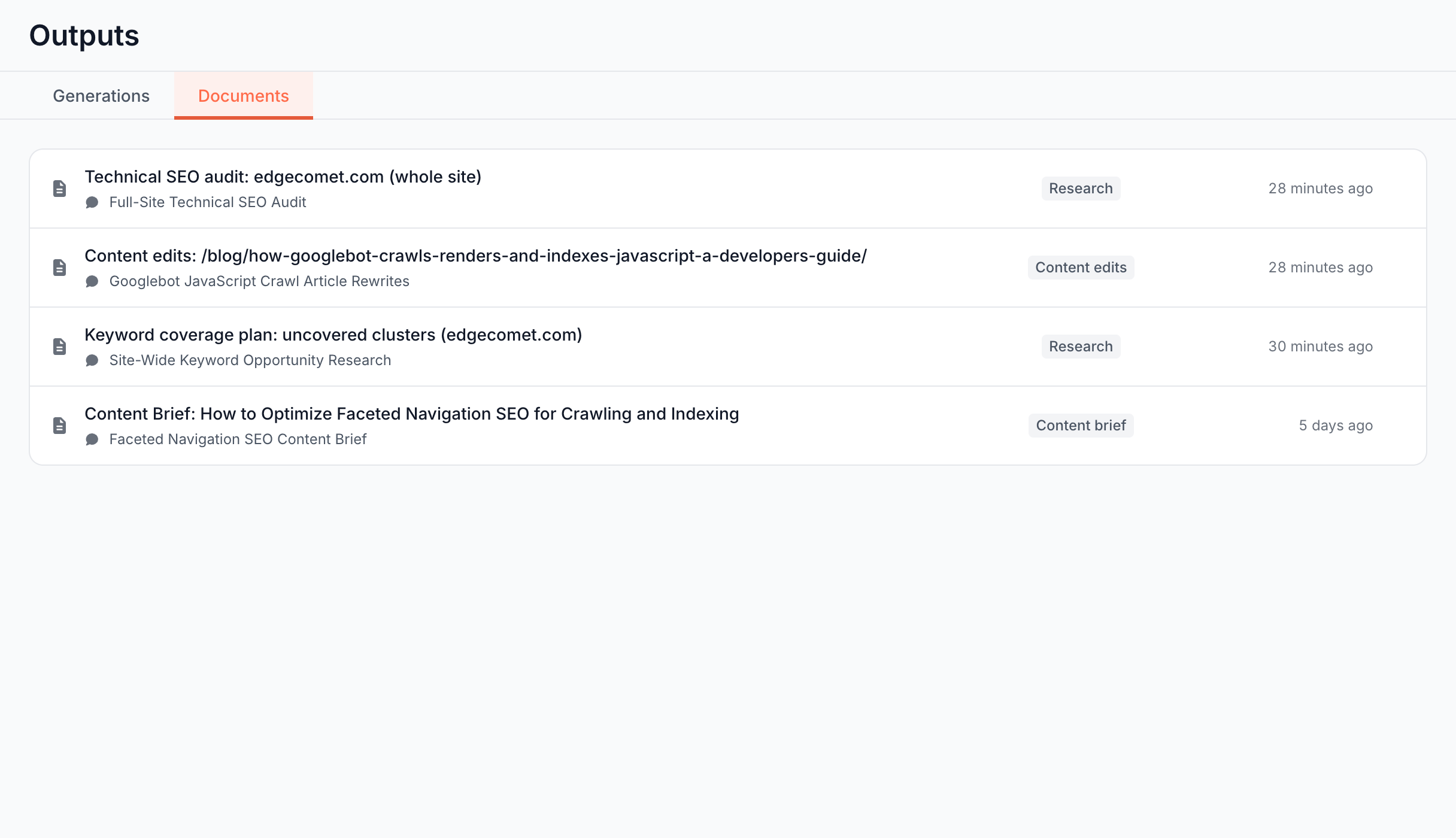
Document kinds
| Kind | What it holds |
|---|---|
| Content brief | A brief for a writer: a new article from the Content brief skill, or one existing page from a finding. A ZIP of briefs downloaded from a review is a Content brief too. |
| Content edits | Ready-to-paste before-and-after edits for an existing article, from the Article optimization skill. |
| Developer brief | One brief for engineers, from Create dev task. |
| Research | A research write-up, such as a keyword coverage plan or a technical SEO audit. |
| Rewrite set | A CSV of drafted page values, downloaded from a task review with Download CSV. |
| Export | A file exported from a run. |
| Note | A note the agent saved from a chat. |
Where documents come from
- Skills in Ask. Content brief, Article optimization, Keyword opportunity research and Technical SEO audit each end in a document. See Skills.
- Fixes on findings. Create dev task writes a developer brief and Write N content briefs writes one content brief per page. See SEO developer briefs and tickets from the Action Board and Write content briefs for existing pages.
- Task reviews. Download CSV saves a Rewrite set, and Download bundle saves a ZIP of briefs. See Deploy, save or download the ticked rows.
- Ask conversations. Ask the agent to save what it found, such as "save this as a research document", and it writes one.
Each row names where it came from: the finding, marked resolved or dismissed when it is, and the conversation title, each linking to its page.
Read a document
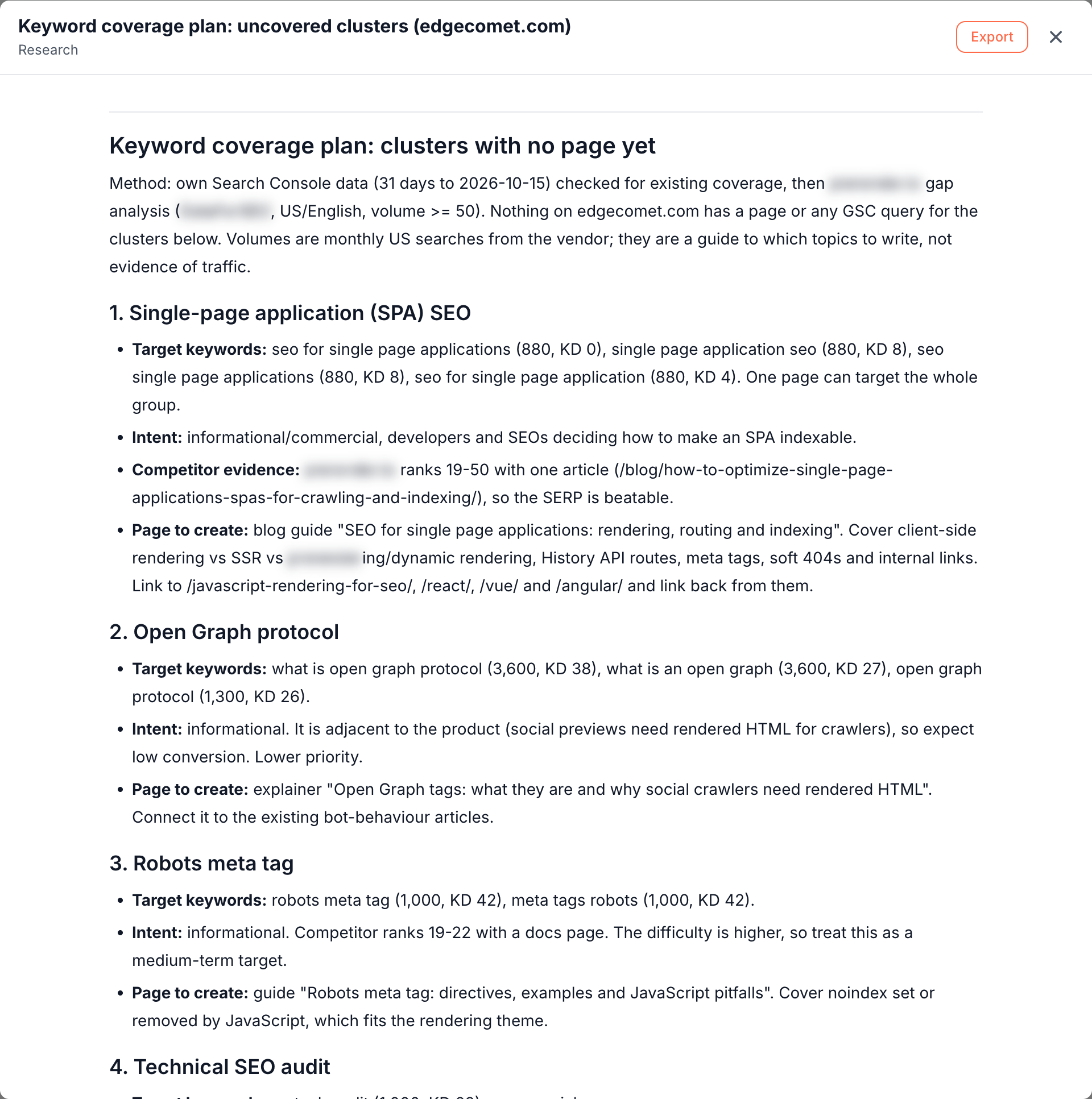
Click a row to open the reader. It shows the title, the kind and version, such as Research · v2, where the document came from, Export and Close.
- Text documents render in place, with headings, tables and lists.
- Content edits carry Copy on each edit, which copies the paste-ready text.
- CSV files show their first rows and the file size. Download the file to see every row.
- ZIP files show a description of what they hold.
File-backed documents also have a download icon on their row. Load more at the bottom of the list loads older documents.
The same documents show where you work: a finding's Documents section lists its briefs and research with Open and Export, and a task page shows its brief in place.
Change a document with Ask
Ask the chat that wrote a document, or the chat on its finding, to change it in plain words, such as "drop the pricing section" or "tighten the acceptance criteria". The agent edits the document in place: it keeps the same document and its version goes up, such as v2.
When the agent writes a document with a title that already exists, it updates that document in place:
- On a finding: whichever chat writes it, the agent updates the finding's document with the same title and kind.
- Outside a finding: the agent updates only the document the same conversation wrote. Another conversation creates its own.
A chat never overwrites a brief EdgeComet generated for a task. A new document with the same title becomes a separate document. To change the brief, ask the chat to edit it, and its version goes up.
You can also ask the chat to pin a document to a finding, such as article edits written in a conversation. It then appears in that finding's Documents section.
Export a document
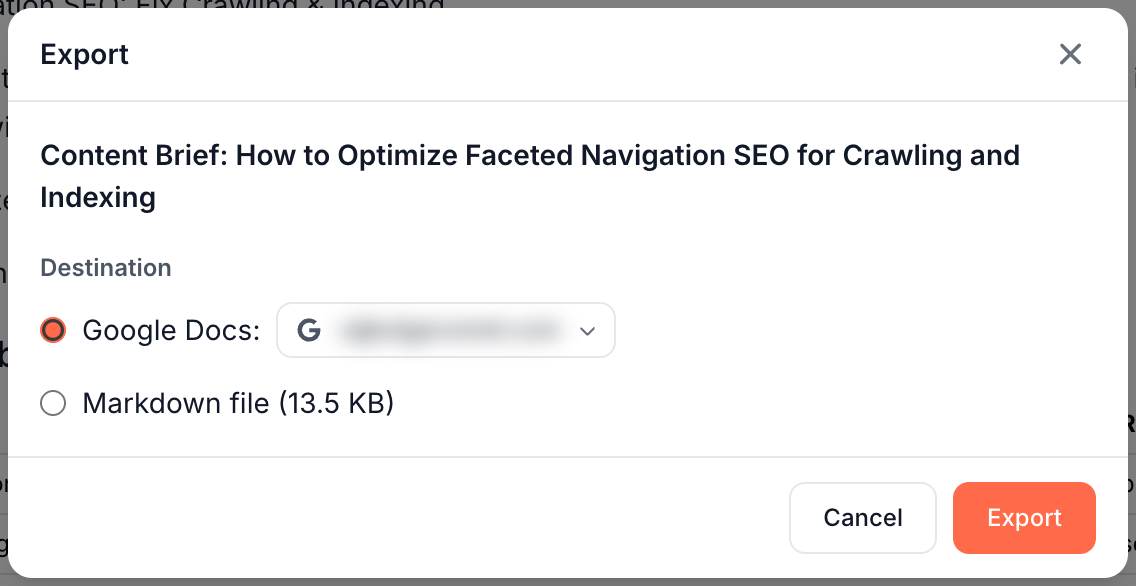
- Open the document and click Export. The finding's Documents section and the task page have the same button.
- Under Destination, choose one:
- Google Docs for text documents, or Google Sheets for CSV files, with the Google account to send it to.
- The download, labeled Markdown file, CSV file or ZIP file with its size.
- Click Export. A Google export reads "Creating your Google Doc", then "Google Doc created" with the document link, the account it went to and Open in Google Docs.
Exports go to the Google account of the person who exports. The account menu lists the accounts you connected: Add Google account opens Google's sign-in in a popup, and Reconnect renews an account whose access expired.
Manage the accounts in Settings > Google, on the Google Drive export card: "Send Action Board documents and Data Explorer exports to your own Google Drive."
When an export is refused
The dialog disables a destination that cannot take the document and shows the reason beside it:
- "This document format cannot be exported to Google." Google does not take ZIP bundles. Download the ZIP instead.
- "This export is too large for Google Sheets. Download the CSV instead." A CSV too large for Google Sheets downloads as a file instead.
- "The export file is no longer available. Re-run the generation to produce a fresh export." The file behind an older export is gone. Run the fix again from its task to make a new one.
- "This document has no content to export." The document is empty.
- "Could not load the export options. Try again." The dialog could not read the options. Try again reloads them.
Where to find it
In the dashboard: Action Board > Outputs > Documents. Generations beside it lists every run that drafted fixes or briefs. See AI generation runs: how EdgeComet drafts SEO fixes.