

Recache, invalidate and flush cached pages
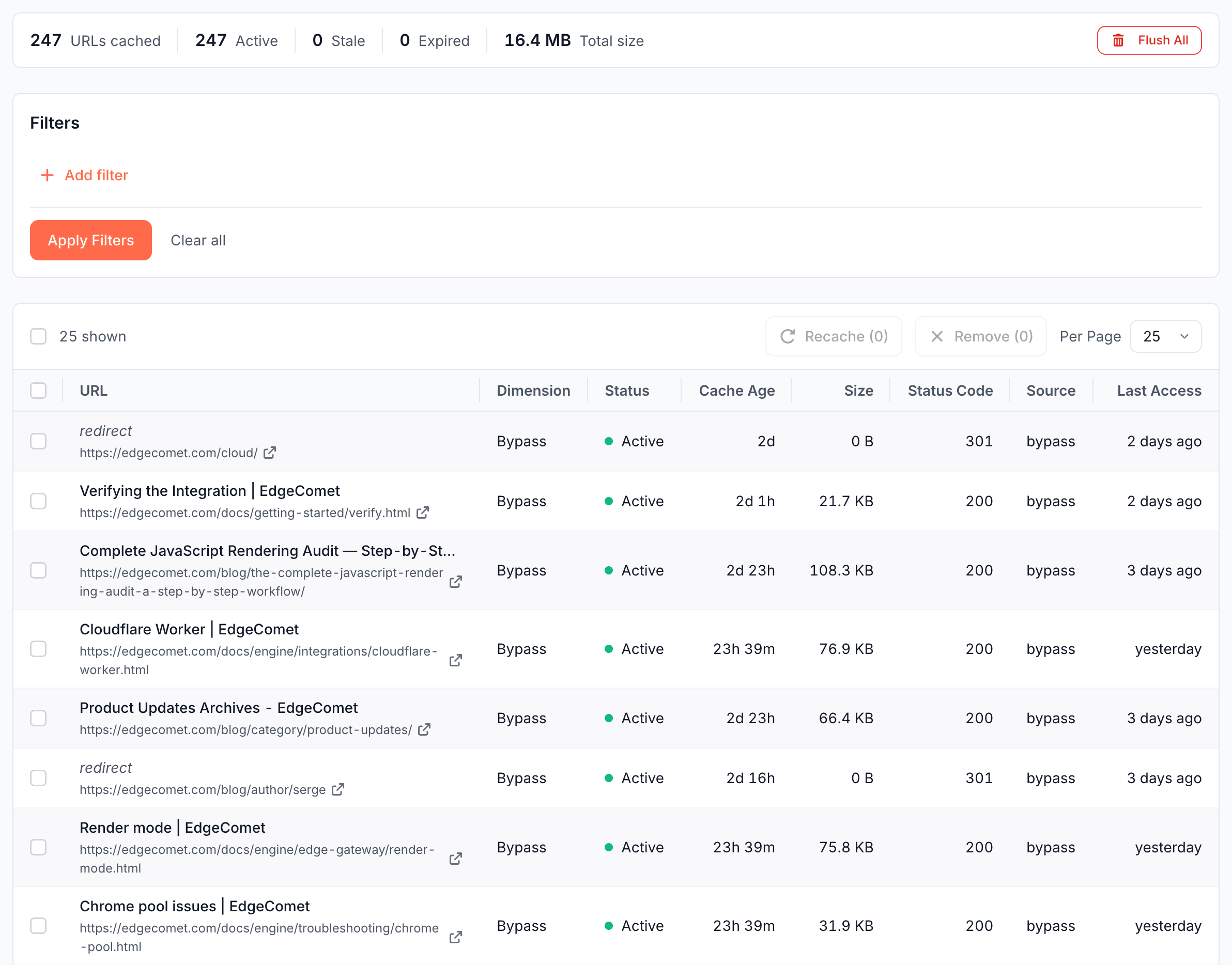
Cache > Precache > Cached URLs lists every page EdgeComet holds in its cache and lets you refresh a copy, drop it, or clear the whole cache. Recache after a content change, so bots get the new version without waiting for the copy to expire.
Recache or remove: which to use
Recache builds a new copy and keeps serving the current one until the new copy is stored. Remove, also called invalidate, deletes the copy at once, so the next bot request waits for a fresh render or fetch.
| You changed | Use |
|---|---|
| Page content, titles or prices | Recache |
A page that now redirects, returns 404 or 410, or must stop showing old content right away | Remove |
| Something across the whole site, such as a template | Recache with a filter, or Flush All |
Both act on every copy of a URL, mobile and desktop alike. The cache API does the same from your deploy scripts.
To have EdgeComet answer a path with a redirect, 404 or 410 itself, add a URL rule.
Recache or remove one page
- Open Cache > Precache > Cached URLs.
- Click Add filter, choose URL, enter part of the address and click Apply Filters.
- Click the row to expand it. It shows when the copy was Created, its TTL, Cache Age, Page Size, Status Code, Source (render or bypass), Index Status and Last Bot Hit.
- Click Recache or Remove. Analyze opens the URL in Page Analysis.

Page Analysis has its own Re-cache button next to the URL that refreshes one URL at high priority. See Re-cache: store a new copy and see what changed.
Recache or remove many pages
- On Cached URLs, add one or more filters and click Apply Filters. You can filter by URL, Cache Age, Cache Status, Dimension, Size, Status Code, Source, Index Status, Title, Created At, Expires At, Last Access and Last Bot Hit.
- Tick rows on the page, or choose All filtered URLs to act on every match.
- Click Recache or Remove and confirm.
One action covers up to 10,000 URLs, and All filtered URLs needs at least one filter. The recache confirmation has a Render these URLs checkbox: "Runs a real browser for every cached copy of these URLs and stores the rendered HTML, whatever each copy normally holds." The result counts queue entries, one per URL and copy: "N entries enqueued for recaching."
Pre-cache a list of URLs
Use Cache > Precache > Queue to cache pages that may not be cached yet, such as pages you just published.
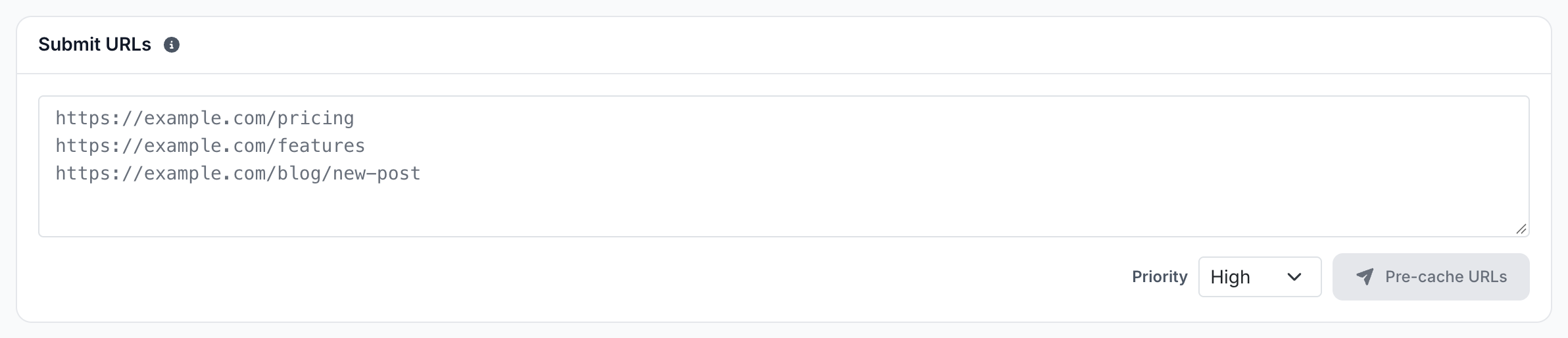
- Paste up to 500 URLs into Submit URLs, one per line. Each must be on one of the website's domains.
- Keep Priority at High to place them ahead of scheduled pre-cache, or choose Normal.
- Click Pre-cache N URLs.
The Submitted list shows each URL with its status, code, time and size, and updates every few seconds:
| Status | Meaning |
|---|---|
| waiting | In the queue. A normal-priority URL behind more than 500 entries shows how many are ahead of it |
| retrying | The last attempt failed and EdgeComet tries again |
| cached | Stored. Expand the row to see each copy and open it in Page Analysis |
| failed | An attempt failed, for example with a 5xx from your server or a status code that is not cacheable |
| gave up | EdgeComet stopped after its retries |
| no result | The queue is empty and nothing was recorded, usually because the cache settings do not store that page, for example a page that bypasses rendering while the bypass cache is off |
For more than 500 URLs, use a pre-cache rule or a bulk recache.
Flush the whole cache
Flush All on Cached URLs removes every cached copy of the website, on every dimension. It cannot be undone. Type the website's domain to confirm.
Until pages are cached again, every bot request waits for a render or a request to your server, so run a pre-cache rule afterwards. Flush All does not clear the pre-cache queue.
Pause or clear the pre-cache queue
The strip at the top of every Precache and Caching tab shows the queue state, such as "Pre-cache running" with the pages in flight and pending, or "Pre-cache queue: idle". While the queue has work, it offers:
- Pause stops EdgeComet from taking new pages from your queue. Pages already in progress finish, and new pages are still accepted and wait. A pause ends by itself after 3 hours: "Pre-cache paused · auto-resumes in" the time left. Resume ends it sooner.
- Cancel drops the pending entries: "Drop N pending pre-cache entries?" Click Drop queue to confirm or Keep queue to go back. Pages already picked up still complete.
Pause the queue when pre-cache runs add too much load to your server, then lower Concurrent re-caches.
Automatic recaching
You do not need to recache in these cases:
- Edge SEO publish. When you publish Edge SEO rules, EdgeComet recaches the pages they change, at high priority for up to 5,000 pages.
- Pre-cache. Smart Re-cache refreshes each page bots request as often as that page changes, and the other pre-cache rules refresh pages on their schedule. See How EdgeComet keeps cached pages fresh.
- Expiry. A copy older than the Cache TTL is rebuilt on the next bot request.
What you should see
- After Recache: "N entries enqueued for recaching." The Cache Age of the URL drops once the new copy is stored.
- After Remove: "N entries removed from cache." The URL leaves the list until a bot or a rule caches it again.
- After Flush All: "N entries flushed from cache."
If it does not work
"Queued, but pre-cache is paused - nothing drains until you resume."
The queue is paused. Click Resume in the strip, or wait for the pause to end within 3 hours.
"Pre-cache is unavailable for this website - it has no cache servers assigned."
Contact [email protected].
A submitted URL shows "no result"
The cache settings do not store that page. The usual cause is a page that bypasses rendering, through its dimension or a URL rule, while the bypass cache is off. Turn on the bypass cache, or check the URL with Analyze in Page Analysis.