

Set up Shelf Edge
The Shelf Edge reports fill once EdgeComet can tell your product pages and category pages apart. That takes a few custom extraction fields, such as product_name and listing_title, and one crawl evaluated with them.
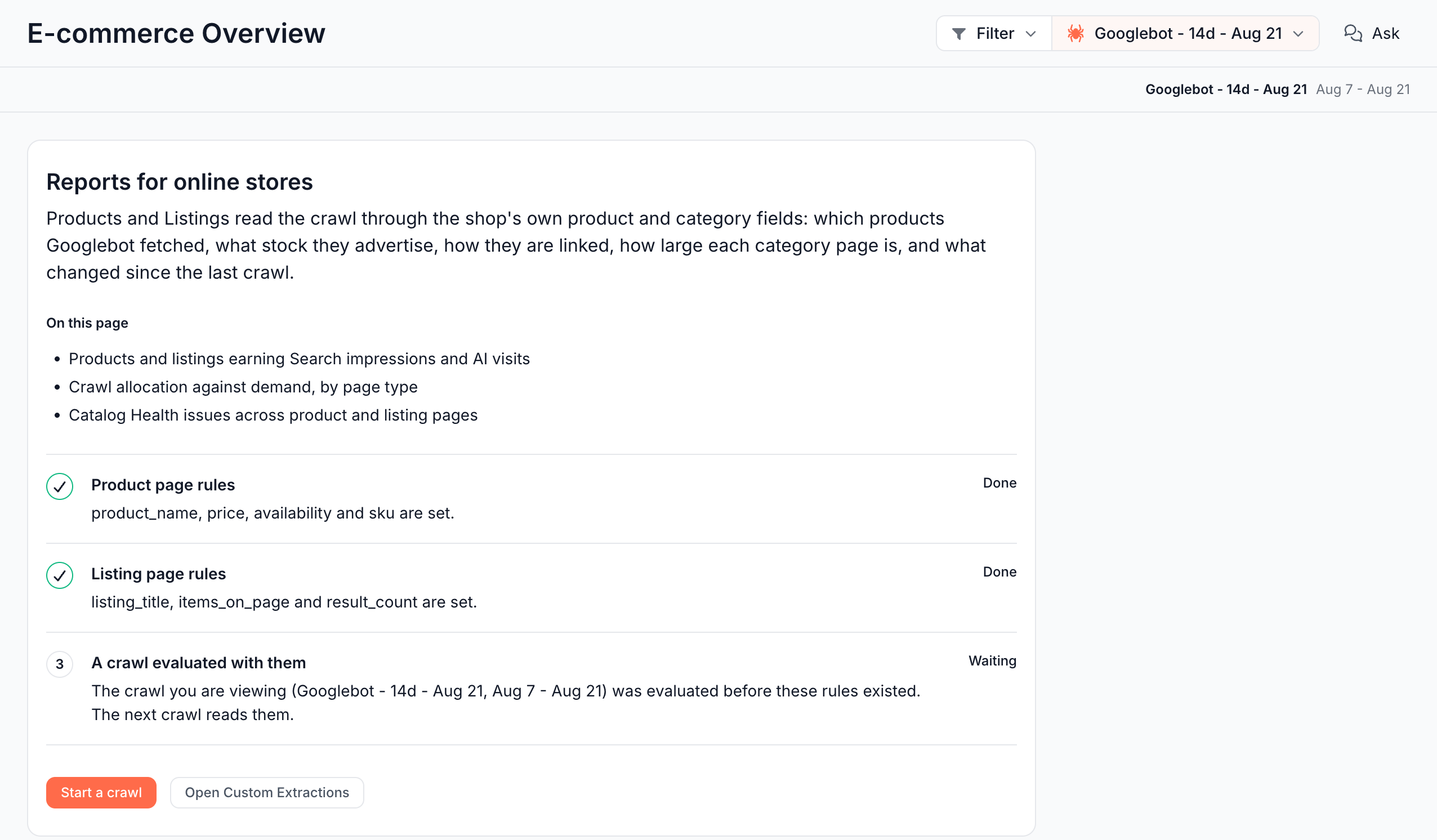
On an online store, EdgeComet's automatic setup usually writes these fields in your first days. You act only when a report shows Reports for online stores. See What EdgeComet configures on its own.
Product Feed needs one more thing: the URL of your Merchant Center feed. See Add your Merchant Center feed.
Before you start
- EdgeComet serves your site to bots, and the first crawl exists. See What happens in your first days with EdgeComet.
- For impressions on every report, connect Google Search Console. See Connect Google Search Console to EdgeComet.
- For page types on Overview, your segments need page types. EdgeComet creates segments in your first days. See Page types.
The fields the reports read
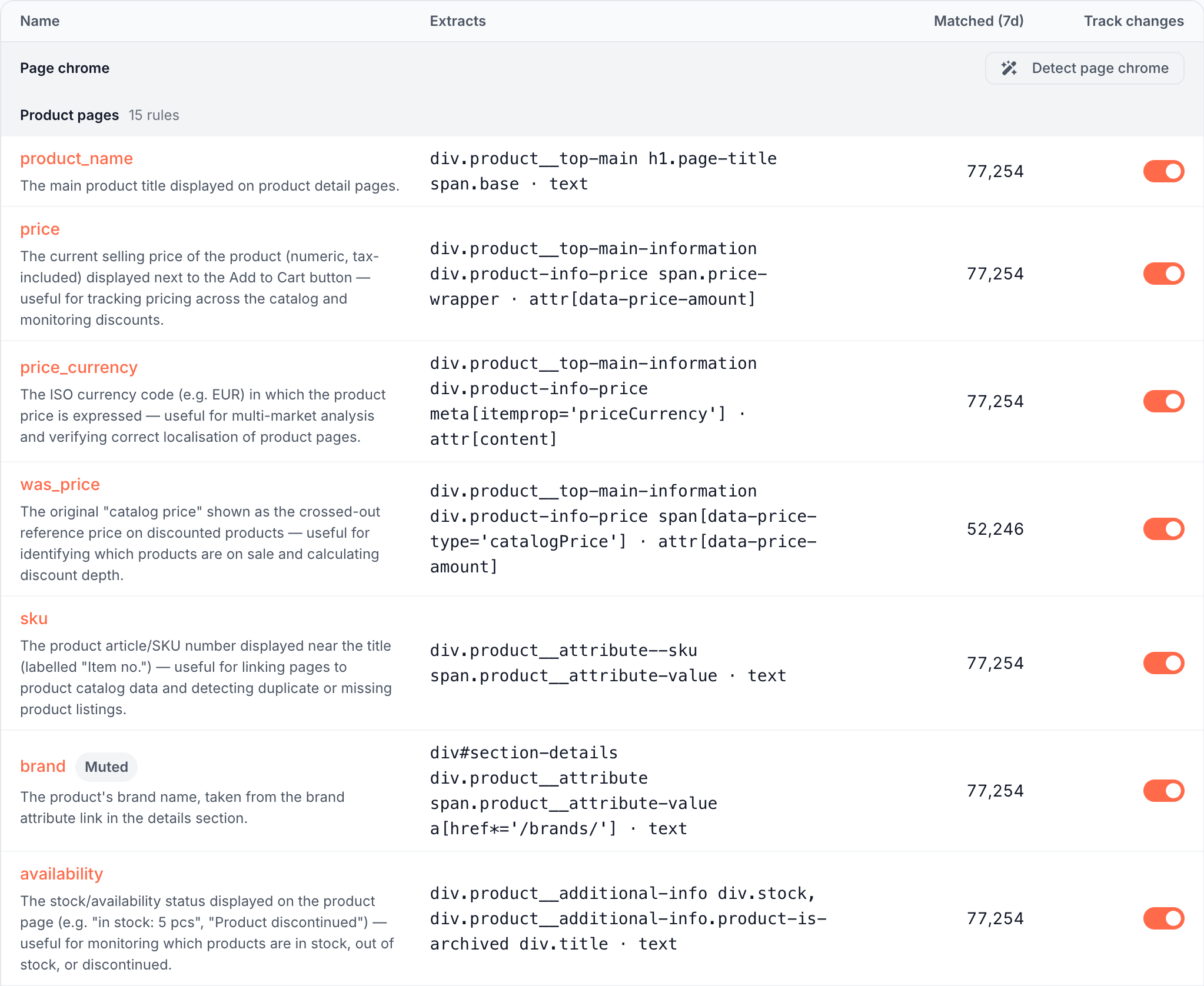
The reports read catalog fields: custom extraction rules with fixed names, each reading one value from the rendered page. Names match in any letter case.
Product page fields
A page is a product page when product_name has a value plus at least one of price, availability or sku.
| Field | What it reads | What it is for |
|---|---|---|
product_name | The product heading | Marks a product page (required) |
price | The price shown, as a number | Marks a product page; price checks against your feed and your Product markup |
availability | The stock badge text, such as "In stock" or "Only 2 left" | Marks a product page; availability tiers and stock checks |
sku | The printed item code | Marks a product page |
description_length | The length of the product description | Thin description checks |
Listing page fields
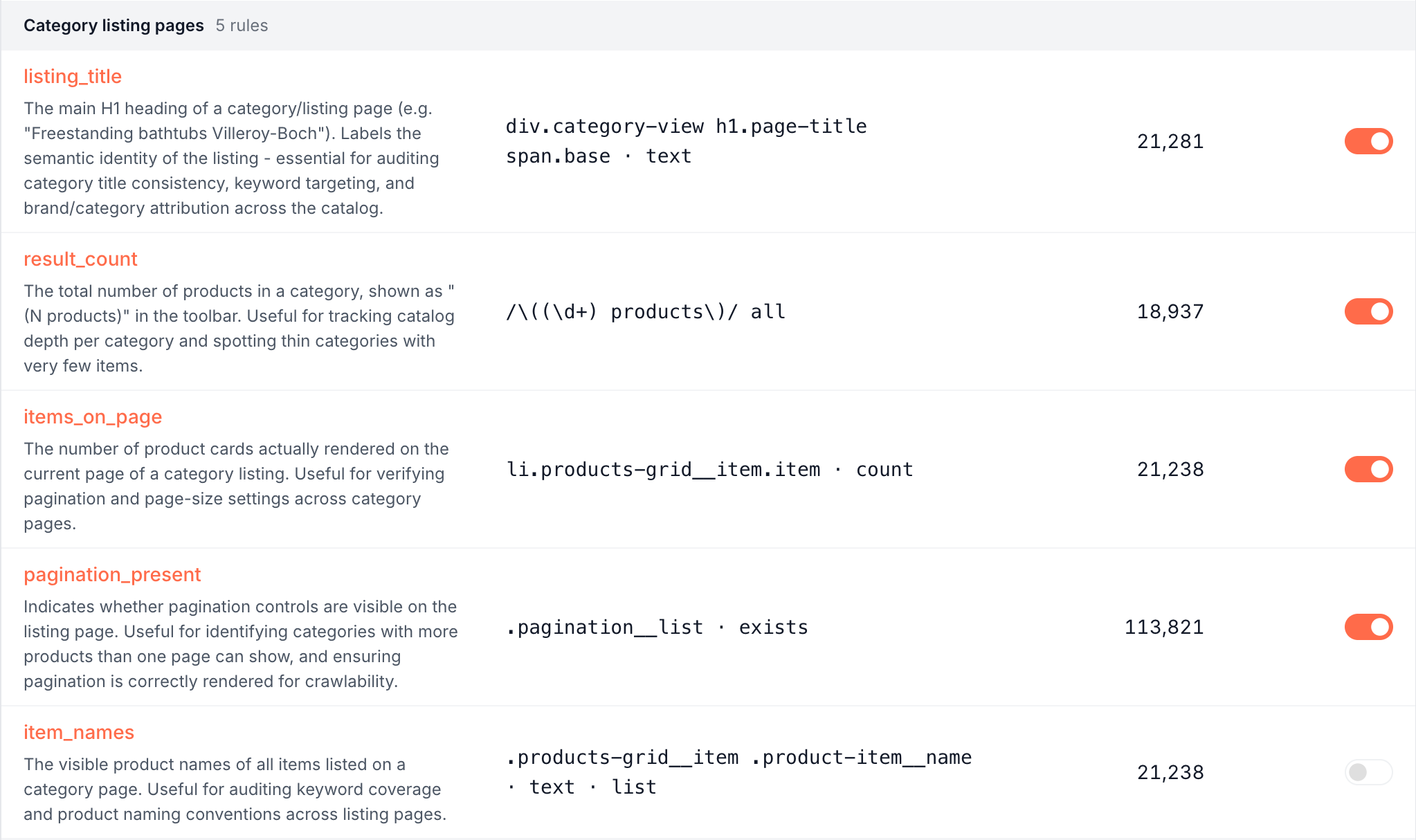
A page is a listing page when listing_title has a value plus at least one of items_on_page or result_count.
| Field | What it reads | What it is for |
|---|---|---|
listing_title | The category heading | Marks a listing page (required) |
items_on_page | The number of product cards shown on the page | Marks a listing page; thin listing checks |
result_count | The "N products" number in the toolbar | Marks a listing page; listing size |
pagination_present | Whether a pager shows | The Size unknown band on Listings and the Thin listings by result count check |
Listings counts a category on its own URL only, except in the facet table. See Listings are counted on their own URL.
EdgeComet keeps the fields working
EdgeComet checks the catalog fields every day. When a rule stops matching after a site release, EdgeComet re-tests it on real pages and repairs it.
Steps
Open E-commerce > Overview. If the report shows Reports for online stores, check its three setup items: Product page rules, Listing page rules and A crawl evaluated with them. The two rule items show Done, Partial or Missing and name the fields that are set or missing. The third shows Waiting, Pending or Unavailable.
If a rule item reads Partial or Missing, click Generate extraction rules. If the button reads Review proposed extractions or Open the running generation, a run is already open: open it and go to step 4. Configuration > Custom extractions opens with the AI window already holding this brief: "Author the catalogue fields the E-commerce reports read. On product pages: product_name (the product heading), price, availability (the stock badge) and sku. On category and search listing pages: listing_title, items_on_page (count of the visible product cards), result_count (the "N products" toolbar text) and pagination_present."
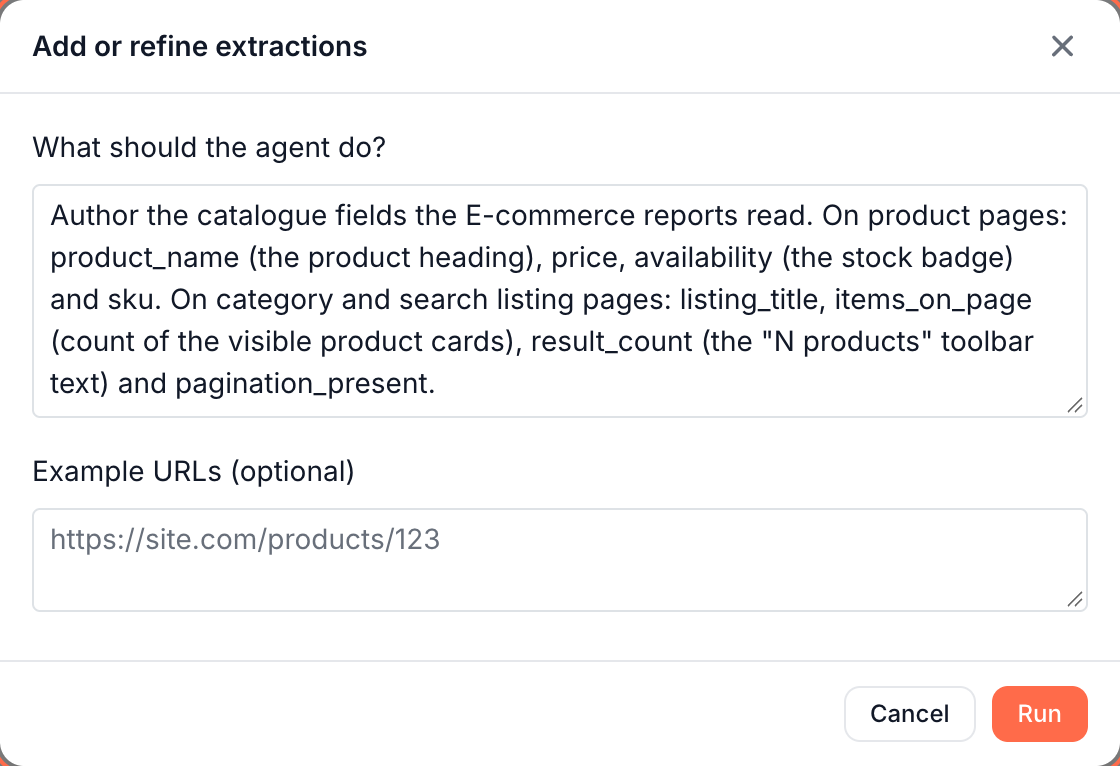
Optionally, paste a product page URL and a category page URL into Example URLs, then click Run. On a site with no extraction rules yet, the window is named Generate custom extractions and the button reads Generate.
When the run finishes, open Review proposed extractions. Each proposed field shows the pages it matched and real values from your pages. Accept or reject each field, then click Apply N rules -> live.
Wait for the next crawl, or click Start a crawl on the report to open the Crawls manager. See Start a custom crawl.
To write a field by hand instead, add a rule in Configuration > Custom extractions with one of the names in The fields the reports read. The Generate extraction rules brief does not ask for description_length: add it by name for the thin description checks.
The reports fill from the next crawl
The reports read the fields a crawl was evaluated with. A field you save today applies from the next crawl and never fills an older one. It reads only pages rendered after you saved it, which means its counts grow over the following crawls as pages are rendered again. The Current crawl is rebuilt every day.
The setup page says: "Rules apply from the next crawl after they are saved."
Add your Merchant Center feed
Product Feed and the checks that compare pages with your feed need the URL of your Google Merchant Center feed:
- Open Configuration > Caching > Merchant Feed Re-cache and turn on Enable re-cache.
- Paste up to 10 Feed URLs, one per line, and click Save.
The feed must be an RSS 2.0 or Atom XML feed in Google's product data format, plain or gzipped. The feed URL can be on any host, such as your feed tool's server. The product links in it must be on your website's domains, and the website needs at least one domain.
EdgeComet fetches the feed every hour by default, and you can set it as often as every 5 minutes. For the fetch interval and the re-cache options, see Re-cache products when your Merchant Center feed changes.
What you should see
- On Reports for online stores, Product page rules and Listing page rules read Done, such as "product_name, price, availability and sku are set."
- After the next crawl is evaluated, Overview, Products and Listings show their cards in place of the setup page.
- After the first feed fetch, E-commerce > Product Feed shows Items in the catalog and Fetch history.
If it does not work
"The crawl you are viewing (...) was evaluated before these rules existed. The next crawl reads them."
Cause: the crawl in the header predates your fields.
Fix: switch the header to Current, or wait for the next rebuild.
"Issues for {crawl} are still being calculated."
Cause: EdgeComet is still counting the crawl's issues.
Fix: none. The step clears on its own once the evaluation finishes.
"Product pages cannot be told apart"
The full text is "Product pages cannot be told apart: this site has no product_name rule, or no price, availability or SKU rule to confirm one."
Cause: the site has no product_name rule, or none of price, availability and sku. Listings shows "Listing pages cannot be told apart" when listing_title is missing, or both items_on_page and result_count are.
Fix: add the missing field, by name, or run Generate extraction rules.
"The {rule} rule this crawl was evaluated with no longer exists"
Cause: someone deleted or renamed a field after the crawl was evaluated.
Fix: restore the field with its exact name. The next crawl reads it.
Listings shows zero listings
Cause: your categories exist only on query-string URLs, such as ?cat=12. Listings counts a category on its own URL.
Check: remove the Listing URL form filter on the Listing pages tab to see the Parameter variant URLs.
Fix: none in the report. The Facet layer by parameter card and the Listing pages tab without the filter still list these category URLs.
A price check "could not run"
The reason reads "extraction rule 'price' stores whatever the page printed rather than a number, so it cannot be compared".
Cause: the price rule stores the text the page shows, not a number.
Fix: edit the price rule to store a number. The price checks against your feed and your Product markup run on the next crawl.
A feed check reads "this site has no product feed configured"
Cause: the full reason is "this site has no product feed configured, so its pages cannot be compared against one". No feed URL is on the Merchant Feed Re-cache rule, or the rule is off.
Fix: add your feed. See Add your Merchant Center feed.