

Ask overview
Ask is the EdgeComet AI SEO agent. You ask about your website in plain words, and it answers from your own data: what Googlebot and AI bots fetched, your Search Console performance and the Evergreen Crawl. Also called the AI SEO assistant.
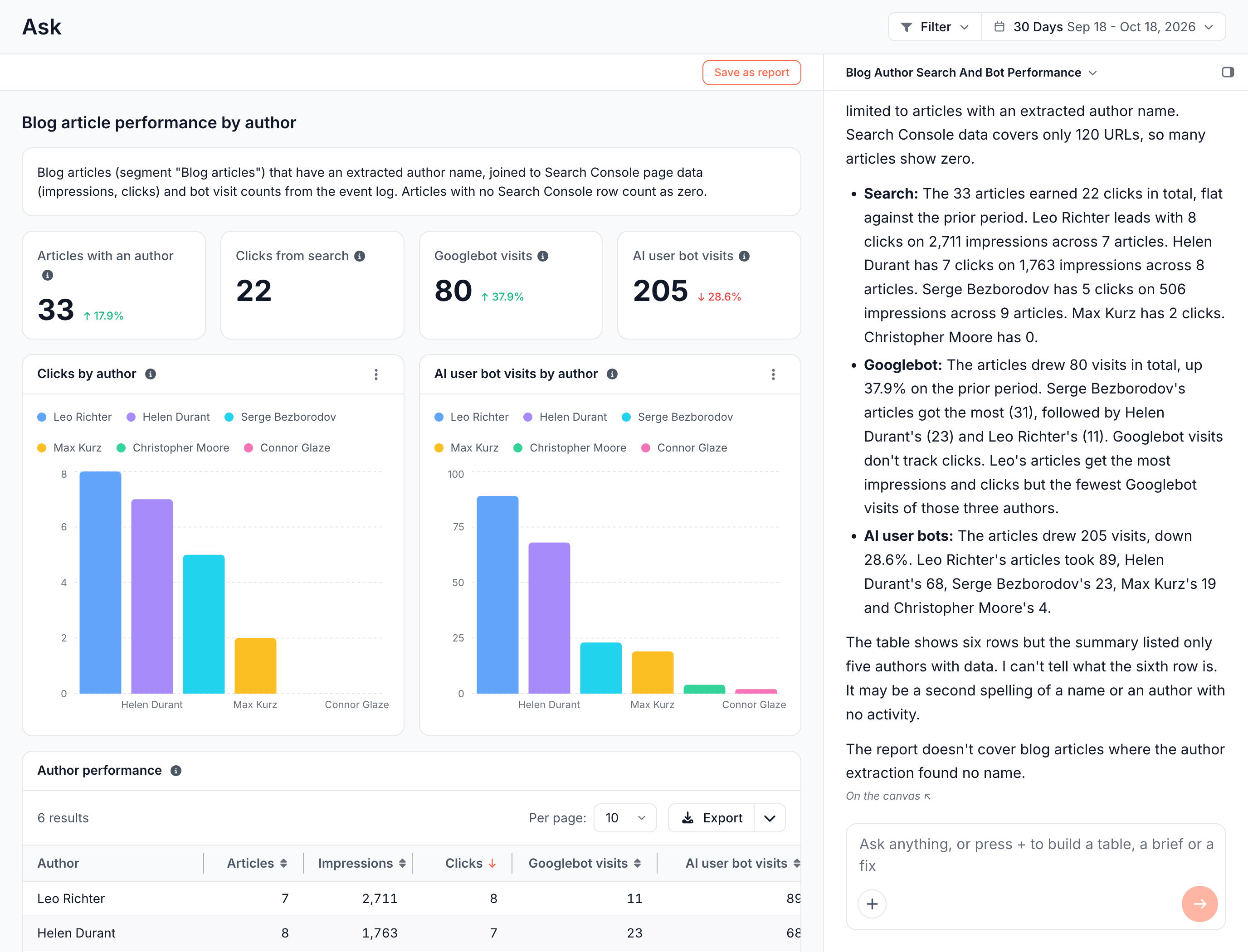
Answers about data open as tables and charts beside the chat. Tables stay live: they run again when you change the period or segment, and a follow-up such as "only blog pages" changes the table. You can sort, page and export them.
The same agent researches keywords, writes content briefs and article edits, and drafts Edge SEO fixes. Nothing it drafts goes live until a person deploys it.
How Ask works
Ask answers a question in three steps:
- It plans the answer. The agent decides which data the question needs and writes a query in the EdgeComet query language.
- The engine runs the query. EdgeComet checks the query and runs it over your data. The numbers in the table come from that query, not from the model.
- It explains the result. The table or chart opens on the canvas, and the chat says what it shows and which data it read.
The bot log, Search Console and the crawl share the same URLs. One question can combine them, such as pages AI bots fetch most that get no clicks from Google.
A table built from a query stays live and runs again when you change the period, segment or filter of the page. Figures no query can express, such as rows of keyword research, appear as a snapshot table. See Live tables and Snapshot tables.
What Ask can read
Ask reads your site's own data, your setup, any page on the web and live keyword data:
- Bot log: every request from Googlebot, Bingbot and AI bots that EdgeComet served, per request or per page. See Bot requests EdgeComet serves.
- Search Console: clicks, impressions, CTR and position per page and per query, page trends and daily site totals.
- Evergreen Crawl: pages, internal links, redirects and crawl issues, and the differences between two crawls. See Evergreen Crawl.
- Sitemaps: the URLs your XML sitemaps list.
- Your setup: custom extraction fields, saved segments, how the site serves bots (render and bypass rules, cache lifetimes), alert rules with their history, and Edge SEO rules.
- Dashboard reports: the numbers a report shows, read the same way the report page reads them.
- Any page on the web: the full content of a URL. Your own pages come through EdgeComet, which means Ask reads what a bot receives.
- Live keyword and search data: search volume, keyword difficulty and intent, the keywords a domain ranks for, keyword gaps against competitors, live search results with People Also Ask and AI Overviews, and backlink profiles.
Custom extraction fields and segments work in questions too. Ask can group pages by any value extracted from them, such as impressions per blog author. See What data Ask can read for each source with example questions.
What you can do with Ask
Ask answers questions, builds tables and reports, researches keywords, writes briefs, drafts Edge SEO fixes and runs skills. Each task has its own page.
Ask questions and follow up
Type a question in plain words, narrow it to chosen pages or a URL list, and follow up until the answer fits. Your whole team sees the conversations in the sidebar. See Start and manage Ask conversations.
Build tables and charts
Ask for the rows and numbers you need, such as "sitemap URLs Googlebot did not fetch this month". Tables re-run when you change the period or segment, and export to CSV or Google Sheets. See Build SEO data tables and charts from a question.
Build and save custom reports
A report answer combines stat cards, trend lines, charts and tables. Save as report keeps it as a custom report your team can open, change by asking, and restore to an earlier version. See Custom reports and Edit a custom report.
Ask about the report you are looking at
Every report has Ask in its header. Answers read that report's own numbers for your period and segment, and each report offers starter questions. See Ask about any report and Search and ask with Cmd+K.
Research keywords and competitors
Ask finds keyword ideas, qualifies them by search volume, difficulty and intent, checks live search results and compares your rankings with your competitors'. It starts from the queries your pages already get in Search Console. See Keyword research in Ask.
Write content briefs and improve articles
- Content brief turns a topic you have no page for into a brief a copywriter can work from.
- Article optimization reads one of your articles and proposes before-and-after edits in its own voice.
- Write content briefs for existing pages: briefs that start from an Action Board finding, one brief per page.
Rewrite titles and meta descriptions
Ask drafts titles, meta descriptions and H1s from each page's content and its Search Console queries, for one page or hundreds. See Titles and meta descriptions with AI.
Draft Edge SEO fixes
Describe a change, such as a noindex on filter pages or a list of redirects, and Ask drafts it as Edge SEO rules for you to review. See Draft Edge SEO fixes in Ask.
Create and change alerts
Describe an alert, such as "tell me when noindex appears on product pages", and Ask drafts it, tests it against your data and shows how often it would have fired. Nothing turns on until you accept it. See Create and change alerts by describing them to Ask.
Run skills
A skill is a saved workflow the agent follows from start to finish. Every site comes with five, and you can write your own:
- Keyword opportunity research
- Content brief
- Article optimization
- Technical SEO audit
- Blog fan-out coverage
To run one, open a new conversation, press + and choose Run a skill. Your Guidelines apply to every run. See AI SEO skills in Ask and Create a custom AI SEO skill.
Record findings for the Action Board
When a question turns up a problem worth fixing, Ask can record it as a finding. The finding appears in the chat with Add to board and joins the Action Board when you click it. See Findings from Ask and skills.
Start a question with the + menu
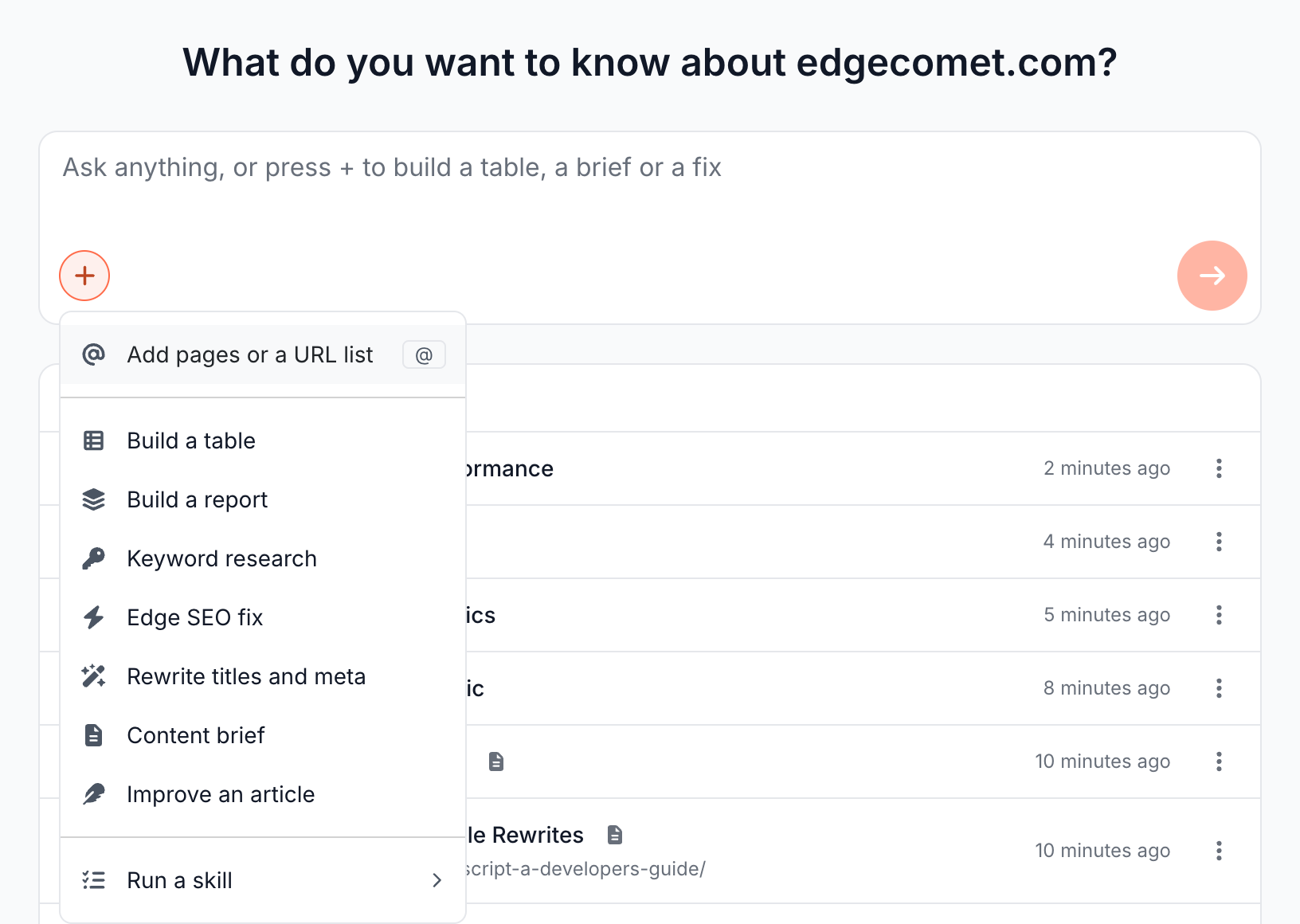
The + button in the composer, or / in an empty field, sets what your next question does. It can limit the question to chosen pages, build a table or a report, research keywords, draft an Edge SEO fix, new titles or an alert, write a brief or run a skill. See Choose what a question does with the + menu.
Where you can use Ask
Ask opens in five places, and each one reads the same data:
- Ask home: the Ask tab at the top of the sidebar, then New conversation. The tab lists your conversations under it, and your whole team sees them.
- Beside a report: Ask in any report header, or Cmd+. (Ctrl+.). See Ask about any report.
- Search and ask: Cmd+K (Ctrl+K). Type a question and it opens in Ask. See Search and ask with Cmd+K.
- Data Explorer: the first page starts Ask with Build a table. See Start from Data Explorer.
- Action Board: Ask in the board header, and the chat beside every finding. See Ask about the board and each finding.
How Ask differs from a general AI assistant or a DIY agent
- A general AI assistant works from what you paste into it. Ask reads your bot log, Search Console and crawl directly, and the engine computes every number in its tables.
- A keyword research tool shows search demand, but not what Googlebot and AI bots fetch on your site. Ask puts live keyword data next to your own traffic and crawl data, then goes on to the brief or the fix.
- An agent you build from MCP tools needs you to connect the data, define the workflow and check the numbers. Ask already reads your site's data, comes with five skills and drafts Edge SEO rules, and the engine computes every number. See the AI Action Board page.
To work with the same data from your own AI client, connect the EdgeComet MCP server.
What Ask does not do
- It does not publish on its own. Every page edit and rule it drafts stays a draft until a person deploys it in Edge SEO or on the Action Board task page, and every alert it drafts until a person turns it on from the review page.
Where to find it
In the dashboard: Ask > New conversation, from the Ask tab at the top of the sidebar. Skills and Guidelines are under Action Board > Skills, and the documents and generation runs the agent produced are under Action Board > Outputs. See Documents: briefs, research and exports.