

What happens in your first days with EdgeComet
After you install EdgeComet and connect Search Console, EdgeComet fills its reports and configures itself from your site's own data over about two weeks. The Getting started page tracks each step.
Search data is there from the first day. Bot reports start at the first visit from a verified bot, the first site audit follows 3 days later, and the first Action Board 3 to 4 days later.
Timeline
| When | What happens |
|---|---|
| Day 0 | You add the website, connect Search Console and install EdgeComet on your CDN. Bots are served with the default settings from the first request |
| Minutes to hours after you connect Search Console | Search Console history is imported: 180 days during a trial, 360 days on a paid plan. Search reports work before anything is installed |
| Within an hour after the import completes | Branded keywords and page segments are created |
| Usually within 24 hours of the install | The first verified bot visit. Bot reports start from here |
| Days 2 to 3 | Custom extraction rules are created for the fields your page templates carry, such as price or stock |
| Day 3 | The first Evergreen Crawl report, built from 3 days of bot visits |
| Days 3 to 4 | The first Action Board |
| Day 7 and later | Crawl budget rules specific to your site. A general baseline applies from day one |
| Days 7 to 14 | Link regions, which separate menu and footer links from links in your content |
| Day 14 | The Getting started page becomes Configuration > Connections > Status |
| Every 14 days | The Action Board analyzes the site again |
Bot-based steps count from the first verified bot visit. Steps that need data wait until there is enough of it. A small site can take longer, and a step that cannot run, for example without Search Console, does not hold up the others for more than 21 days.
The Getting started page
The Getting started entry in the sidebar shows how many of four milestones are done, such as 0 of 4:
- Installed
- First verified bot visit
- First crawl report
- First Action Board
Each milestone shows when to expect it. Below them are two lists.
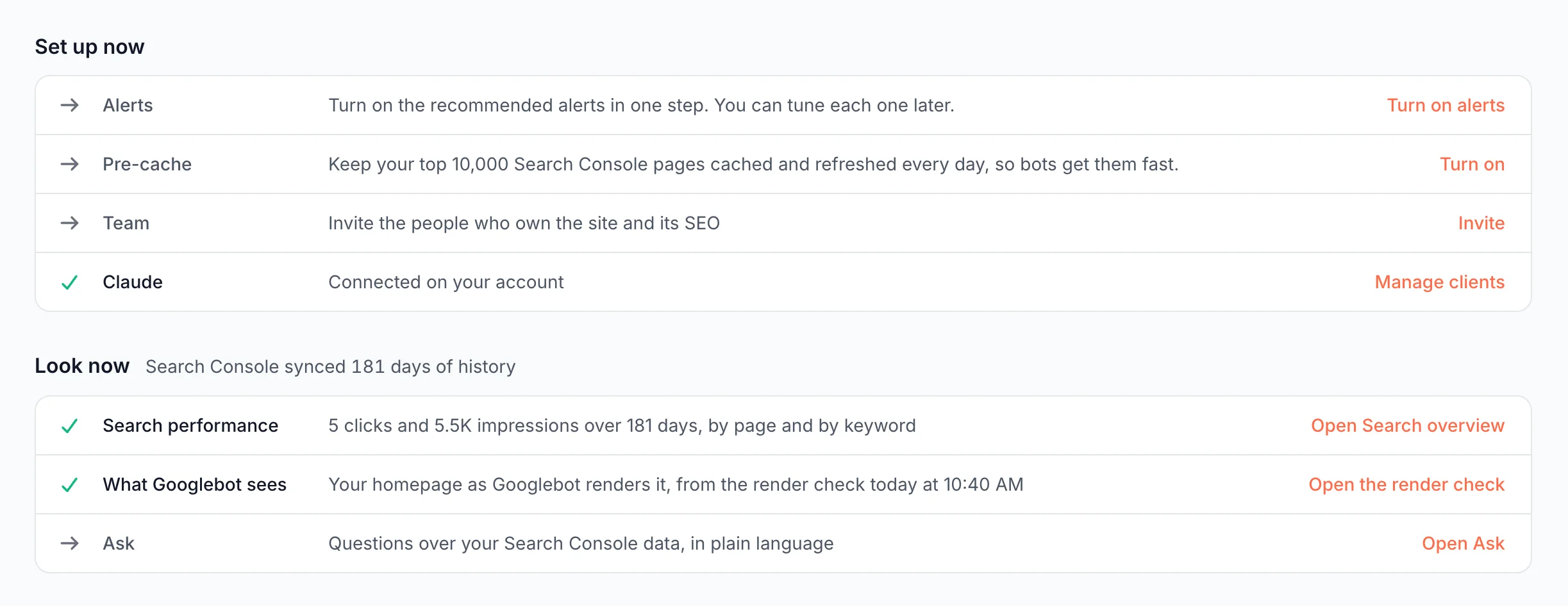
Set up now lists optional steps that make EdgeComet more useful early:
- Alerts: turn on the recommended alerts in one step, then tune each one later. See Turn on the recommended alerts.
- Pre-cache: keep your top Search Console pages cached and refreshed every day, so bots get them from the cache. See Keep your top Search Console pages cached.
- Team: invite the people who own the site and its SEO. See Invite your team.
- Claude: connect Claude or Claude Code to your EdgeComet data over MCP. See Connect an AI client.
- Search Console, if it is not connected yet.
Look now links to what already has data: your search performance from Search Console, What Googlebot sees from the render check on sites that render JavaScript, and Ask for questions about your data in plain language. See Ask overview.
What EdgeComet configures on its own
You do not need to configure reports before they are useful. EdgeComet sets up the following from your site's data and checks each result against that data before applying it:
| Setting | What it does |
|---|---|
| Branded keywords | Splits branded from non-branded search traffic. See Branded keywords |
| Segments | Groups your URLs by page type, such as product pages, listings and articles, so reports break down by section. See Segments |
| Custom extractions | Reads fields such as price, stock or review count from your rendered pages. See Custom extractions |
| Crawl budget rules | Classifies crawled URLs as valuable, questionable or wasted for your site. See Crawl Budget Rules |
| Link regions | Separates template links, such as menus and footers, from links in your content. See Link regions |
| Action Board | Picks the issues worth fixing and ranks them by priority. See Action Board overview |
You can edit segments and extraction rules at any time, and steer crawl budget rules with notes. If you create segments or extraction rules yourself before EdgeComet does, it keeps yours: the automatic segment run only adds segments next to them, and the automatic extraction run does not start on a site that has rules. See What EdgeComet configures on its own for the order of the steps and what you can change.
Reports before the first verified visit
EdgeComet reports on the requests it serves, so bot data starts at the first verified bot visit. There is no backfill from before the install.
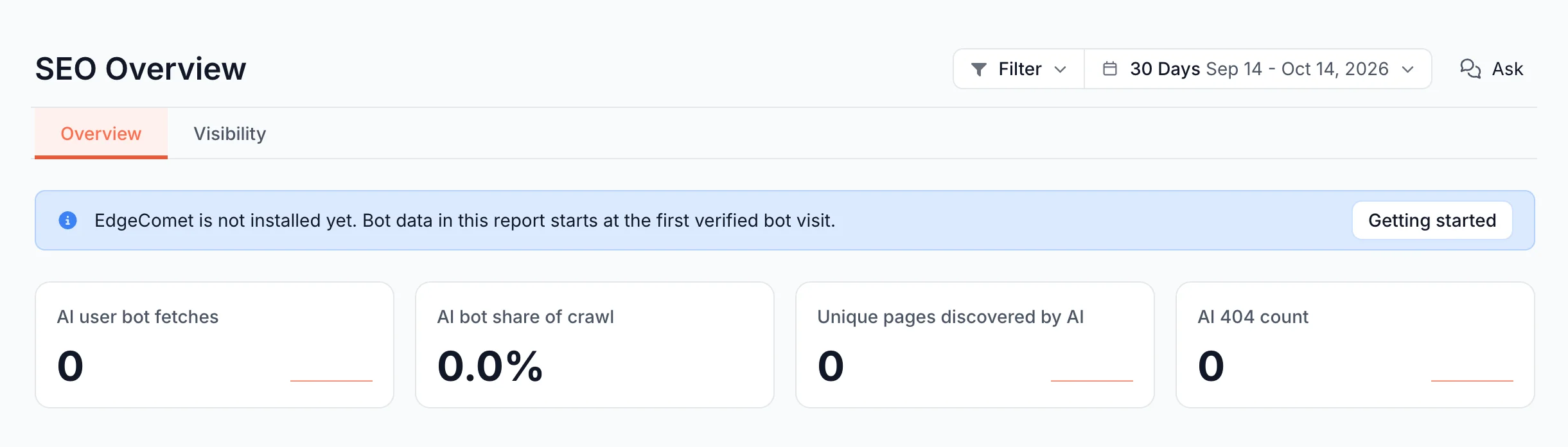
Until then, bot reports such as Overview, Log Analyzer, Cache and the AI bot reports show a notice with a link to Getting started. Search Console figures in the same reports already have data.
| Notice | Meaning |
|---|---|
| "EdgeComet is not installed yet. Bot data in this report starts at the first verified bot visit." | No install is recorded. See Route bot traffic |
| "Installed" with a date, "Bot data in this report starts at the first verified bot visit, usually within 24 hours." | The install is in place. Wait for the first verified bot |
| "Installed" with a date, "No verified bot visit yet." | 72 hours passed without a verified bot. See Check the integration |
| "Installed" with a date, "but the install needs a fix before bots reach EdgeComet." | Part of the install failed. See Route bot traffic: If it does not work and, on Cloudflare, Cloudflare: If it does not work |
The notice disappears once the site is live.
When the first days end
The first days end 14 days after the install, or earlier when all four milestones are done. Then:
- The Getting started entry leaves the sidebar.
- The same page becomes Configuration > Connections > Status, which lists what needs you, what runs on its own, and optional extras. See Watch integration health.
- A website opens on its Overview once verified bot traffic exists.
If it does not work
No verified bot visit after 72 hours
See Check the integration: No verified bot has visited since the install.
"Your first crawl is scheduled"
The first Evergreen Crawl report is built once the site has 3 days of bot visits, and the page shows the date. To see results sooner, click Run a crawl now to build one over the bot visits of the last 30 days.
Search reports are empty
Check the Search Console connection on Configuration > Connections > Search Console. While the import runs, Data shows the days loaded so far. See Connect Search Console.