

Write and generate custom extraction rules
You add custom extraction rules two ways: an AI run that reads your pages and proposes tested rules, or a rule you write yourself with a CSS selector, a pattern or both.
An AI run shows every proposed rule with real values from your pages before anything goes live. A rule you write goes live when you save it, and reads the pages EdgeComet processes from then on.
Before you start
- EdgeComet serves your site to bots and has rendered some of its pages. AI runs and Test a URL read your own pages.
- For the fields Shelf Edge and crawl checks read, use their fixed names, such as
priceorlisting_title. See catalog fields.
Generate rules with AI
On a site with no rules:
- Open Configuration > Custom extractions.
- Click Generate custom extractions.
- Optionally, open Guide the scan (optional). In Emphasize specific fields, name what you want, such as "product price and SKU on product pages". In Example URLs, paste pages of your site, one per line. Example URLs replace the pages EdgeComet would pick.
- Click Generate. The run page opens with Generating extractions and a live activity feed.
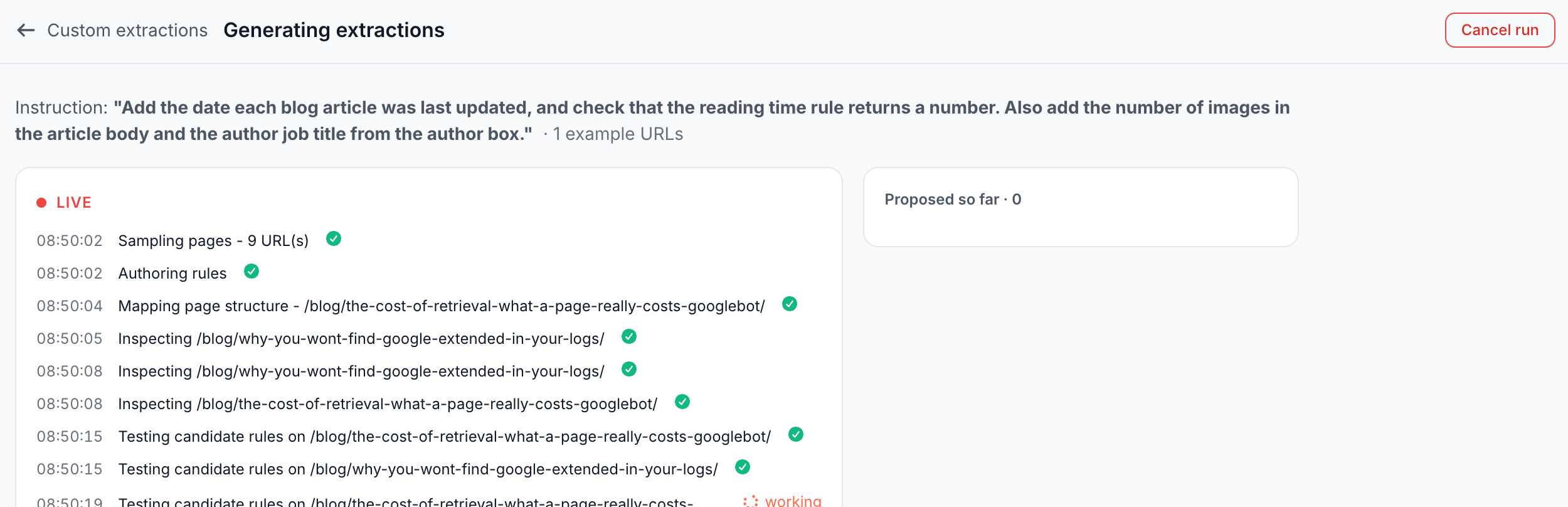
The run sorts sample pages into page types, named after your segments where it can, and each page type becomes a rule Group. It reads the rendered markup of each type and tests candidate rules on real pages:
- A rule is proposed only after it produced a correctly typed value on your pages, and a rule meant for one page type is dropped if it also returns a value on pages of another type.
- Selectors never rest on class names your build tool generates, and fields that structured data checks, such as
price, are read from the visible element, not from markup. - The run aims at fields EdgeComet does not already record for every page, such as the title, canonical or word count.
A run also looks for page chrome. Generate extraction rules on the E-commerce landing and Set up extraction rules on the Structured Data report open Generate custom extractions, or Add or refine extractions on a site with rules, with a brief filled in.
Add or refine rules with AI
On a site with rules, click Add or refine extractions:
- In What should the agent do?, describe the change, such as "add the brand on product pages" or "check the SKU rule is truly working".
- Optionally, paste Example URLs (optional), one per line.
- Click Run.
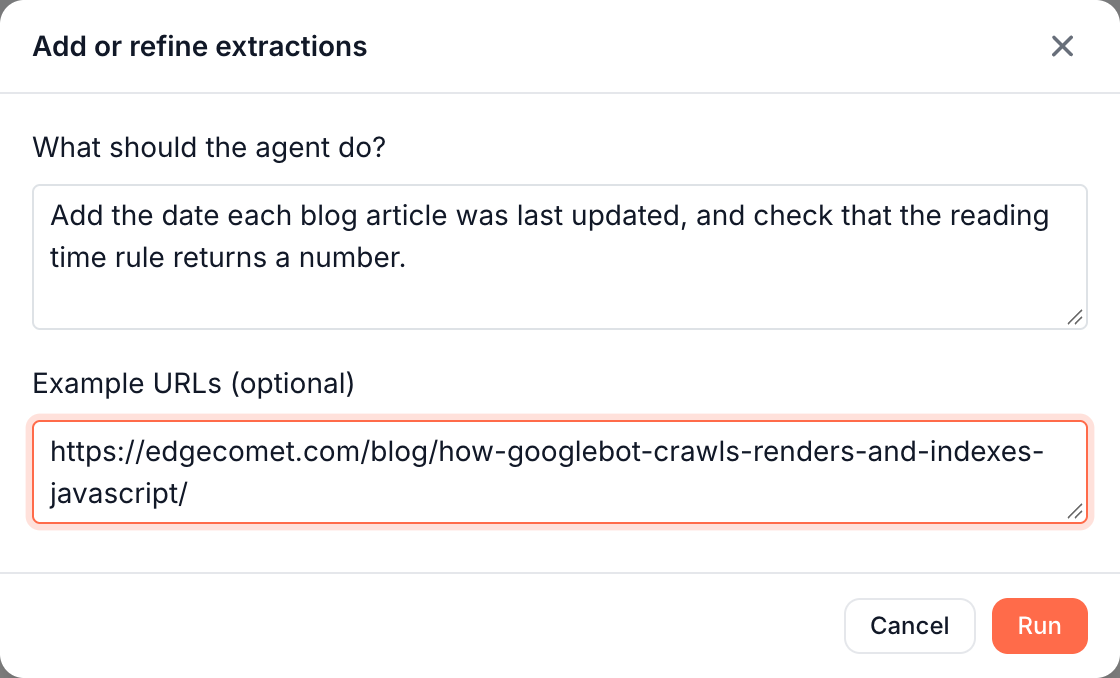
On a site with field rules, a run with a request works on the pages your current rules read, plus your example URLs, and does not look for page chrome. To add a field from a page type your rules do not cover, paste a few of its pages in Example URLs (optional).
A site runs one AI run at a time: while it is open, the button is disabled with the tooltip "An extraction run is in progress".
Review proposed extractions
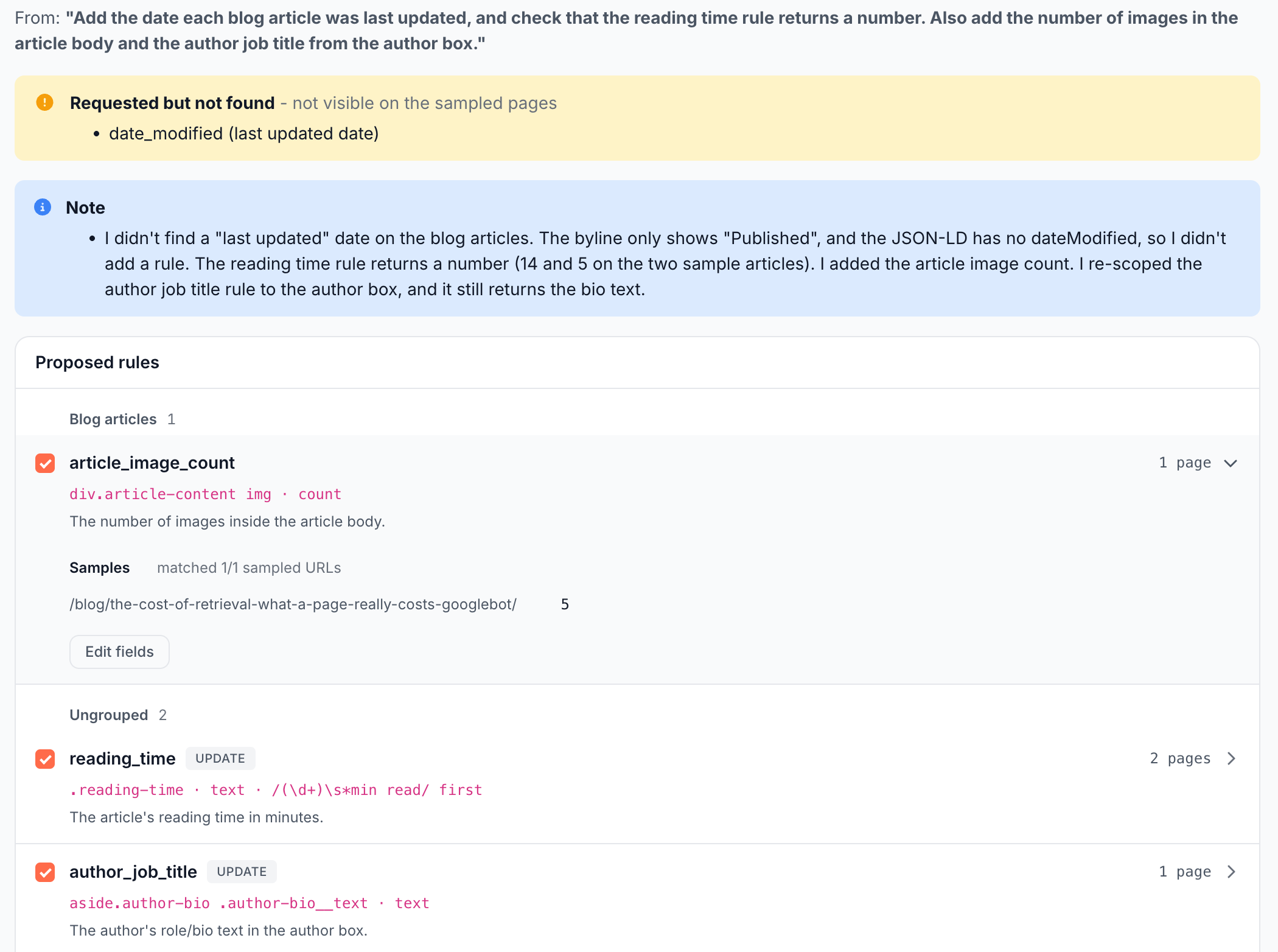
When the run finishes, the run page reads Review proposed extractions · N found:
- Requested but not found: fields you asked for that are "not visible on the sampled pages".
- Proposed rules, grouped by page type, each with a checkbox ticked by default, its definition and its coverage, such as 2/5 pages ("Extracted a value on 2 of 5 sampled pages").
- UPDATE marks a proposal that replaces an existing rule of the same name, including one you wrote.
Expand a rule to see Samples with real URL and value pairs, such as "matched 3/3 sampled URLs". An update also shows Change, the new definition against the old one, and Currently Extracting with live values.
Edit fields changes a proposal before it goes live. EdgeComet does not test the edited version again: its coverage reads "edited - not re-tested". Check it with Test a URL after you apply.
Refine these rules reruns the agent on the same sample pages with your follow-up, such as "tighten price to exclude the strikethrough sale price". The new run replaces this one, which reads "This run was replaced by a re-run".
Apply or discard a run
Apply N rules -> live puts every ticked rule live, after "Deploying your rules to live extraction". The run then reads "The rules have been applied" and "They are now live and will run on newly rendered pages." Untick a rule to keep it out.
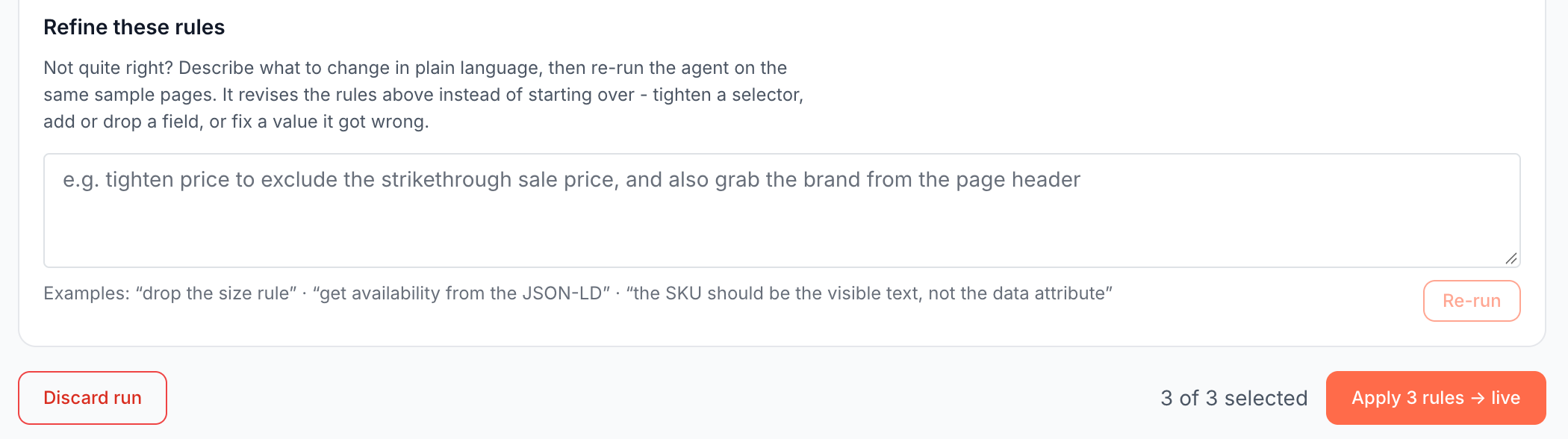
Discard run asks "Discard this run?" and nothing changes. A run with no proposals offers only Done. A failed run reads "The run could not be completed" and "Nothing was changed - you can try running it again."
Write a rule by hand
On a site with no rules, click or write a rule manually under Generate custom extractions. On a site with rules, change a rule with Edit rule in its quick view, or describe the new field in Add or refine extractions.
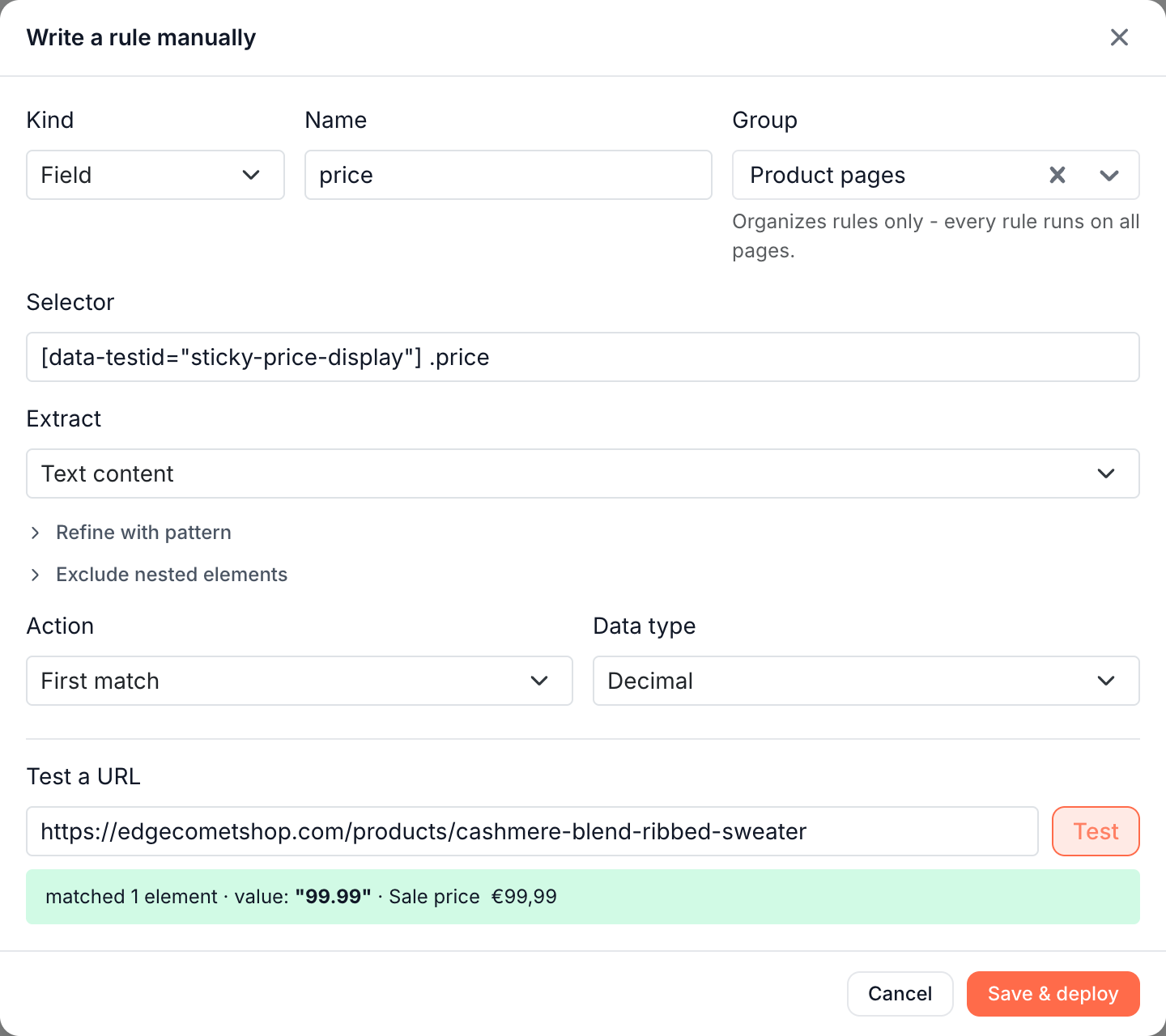
In Write a rule manually:
- Kind: Field reads a value. Page chrome removes a region from the page's main text. See Page chrome.
- Name: such as
size. A page chrome rule's name starts withchrome_. - Group: optional. "Organizes rules only - every rule runs on all pages."
- Selector: such as
.variant-size. Leave it empty to run a pattern on the whole page HTML. - Extract, Refine with pattern, Exclude nested elements, Action and Data type. See Rule options.
- Optionally, try the rule with Test a URL.
- Click Save & deploy. The rule goes live at once.
A page chrome rule is a selector with an optional Description, such as "Cookie consent bar".
Rule options
Extract
| Option | What it reads |
|---|---|
| Text content | The text of each element, hidden text included, with spaces collapsed. Use Exclude to drop scripts, styles or screen-reader text |
| Attribute value | The attribute you name in Attribute, such as data-sku or href |
| Inner HTML | The element's HTML, without its own tag |
| Outer HTML | The element's HTML, with its own tag |
Pattern and match handling
Refine with pattern adds a regular expression in RE2 syntax, which has no lookarounds or backreferences, and a Match handling choice:
| Option | What it keeps |
|---|---|
| Keep elements that match | Only the elements whose extracted value matches. Needs a selector |
| Extract first match | The first capture group of the first match |
| Extract last match | The first capture group of the last match |
| Extract every match | The first capture group of every match |
| Count matches per element | How many matches each element holds |
The three Extract options return the first capture group, which means the pattern needs one, such as (\d+) results.
A pattern without a selector that parses JSON-LD is refused with "rule: this regexp parses JSON-LD / structured-data JSON". For fields that structured data is checked against, such as price or date_published, read the visible element. For other fields, set the selector to script[type="application/ld+json"] with Inner HTML.
Exclude nested elements
Exclude lists elements "Removed from each matched element before extraction (e.g. script, style, .sr-only)". It has no effect on Attribute value.
Action
| Action | What the rule stores |
|---|---|
| First match, Last match | One value |
| All matches (list) | A list of values. See Where the values appear |
| Count elements | How many elements matched |
| Count unique | How many different values matched |
| Exists | true or false: whether anything matched |
| Count symbols | The number of characters in the values |
| Count words | The number of words in the values |
| Sum, Average, Minimum, Maximum | One number over the numeric values; others are skipped |
Sum, Average, Minimum, Maximum and Count matches per element need Integer or Decimal. Count elements, Count unique, Exists, Count symbols and Count words need no data type.
Data type
| Data type | How a value is read |
|---|---|
| Text | The text, trimmed |
| Integer | The first number in the text, without currency signs or words: "$1,299.00" gives 1299. Decimals are cut off |
| Decimal | The first number, with either separator style: "1.234,56 €" gives 1234.56 |
| Boolean | true, 1, yes or on, and false, 0, no or off, in any letter case |
| Date | Common formats, such as 2026-10-26, 26.10.2026, Oct 26, 2026 or 26 October 2026, saved as YYYY-MM-DD. 03/04/2026 reads day first, as 3 April |
A date with a time keeps the time. The value must hold only the date: use a pattern such as Published: (.+) to cut it out of longer text.
When nothing matches, or a value cannot be read as its data type, the page has no value for the rule. Exists always stores true or false.
Test a URL
Test a URL sits in Write a rule manually, in every edit window and in each rule's quick view. Enter a page of your site, such as https://site.com/products/123, and click Test.
EdgeComet renders the page live, never from the cache, applies your Edge SEO changes first, and records nothing. The result reads "matched N elements" with the value it found, such as matched 1 element · value: "99.99" in the Write a rule manually screenshot. For a page chrome rule it reads "removes X of Y characters of main text", with the removed text and the main text after removal.
Edit or delete a rule
In a rule's quick view, Edit rule opens Edit "{name}". Save changes puts the new version live: "The rule has been updated" and "It is now live and will run on newly rendered pages." The name and the kind stay as they are. Editing a rule clears its health label once it is live.
Delete rule asks "Delete this rule? It stops extracting immediately - this cannot be undone." When alerts read the field, the dialog adds a warning such as "The alert "{name}" reads this field and will stop working without it." EdgeComet's automatic setup does not bring a deleted rule back.
The 50-rule limit
A site keeps up to 50 active rules, field and page chrome rules together, shown as Rules: N / 50. Rules EdgeComet wrote on its own give way first: when a save or an apply would pass 50, EdgeComet switches off the newest of them, and an applied run reads "{n} rules were dropped because a limit was reached."
When rules you wrote, applied from a run or created with an alert already fill the limit, a save reads "This would leave {count} protected rules, over the 50-rule host cap. Remove some rules first." and an apply ends with "The run could not be completed".
If it does not work
"A rule named "{name}" already exists."
Names are unique per site. Edit that rule, or choose another name.
"A run is already in progress for this site."
A site runs one AI run at a time. Open that run from the chip above the rules, then apply, discard or cancel it. When the chip reads "Repairing extractions that stopped matching" or "Improving how extracted values are stored", wait for it to finish.
"No crawled pages were found for this site, so there was nothing to analyze."
AI runs pick sample pages from your Search Console pages, or from the pages bots fetched through EdgeComet when Search Console is not connected. Run it again once either has data, or paste pages of your site in Example URLs. See Check that bots reach EdgeComet.
"This URL did not render extractable HTML; try a different URL."
The page did not answer 200 with HTML, such as a redirect, an error page or a file. Test a page that shows the field. "That URL is not within this site's configured domains." means the URL is on another site.
A button does nothing or a change does not save
Changing rules and starting runs needs the Manager role or higher on the website. See Team roles and permissions.
Where to find it
In the dashboard: Configuration > Custom extractions. Runs you start open at their own page from the run chip above the rules.