

Fix an SEO finding: edge fix, dev task or content brief
Every finding offers one or more routes to fix it: serve new values at the edge, hand a brief to your developers, brief your writers, or track the work yourself. Also called fix routes.
You pick the route, and EdgeComet prepares the drafts or the brief from your own data. Nothing reaches your site until a person reviews it and deploys it.
The routes sit under The fix on the finding page. See Read an Action Board finding.
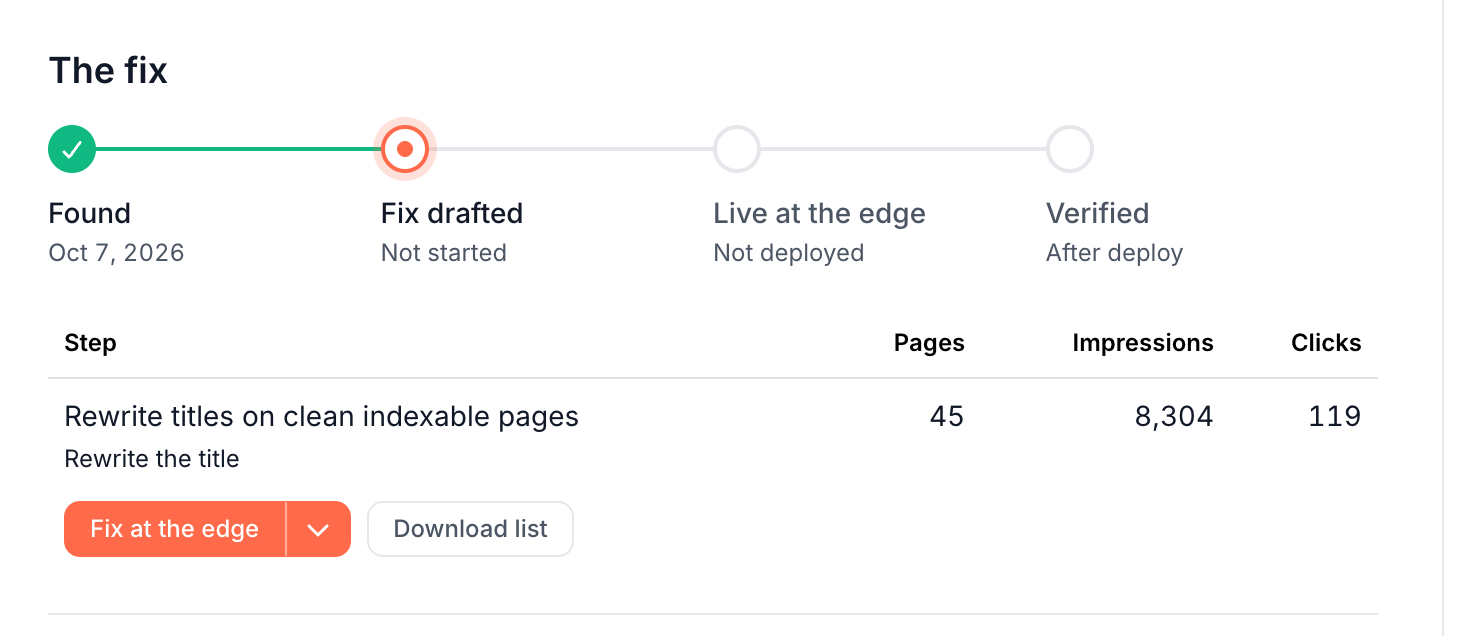
Where a fix stands
The progress at the top of The fix shows four stages, which depend on who fixes the finding:
| Track | Stages |
|---|---|
| At the edge | Found, Fix drafted, Live at the edge, Verified |
| Developers | Found, Brief written, With developers, Verified |
| Content team | Found, Briefs written, With writers, Verified |
Under the stages, one sentence says what happens next, with a button to the task, such as "The drafts are written. Review them, then deploy them at the edge." with Review the drafts.
The track follows the route you chose. When you hand an edge finding to developers, the progress switches to the developer stages. Verified arrives when the recount finds none of the finding's pages left to fix. See Confirm that an SEO fix worked.
What each step of a finding shows
Most findings list their job as steps. Each step is one action on its own set of pages:
- The step row shows the step's name, the action under it, its Pages, Impressions and Clicks. A link step counts its targets instead of pages.
- The pill shows Done when no page is left in the step, or Not counted yet before its first count.
- Click the step to see its pages in the left pane.
- The buttons under the step start a route. The first route is the main button, and the others sit in the menu beside it.
- Download list exports every page of the step as a CSV, with the columns the fix needs, such as current values or the suggested target URL, plus Googlebot and AI assistant requests.
- Needs no action, the last row, counts the finding's pages that no step covers.
The actions a step can carry:
| Area | Actions |
|---|---|
| Redirects and status codes | 301 to the closest live page, Point the redirect at one live page, Return 410 Gone |
| Robots directives | Set noindex, follow, Remove noindex |
| Canonicals | Point the canonical at the page itself, Point the canonical at another URL |
| Titles, descriptions and H1 | Rewrite the title, description or H1, named after the fields it changes, such as Rewrite the title and meta description |
| XML sitemap | Remove from the XML sitemap, Add to the XML sitemap |
| Links, content and templates | Add contextual links, Rewrite or expand the content, Fix the page template |
While a finding is Paused, its route buttons and Download list stay disabled: "This card is paused until its pages can be counted again".
Fix routes a step offers
A step offers the routes that fit its action:
- Fix at the edge: EdgeComet writes or sets the new value for each page of the step. A step with more than 100 pages runs in batches of 100. You review the values, then the edge serves them to every bot with no release. Edge fixes cover titles, meta descriptions, H1, canonicals, robots directives, redirects and status codes.
- Fix the top 100 at the edge: a step with more than 100 pages starts with the 100 pages with the most Search Console impressions. While that batch is open, the button reads Open the edge task. Once the batch is verified, it reads Fix the next 100 at the edge.
- Fix at the edge with one rule: one pattern-based Edge SEO rule covers every page of the step. EdgeComet builds the rule without AI and saves it as a draft. Nothing deploys until you review it.
- Create dev task: one brief for your developers, with the problem, the evidence, the fix and how to confirm it. See SEO developer briefs and tickets from the Action Board.
- Write N content briefs: one brief per page for your writers, or Brief top 50 for the 50 pages with the most impressions. See Write content briefs for existing pages.
Each route opens the launch dialog. Click Confirm & run to create the task. Its task page opens, and the drafts appear there. See AI generation runs: how EdgeComet drafts SEO fixes and Review and deploy fixes from the Action Board.
Which route comes first
Edge routes come first, because they fix the pages with no release. The developer brief comes first in one case: a step with more than 100 pages whose new values the AI writes, such as titles.
A field wrong on that many pages usually comes from a template, which developers fix once for every page. Meanwhile, the edge batch in the menu fixes the 100 pages with the most Search Console impressions.
Findings without steps
When an analysis skill, Ask or a skill run recorded the finding, The fix shows a chooser instead of steps. With two or more routes, each route is a card, and the first one carries Recommended:
- Write new values for N pages or for the top N pages (Edge SEO): EdgeComet drafts the fields the card names, such as "Rewrites the title and meta description". You then deploy them at the edge, save them as drafts or download a CSV.
- Draft one scoped rule (Edge SEO): one pattern-based Edge SEO rule covers the whole finding, and you review its blast radius before it deploys.
- Brief a writer (Content): Write N content briefs or Brief top N.
- Hand off to developers (Developers): Create dev brief.
- Just track it: a task to follow up by hand, with no draft.
- A custom skill (Custom skill): appears when the analysis found that one of your skills fits the finding.
Select a card and click the button under the cards, which repeats the card's label. A finding with one route shows a single row with Start, Track it or Run.
Once a task exists, the chooser closes. Change approach opens it again when the finding offers another route.
Run a skill on a finding's pages
Run one of your enabled skills on the finding's top 20 pages to look for related opportunities on them. Run an analysis on these pages lists the skills, collapsed by default.
- Open Run an analysis on these pages and click Run beside a skill.
- Optionally type a Focus for this run, up to 1,000 characters.
- In the confirmation dialog, click Confirm & run.
The skill runs in the chat on the right, on the 20 pages with the most Search Console impressions. Custom skill run on the finding page tracks it. See Skills.
Confirm a route in the launch dialog
The launch dialog confirms what the route does before anything runs. Its title repeats the route, such as Fix at the edge?, and the line under it names the step and its pages, such as "(all 84 pages)" or "(top 100 of 3,120 pages)".
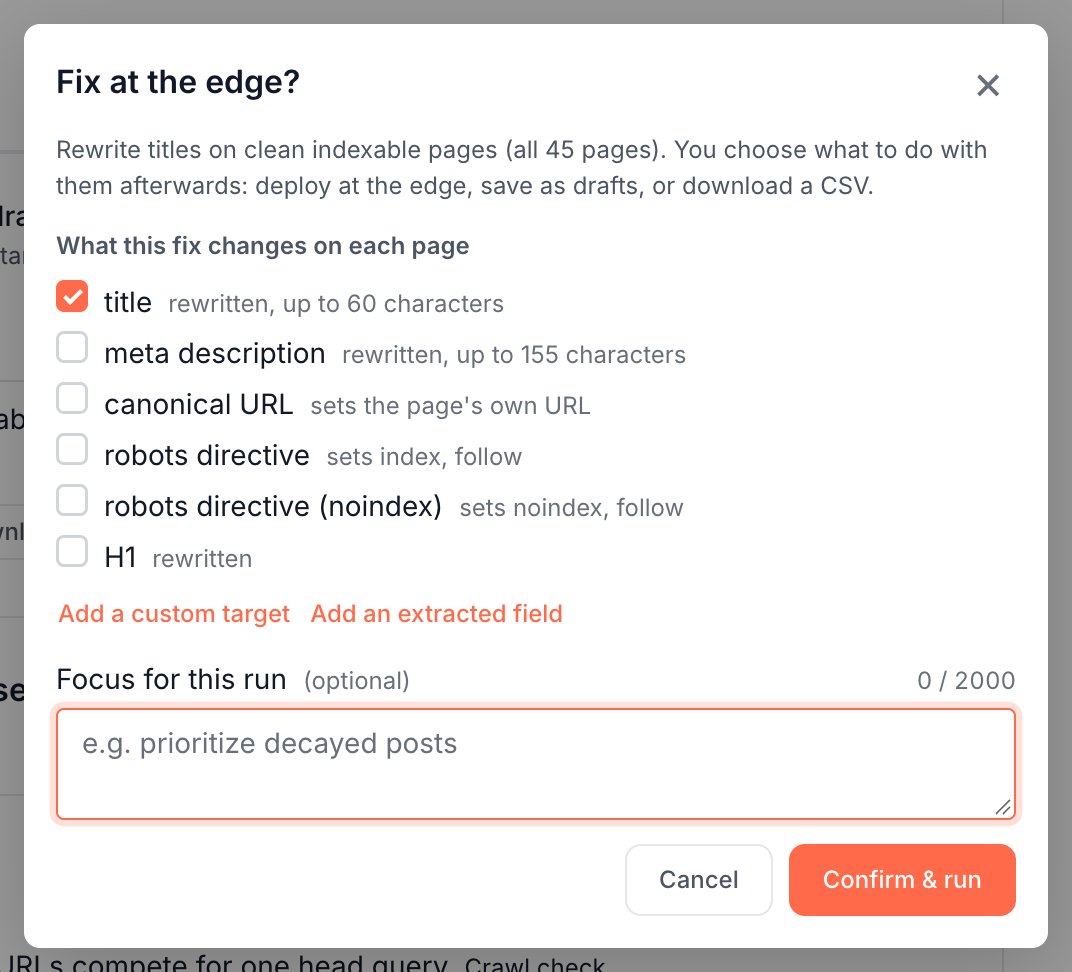
- Focus for this run (optional): steers the AI for this run only, up to 2,000 characters, such as "prioritize decayed posts". It appears only on routes where the AI writes the values. Fixed values and deletions, such as a self-referencing canonical, a robots directive or the one-rule route, have no focus box.
- Confirm & run creates the task and opens the task page.
To steer every run, not only this one, write it in your Guidelines.
If the task is created but its run cannot start, the finding reads "Task created, but generation didn't start:" with the reason. Start it again from the task.
Choose what the fix changes
The Fix at the edge dialog opens with "What this fix changes on each page", already ticked from the step:
- title: rewritten, up to 60 characters.
- meta description: rewritten, up to 155 characters.
- canonical URL: sets the page's own URL.
- robots directive: sets index, follow.
- robots directive (noindex): sets noindex, follow.
- H1: rewritten.
To change something else on the page:
- Click Add a custom target and type a CSS selector, such as
.promo-badge. - Choose Change or Delete. For a change, choose Its text or An attribute, and name the attribute.
- Read the check under the target. EdgeComet tests the selector on 5 of the finding's sample pages, such as "matches 1 element on 5 of 5 sample pages" or "matches nothing on the 5 sample pages". Hover the line to see the matched markup on each page.
Add an extracted field rewrites one of your custom extraction fields in place, such as a product name.
Confirm & run stays disabled until you tick at least one target, with "Choose at least one thing to change on the page". Past 20 targets, the dialog reads "A fix can change at most 20 things on a page".
Where to find it
In the dashboard: Action Board > Board, open a finding, then The fix.