

Share one website or leave a shared one
The EdgeComet Configuration > Sharing page gives people access to one website and sets their role on it. Use it when someone should work on one site, or needs a different role there. Also called per-site access.
Team Access also gives access to some of your websites, with one role on all of them. Sharing sets the role for this one website and lists everyone who can open it.
Before you start
To share a website, you own it. Sharing appears under Configuration for the Owner only, and Admins of the website do not see it.
Leaving a website shared with you needs no setup. See Leave a website shared with you.
Who has access
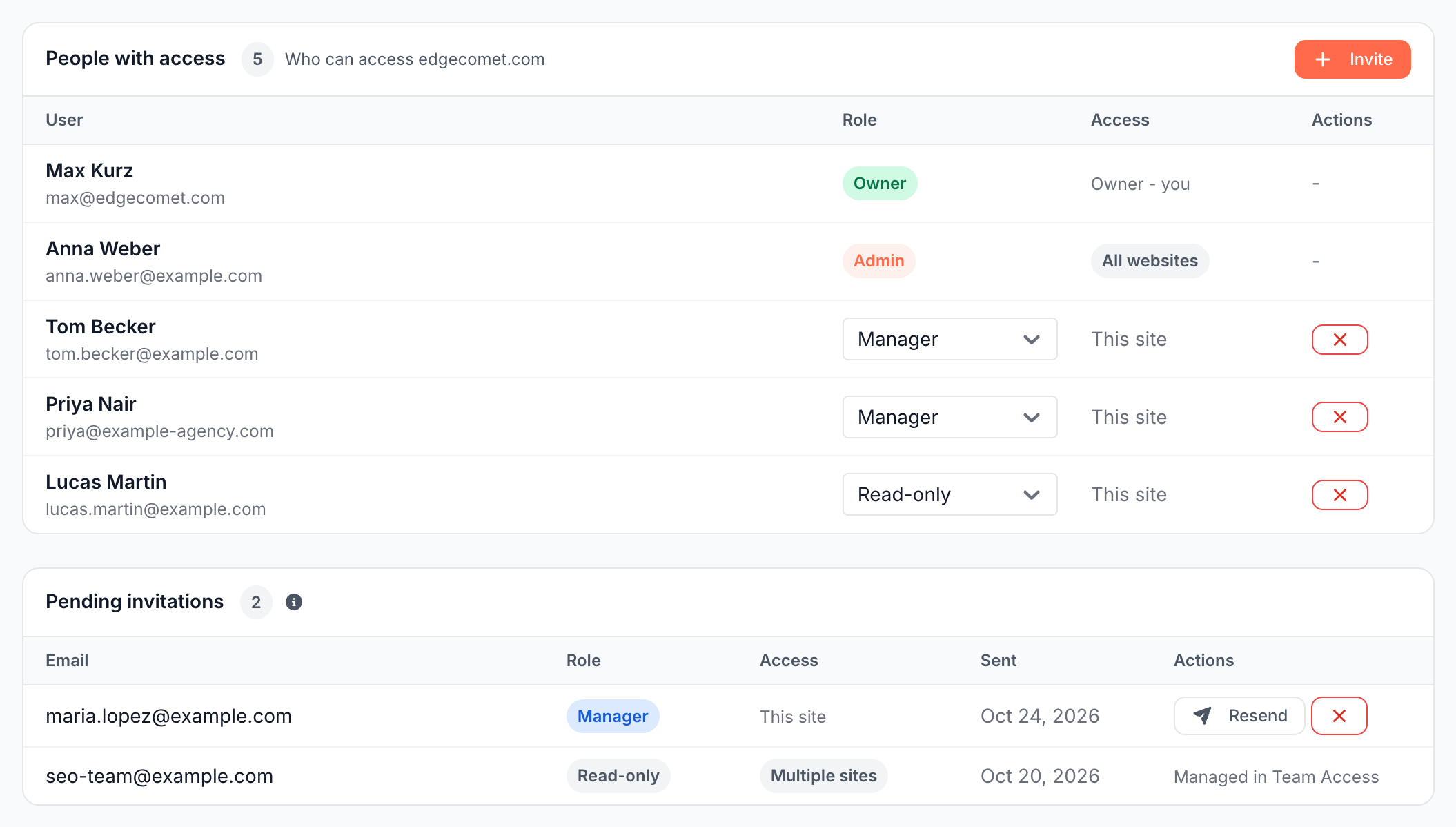
People with access lists everyone who can open the website, under "Who can access {domain}":
- You: the Owner row reads "Owner - you".
- People with access to specific websites: a role dropdown and This site under Access, with a button to remove them. This includes people you invited from Team Access with Select specific websites.
- People with all your websites: greyed out, with All websites under Access. You change them in Team Access.
With nobody else, the table reads "No one else has access to this site yet."
Invite someone to this website
- Open the website, then Configuration > Sharing.
- Click Invite.
- In Invite to {domain}, enter the Email address and choose the Role.
- Click Send Invitation.
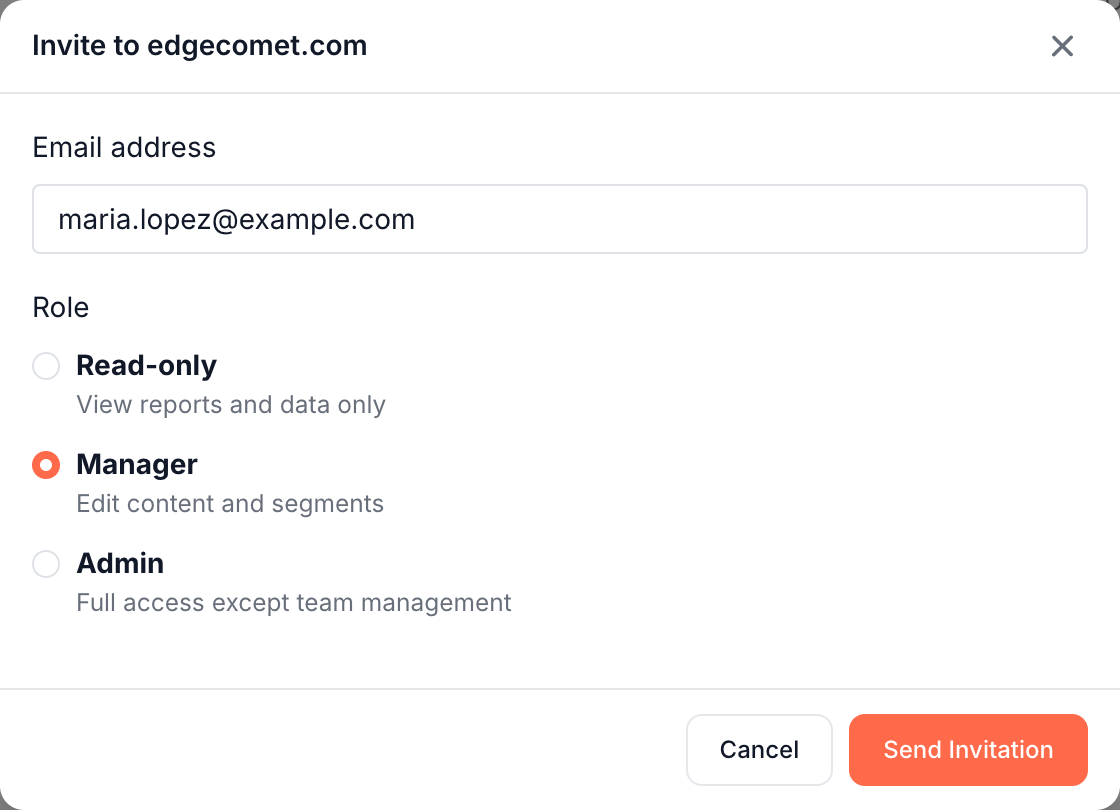
A person who already has an EdgeComet account gets access at once, and the page confirms "Access granted." Their email reads "{your name} shared {domain} with you on EdgeComet".
Anyone else gets an invitation email for this website, valid for 7 days, and the page confirms "Invitation sent." See What the invited person gets.
Change someone's role on this website
Pick a new role in the dropdown on their row. The page confirms "Role updated." The member gets an email, "{your name} updated your access on EdgeComet", that names the website and the new role.
The role applies to this website only. Their other websites keep their own roles, and Team Access shows Mixed when the roles differ. See Different roles on different websites.
Remove someone from one website
Click the cross button on their row and confirm "Remove {name}'s access to {domain}? They keep access to any other sites you have shared with them." The page confirms "Member removed."
The member gets an email, "{your name} removed your access to {domain} on EdgeComet". To remove someone from all your websites, use Team Access.
Pending invitations
Pending invitations lists "Invitations that grant access to this site", with the role, the access, and the date sent. Access reads This site, Multiple sites or All websites.
Invitations for this site only have Resend and a cancel button. Invitations that cover several sites or all websites read "Managed in Team Access", and you change them there.
Leave a website shared with you
You leave a shared website with the leave button in the website selector at the top of the left strip. Expand the strip if it is collapsed.
The selector lists the websites shared with you, with your role and "Shared by {owner name}". The leave button, with the tooltip Leave share, sits at the right of each shared website.
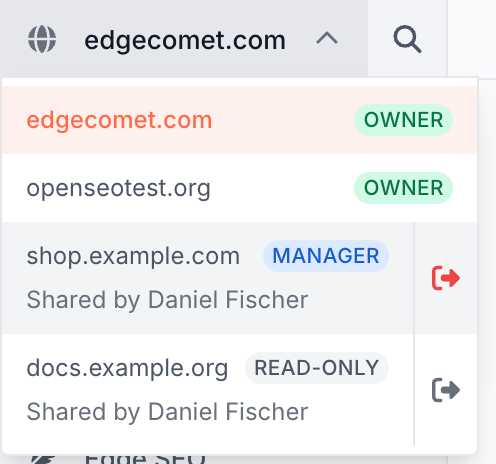
- Open the website selector.
- Click the leave button next to the website.
- In "Leave {domain}?", which reads "You will lose access to this website.", click Leave.
If the owner shared all their websites with you, you leave all of them at once. To get access back, ask the owner to invite you again.
The agency access that comes with a client account cannot be left this way.
If it does not work
"This person already has access to this website."
They are already on the list, with specific websites or with all your websites. Change their role in the dropdown, or in Team Access for all-websites members.
"An invitation covering this website is already pending."
An open invitation already includes this website. Resend or cancel it under Pending invitations, or in Team Access when it reads "Managed in Team Access".
Sharing is missing under Configuration
Only the website's Owner sees Sharing. Ask the Owner to share the website, or to change your role.
Where to find it
In the dashboard: open the website, then Configuration > Sharing, the last entry under Configuration. The leave button is in the website selector at the top of the left strip.