

Set rendering, bypass, blocking and status codes per URL
URL rules change how EdgeComet serves the URLs that match them. A rule can render or bypass them, block them, answer with a status code such as 404 or 410, or give them their own render and cache settings.
Rules can also match by bot, so one crawler gets different treatment on some paths.
You manage them under Configuration > System Settings > URL Rules.
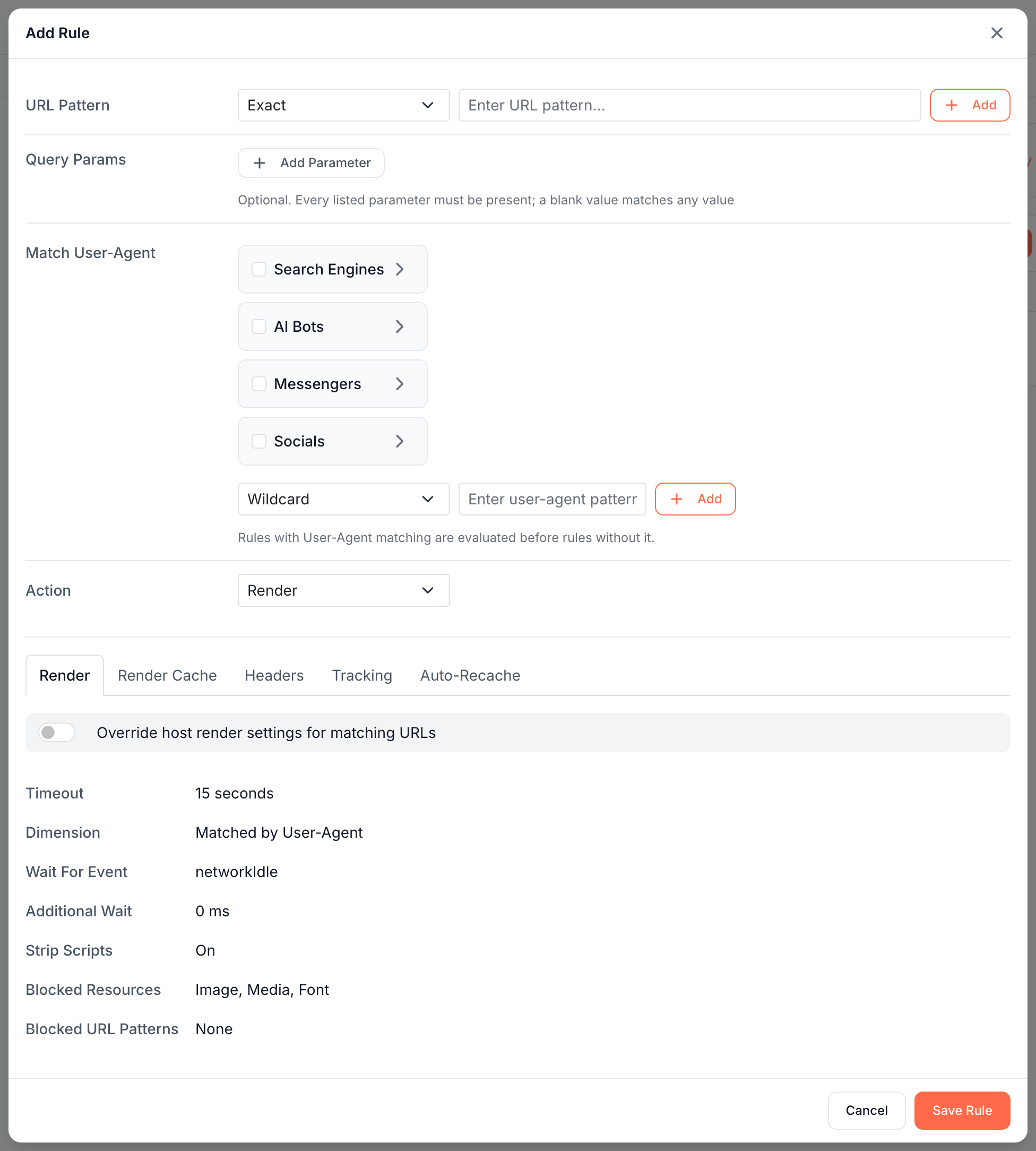
Add a URL rule
A URL rule pairs URL patterns with an action and optional settings. One rule applies per request.
- Open Configuration > System Settings > URL Rules and click Add Rule.
- Under URL Pattern, pick a match type and enter the pattern, then click Add. Exact matches one path, Wildcard uses
*, such as/blog/*, and Regex or Regex (i) take a regular expression, case-sensitive or not. A rule takes up to 50 patterns of up to 1,000 characters each. - Optional: under Query Params, add parameters the URL must carry. "Every listed parameter must be present; a blank value matches any value."
- Optional: under Match User-Agent, pick bots or add a user agent pattern so the rule applies to those bots only. See Rules for one bot.
- Choose the Action. See Actions.
- For Render and Bypass, open a tab and turn on its override switch to change settings for matching URLs. See Override settings for matching URLs.
- Click Save Rule, then Deploy in the banner. See Deploy, roll back and restore settings.
Actions
| Action | What bots get |
|---|---|
| Render | The page rendered in headless Chrome |
| Bypass (direct fetch) | Your server's HTML without rendering |
| Block (403) | 403 Forbidden |
| Not Found (404) | 404 Not Found |
| Gone (410) | 410 Gone |
| Custom status | Any Status Code from 300 to 599, with an optional Reason of up to 200 characters as the body and your own Response Headers. "3xx redirects need a Location header" |
Status actions answer at once, before the cache lookup and without a request to your server. The response carries EC-Source: status.
Override settings for matching URLs
A rule with the Render or Bypass action can change settings for its URLs. Each tab has a switch, such as "Override host render settings for matching URLs". While it is off, the tab lists the website values the URLs keep.
| Tab | Settings | Limits |
|---|---|---|
| Render | Dimension (render with one dimension's viewport and user agent), Timeout, Wait For Event, Additional Wait, Blocked URL Patterns, Blocked Resource Types, Strip Scripts | Timeout 5 to 120 seconds, additional wait up to 30 seconds |
| Render Cache | Cache TTL, Cacheable Status Codes, When Cache Expires, Stale TTL | TTL 1 minute to 30 days, stale period 1 hour to 7 days |
| Bypass | Timeout, User-Agent, Bypass Cache, Cache TTL, Cache Status Codes | Timeout 5 to 60 seconds, TTL 1 minute to 30 days |
| Headers | Request Headers, Response Headers (Extend or Replace), Set Request Headers | |
| Tracking | Strip Tracking, Parameters (Extend or Replace) | An empty Replace list strips nothing |
| Auto-Recache | Enable Auto-Recache, Recache Interval, Trigger Bots | 30 minutes to 24 hours |
The Render tab offers 19 resource types to block, including Script, XHR and Fetch, which the website-wide setting does not offer. Page scrolling is a website-wide setting only.
Overrides are partial. A field you leave alone keeps following the website value and shows "Host default · not saved with this rule". A field you change shows "Saved with this rule", with Reset to go back to the website value.
A rule cannot empty a website list: an empty blocked-pattern, resource-type or status-code list is refused, because the website's list would apply.
Which rule wins
When several rules match a URL, the first one in this order applies, which is also the order the table shows:
- Rules that match user agents, before rules that do not.
- Exact patterns, then Wildcard, then Regex.
- Rules with query parameter conditions, before rules without.
- Deeper paths, with more
/segments, before shallower ones. - The order you added them.
A rule with several patterns counts as one rule per pattern when sorted.
Rules for one bot
A rule with Match User-Agent applies only to the bots it names. Typical uses:
- Block one bot on some paths, or answer it with
429through Custom status. - Render one bot with another dimension or a longer timeout.
- Serve one bot cache only: a Bypass rule with Bypass Cache off sends a fresh rendered copy when one exists and your server's HTML otherwise, and never renders or stores for that bot.
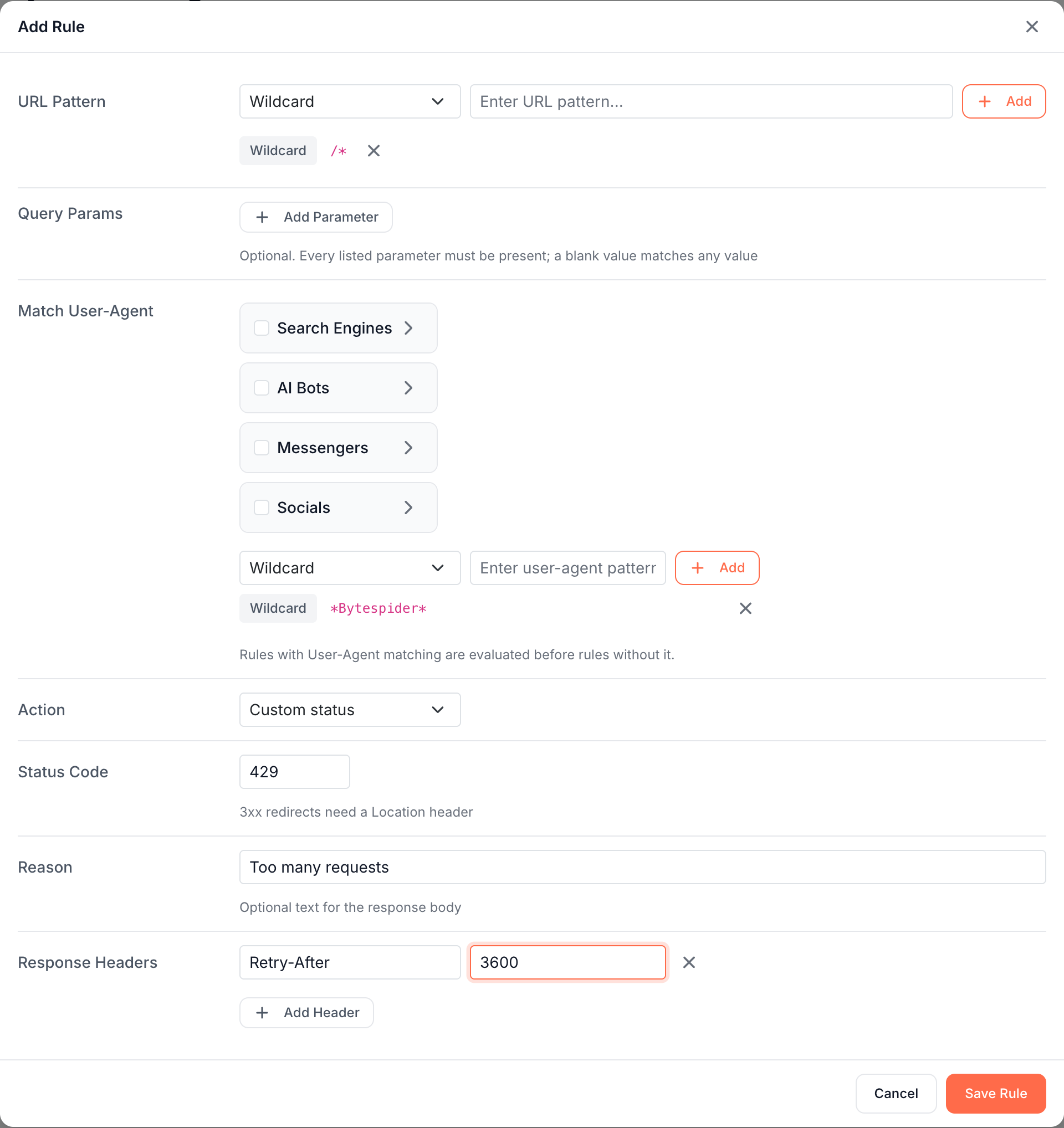
Matching uses the user agent the request claims, so a bot that copies another bot's user agent matches too. Rules with a user agent do not apply to pre-cache and recache, which carry no bot user agent, so a URL blocked for one bot is still pre-cached for the others.
The Tracking tab is not available on these rules: "Not available on a rule that matches User-Agents - set tracking parameters at host level".
Examples
| Goal | URL Pattern | Settings |
|---|---|---|
| Tell bots a retired section is gone | /old-catalog/* (Wildcard) | Action Gone (410) |
| Never render cart and account pages | /cart* and /account/* (Wildcard) | Action Bypass (direct fetch) |
| Give slow search result pages more time | /search* (Wildcard) | Render tab: Timeout 30 seconds |
| Keep product pages fresher than the rest | /products/* (Wildcard) | Render Cache tab: Cache TTL 1 day |
| Answer an aggressive crawler with 429 | /* (Wildcard), Match User-Agent with its pattern | Custom status 429 |
URL rule or Edge SEO rule: which one to use
URL rules decide how a URL is served: rendered, bypassed, blocked or answered with a status code, and with which render and cache settings. They deploy with the rest of System Settings. Edge SEO rules change what is on the page bots receive, such as titles, meta tags, canonicals, hreflang, structured data and redirects, and have their own preview and publish flow.
Both can answer with a status code or a redirect. Use a URL rule for a whole path pattern that should never reach your server, since it answers before the cache lookup. Use Edge SEO for page-level changes you want to preview and track. See Serve 301 redirects and 404 or 410 at the edge.
What you should see
The URL Rules card lists each rule with its number, Match (patterns with their type, then "Query:" and "User-Agent:" lines), Action and Overrides badges. After the deploy, a request for a matching URL gets the rule's result, and status actions return EC-Source: status. See Check the headers bots receive.
If it does not work
"The cluster rejected the URL rule for ... Edit or delete that rule, then deploy again."
EdgeComet's servers refused one rule, usually an invalid pattern or value. Edit or delete it and deploy again.
"The cluster holds URL rules that were changed outside the dashboard. Contact support before deploying."
Rules on EdgeComet's servers differ from your dashboard, and a deploy would overwrite them. Contact [email protected] before you deploy. Until you add a rule in the dashboard, System Settings > General shows "None set in the dashboard" for URL Rules.
A rule does not apply
Another rule earlier in the order matches first, such as a rule with a user agent or an Exact pattern. Check the table order, and check that the change is deployed.