

API tokens, Google Drive and Cloudflare
Connected accounts and tokens let EdgeComet work with your other tools. Each one belongs to you, not to a website, and works on the websites your account can open:
- API: tokens for scripts and pipelines that call the HTTP API.
- Google: sends exports to your own Google Drive.
- Cloudflare: lets EdgeComet install itself on the websites you host on Cloudflare.
- MCP: AI clients such as Claude and ChatGPT. See Connect an AI client.
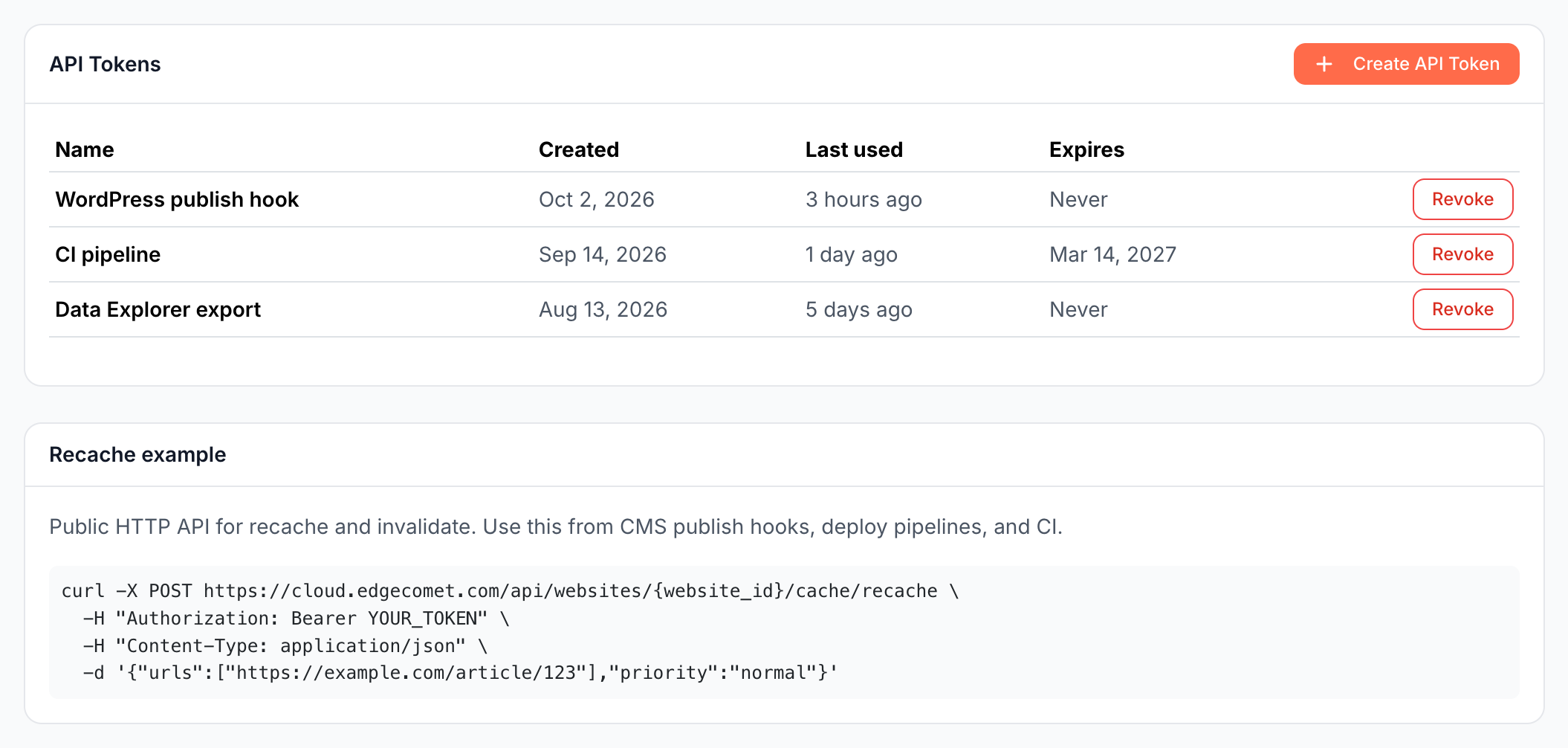
API tokens
An API token lets a script call the EdgeComet HTTP API: recache and invalidate pages, and query or export Data Explorer tables. Tokens start with eck_.
A CMS publish hook with a token tells EdgeComet when a page changes. Bots get the new version on their next visit, and the cached copy keeps serving until the new render is ready. See Integration recipes.
Create a token
- Open the account menu at the bottom of the left strip, then Settings > API.
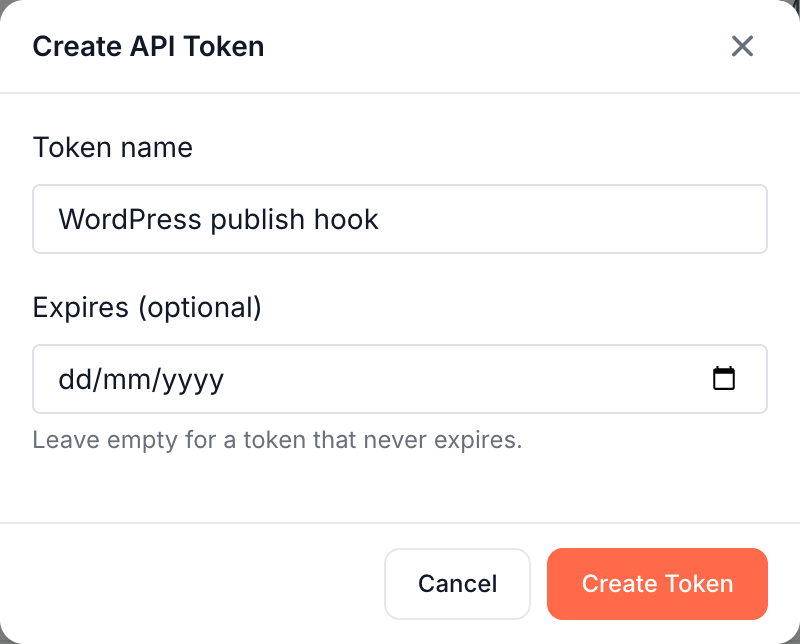
- Click Create API Token.
- Enter a Token name that says where you use it, such as "WordPress publish hook" or "CI pipeline".
- To make the token expire, pick a date in Expires (optional). Leave it empty for a token that never expires.
- Click Create Token.
- Copy the token from Token Created: "Copy your token now. It will not be shown again."
Store the token as a secret or an environment variable in the system that calls the API, not in source code. The Recache example card below the table shows a curl call to the recache endpoint for a quick test.
A token acts with your access: it reaches the websites your account can open, with your role on each. See API tokens and AI clients.
Revoke a token
Click Revoke on the token's row and confirm in Revoke Token: "Are you sure you want to revoke {name}? Any tools using this token will lose access." Calls with the token then fail with UNAUTHENTICATED. See Errors and rate limits.
The table shows Last used for each token, which helps find tokens nothing uses anymore. An expired token shows an expired badge next to its date.
Google Drive export
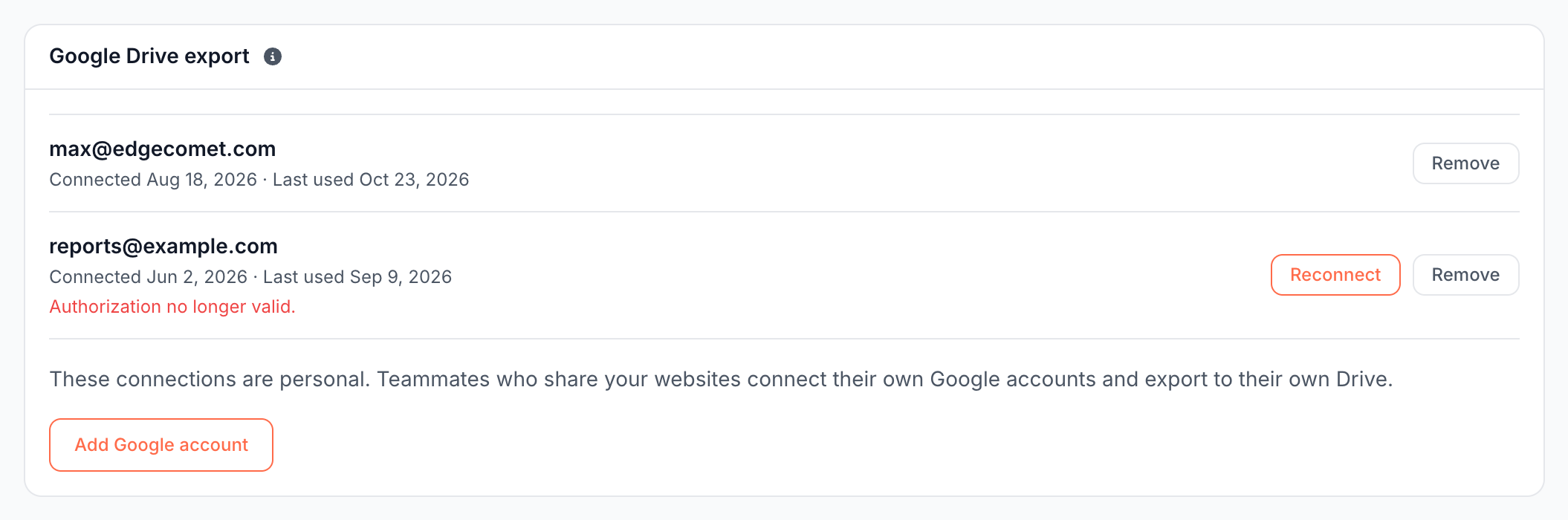
EdgeComet sees only the files it creates in your Google Drive, never the rest of it. The Google Drive export card connects the Google accounts that receive your exports: "Send Action Board documents and Data Explorer exports to your own Google Drive." It powers:
- Action Board documents exported to Google Docs and Google Sheets.
- Data Explorer tables exported to Google Sheets.
- Ask tables exported to Google Sheets.
Before you connect an account, the card says: "EdgeComet can only see the files it creates there, never the rest of your Drive."
Connect a Google account
- Open Settings > Google.
- Click Add Google account and choose the account on Google's screen.
You can connect several Google accounts and pick one in each export. The export window can also connect an account in a popup, without leaving the page.
Each row shows the account, when you connected it, and Last used or Never used. "Authorization no longer valid." means Google no longer accepts the connection: click Reconnect.
These connections are personal. Teammates who share your websites connect their own Google accounts and export to their own Drive.
Remove a Google account
Click Remove on the row. The Remove Google account dialog reads: "EdgeComet stops exporting to {email} and keeps no access to that Drive. Files already exported there are not affected, and you can add this account again at any time."
Three separate Google connections
EdgeComet keeps three Google connections apart, each with its own permission:
- Google sign-in: on Settings > Security. See Link or unlink Google sign-in.
- Google Drive exports: on Settings > Google, described on this page.
- Search Console: per website, under Configuration > Connections > Search Console. See Connect Search Console.
Cloudflare app
The Cloudflare app card holds the authorizations that the automatic Cloudflare install uses. One authorization covers every website on that Cloudflare account.
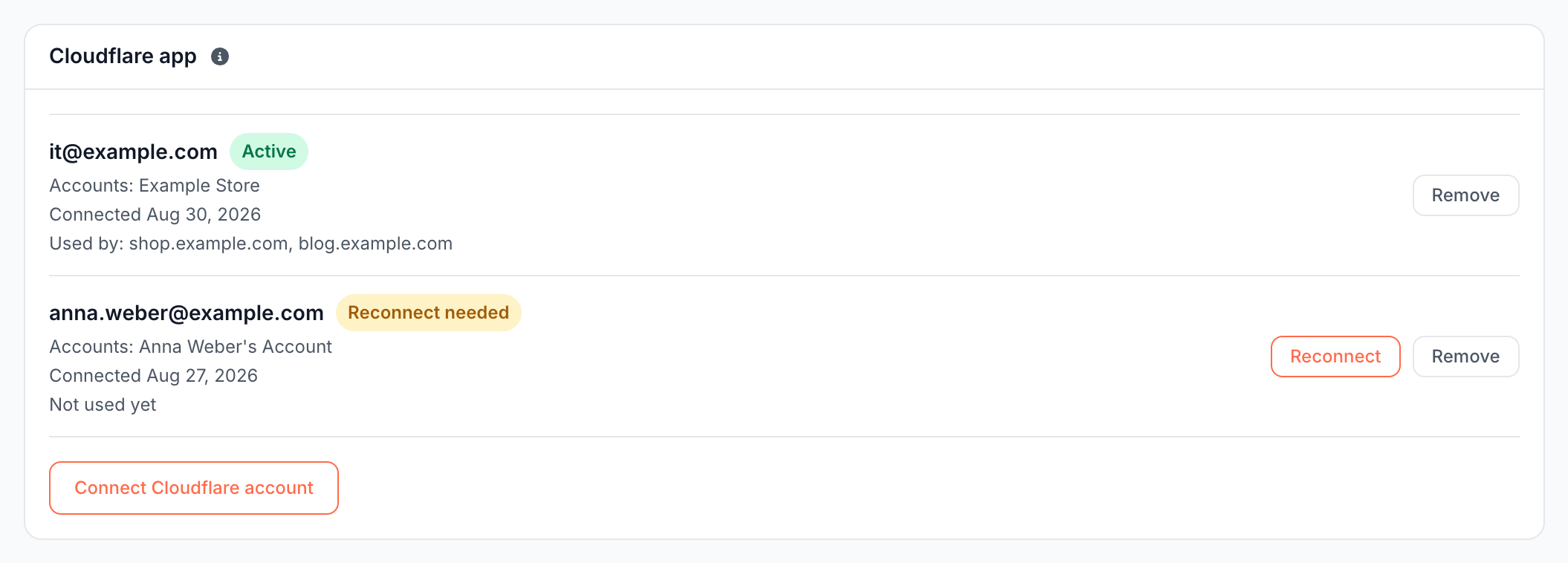
Each authorization shows:
- The Cloudflare email with Active, or Reconnect needed when Cloudflare no longer accepts it. Click Reconnect to authorize again.
- Accounts: the Cloudflare accounts it reaches.
- Used by: the websites installed through it, or Not used yet.
Connect Cloudflare account opens Cloudflare's consent screen and adds an authorization. An authorization belongs to the person who connected it.
Remove a Cloudflare authorization
Click Remove on the row. While websites use the authorization, the Remove this Cloudflare authorization? dialog refuses: "This authorization is used by {domains}. Disconnect those websites first." Disconnect each website under its Cloudflare connection first. See Remove EdgeComet from Cloudflare.
An authorization no website uses is removed after this warning: "EdgeComet loses access to the Cloudflare accounts under {email}. Websites already deployed keep running, but we can no longer manage them from here."
AI clients over MCP
AI clients connect through OAuth, with no token to create or paste. You approve each client on the Authorize {client} screen in EdgeComet and revoke it on the MCP page. See Manage and revoke connections.
If it does not work
API calls return UNAUTHENTICATED
The token is missing, mistyped, expired or revoked. Check the Authorization: Bearer header, or create a new token. See Errors and rate limits.
"Too many tokens created. Try again later."
You created many tokens in a short time. Wait, then create the token again. Revoke the tokens you do not need.
"Authorization no longer valid." on a Google account
Google stopped accepting the connection, for example after you removed EdgeComet's access in your Google account settings. Click Reconnect on the row and approve again.
Where to find it
In the dashboard: the account menu at the bottom of the left strip, then Settings, then API, Google or Cloudflare in the sidebar. MCP is also in the account menu itself.