

Log Analyzer overview
EdgeComet Log Analyzer shows what every search engine and AI bot requested from your site and what it received. For each request, you see the status code, how fast the page was served, whether it came from the cache or a fresh render, and whether the page was indexable.
Log Analyzer also sees the content of each page, not only its URL and status code. Each record holds the title, meta tags, headings, word count, structured data and links of the page the bot received, and Evergreen Crawl builds its site audit from these records.
Log Analyzer does the job of SEO log file analysis without log files. EdgeComet records each bot request as it serves it, so there is nothing to export, upload or parse, and no import to wait for.
How Log Analyzer works
Each bot request EdgeComet serves becomes one record, and every Log Analyzer chart and card counts those records. EdgeComet records them by request-path capture: your CDN routes bot requests to EdgeComet, and EdgeComet stores each request with the page it served. Human visitors go straight to your site, so every record is a bot request or a pre-cache refresh EdgeComet made on its own.
For example, when Googlebot requests /category/shoes and EdgeComet serves it from its cache in 2 ms, one record is added: bot Googlebot, IP address verified, event type Cache Hit, status 200, serve time 2 ms, page indexable. That one record counts in Total Requests, in the Googlebot Search line of Bot Activity, in the 2xx bar and in the <0.5s band.
Three rules decide what a report counts:
- Event types. Each record has an event type that says how EdgeComet handled the request. The four stat cards at the top of the Overview tab count every event type, pre-cache refreshes included, and the panels below them leave pre-cache out. Total Requests can therefore be higher than the panel totals, and Avg Response can differ from the Response Time Distribution average.
- Fake bots are counted separately. Most reports leave out requests from fake bots, so a fake Googlebot never inflates your Googlebot numbers. The Bot Activity family cards include them as Fake Bots, which Total Requests leaves out. Where do I see fake bots? lists every place that shows them.
- History starts at the first verified bot visit. Reports start at the first verified bot visit, usually within 24 hours of the install, so they open without empty leading days.
Log Analyzer sees page content, not only status codes
Log Analyzer records what was on the page each bot received, not only the URL and the status code. For every page EdgeComet renders or fetches, the record holds an SEO snapshot of the page as EdgeComet served it, rendered or not: the title, meta description, canonical, robots meta tag, H1 to H3 headings, word count, hreflang, structured data types, links and images.
A server log line holds no page content. A site crawler reads page content, but from its own visit, not from the copy Googlebot or GPTBot received. See log files, crawlers and request-path capture compared.
With page content on each record, you can answer questions that a status code cannot:
- What did the bot read? The title, meta description and headings that Googlebot, Bingbot or an AI bot received.
- Could the bot index the page? A
200page can still carry anoindexrobots meta tag or a canonical that points elsewhere. The Indexability Status panel counts these requests, and the Googlebot and Bing pages break down robots directives, canonicals and hreflang. - Did your Edge SEO rules reach the bot? The record holds the page before and after your Edge SEO rules changed it.
- Which business values did the bot see? Custom extractions you define, such as price or stock, are stored with the page.
A Cache Hit or Bypass Cache record carries the status code, title and index status stored with the cached copy. The full snapshot is on the Render, Precache or Bypass record that produced the copy. See EdgeComet event types.
Evergreen Crawl is built from these records
Evergreen Crawl turns the recorded page content into a site audit, without a crawler of its own. For each URL that bots or your pre-cache rules fetched in the crawl's window, it takes the newest snapshot EdgeComet recorded and checks indexation, canonicals, hreflang, on-page tags and internal links. See the Evergreen Crawl overview.
What you can see
Log Analyzer answers what each bot received and whether its crawl was worth it, across five pages and their tabs.
Overview tab: is bot traffic healthy?
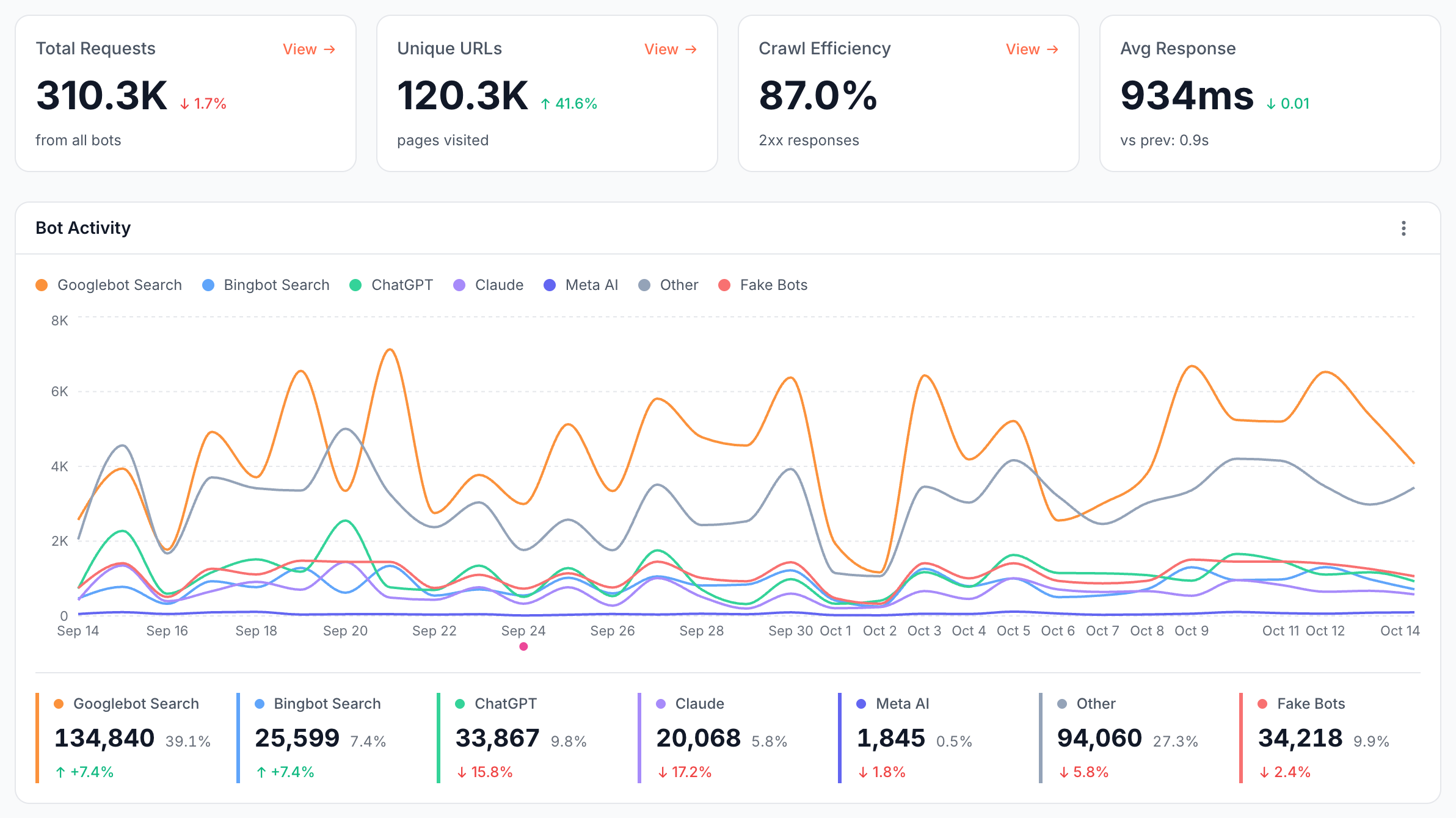
The Overview tab of Log Analyzer > Overview sums up all bot traffic for the period:
- Total Requests: bot requests plus pre-cache refreshes, fake bots excluded.
- Unique URLs: distinct pages the bots requested. See How unique URLs are counted.
- Crawl Efficiency: the share of requests answered with a
2xxstatus. It is not the crawl efficiency split on the Efficiency tab, which sorts crawls into valuable, questionable and wasted. - Avg Response: the average serve time.
- Bot Activity: requests over time per bot family, with one summary card per family.
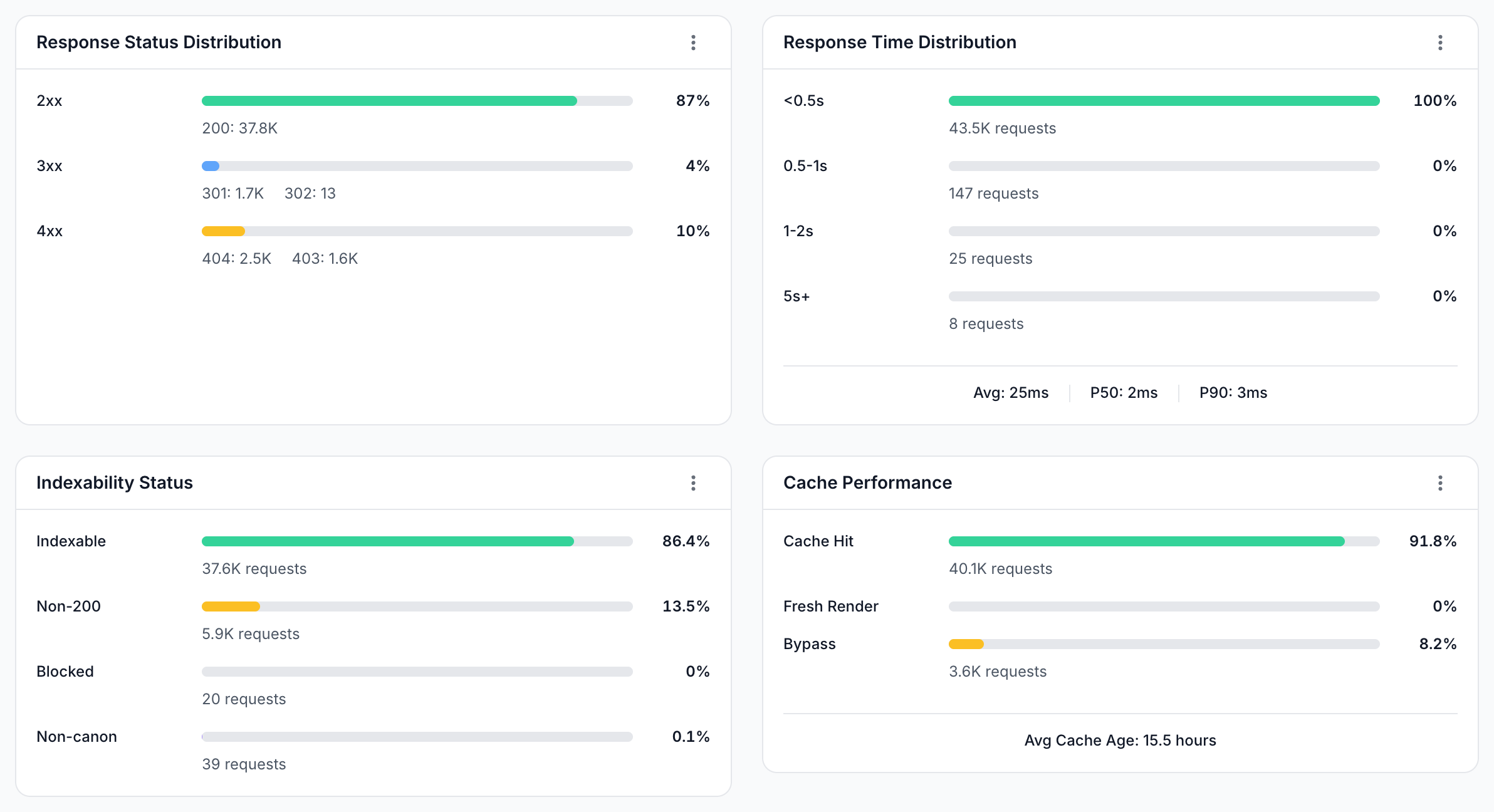
- Response Status Distribution: the share of
2xx,3xx,4xxand5xxresponses, with the largest status codes in each. - Response Time Distribution: requests per serve-time band, from <0.5s to 5s+, with the average, median (P50) and 90th percentile (P90).
- Indexability Status: requests for pages that were Indexable, Non-200, Blocked (a
noindexrobots meta tag) or Non-canon (the canonical points elsewhere). - Cache Performance: requests answered by Cache Hit (cache hits and copies from the bypass cache), Fresh Render (renders) or Bypass (fetches from your server), with the average cache age.
What each bot family includes
A bot family is a group of bots that the Bot Activity chart draws as one line. The seven families do not overlap, so each request counts in exactly one:
| Family | Bots |
|---|---|
| Googlebot Search | Googlebot desktop and Googlebot mobile |
| Bingbot Search | Bingbot desktop and Bingbot mobile |
| ChatGPT | GPTBot, ChatGPT-User and OAI-SearchBot |
| Claude | ClaudeBot, Claude-User and Claude-SearchBot |
| Meta AI | Meta Agent (meta-externalagent) and Meta Web Indexer |
| Other | Every other bot, recognized or not, including AdsBot, GoogleOther, Googlebot Image, PerplexityBot and Perplexity-User, other AI bots such as CCBot, Exa and Mistral AI's bots, SEO tools, and social and monitoring bots |
| Fake Bots | Requests whose IP address failed verification, whichever bot they claimed to be |
Click the Other or Fake Bots card to list the bots inside it with their requests, share and change. In Fake Bots, the Claimed bot column names the bot each fake request pretended to be, and Open Bad Bots report leads to Detect fake Googlebot and other bad bot traffic. To see AI bots by purpose, open AI Bots.
How unique URLs are counted
Unique URLs counts distinct pages after URL normalization, the same step EdgeComet uses to build cache keys. Variants of one address count once: /shoes?utm_source=newsletter and /shoes are one URL because tracking parameters are removed, and /shoes?size=9&color=red and /shoes?color=red&size=9 are one URL because parameters are sorted. See URL normalization in the self-hosted engine docs for the full rules.
Log Analyzer tabs and pages, and the question each answers
Each tab and page beyond the Overview tab answers one question and has its own docs page:
| Where | Question it answers | Docs |
|---|---|---|
| Overview > Status Codes, Loading Time, Page Size, Bot Breakdown | Which status codes, serve times and page sizes do bots get, and which bots ask the most? | Status codes, response times and page sizes |
| AI Bots | How often do AI assistants fetch pages for users, and what do AI crawlers read? | AI bot activity |
| Googlebot, Bing | How do Googlebot and Bingbot crawl the site, and are the pages they get indexable? | Googlebot and Bingbot crawl |
| Efficiency tab on Googlebot, Bing and AI Bots | How much of the crawl is valuable, questionable or wasted? | Crawl efficiency |
| Bad Bots | Which bots fake their identity, and which unknown crawlers take traffic? | Fake and unwanted bots |
| Security tab on Bad Bots | Which sensitive files do scanners request, and does the site expose any? | Exposed files and scanner probes |
What is recorded for each request
EdgeComet records about 90 fields for each bot request, from the bot's identity to an SEO snapshot of the page it received.
| Group | Fields |
|---|---|
| Request | URL, time, event type, status code, redirect target, page size, cache age |
| Bot | Bot name, bot category, user agent, IP address, IP verification result |
| Performance | Serve time, render time, network requests and bytes, same-origin and third-party requests and bytes, failed and blocked requests, JavaScript console errors and warnings |
| Page state | Title, meta description, canonical, meta robots, H1, H2 and H3 headings, word count, hreflang, structured data types, internal, external and nofollow link counts, image and alt text counts, indexability |
| Edge SEO | The page state before and after your Edge SEO rules changed it |
| Headers | The headers the bot sent, the headers EdgeComet sent to your server, your server's response headers, and the headers EdgeComet served to the bot |
| Your fields | Custom extractions you define, such as price or stock |
Which record carries the full page snapshot depends on the event type, as Log Analyzer sees page content explains. For rendered and fetched pages, each link is recorded too, with its anchor text and where it sits on the page.
In the dashboard, every field is a column in Data Explorer > Bot log, and the headers appear in its Headers column, described in See the HTTP headers of each bot request. The Data Explorer column reference lists the fields with their API keys.
See the HTTP headers of each bot request
EdgeComet stores the HTTP headers of every bot request at each of its four steps. An access log in the common formats keeps only two headers, the user agent and the referrer.
The Request headers window lists the steps in order:
- Bot → EdgeComet: the headers the bot sent, such as its user agent and
accept. - EdgeComet → Origin: the headers EdgeComet sent to your server when it fetched the page.
- Origin → EdgeComet: your server's response headers, such as
content-type,varyorlink. - EdgeComet → Bot: the headers EdgeComet served to the bot.
Use them to check what your server tells bots outside the HTML, such as an x-robots-tag or a link header, and which caching headers the bot got.
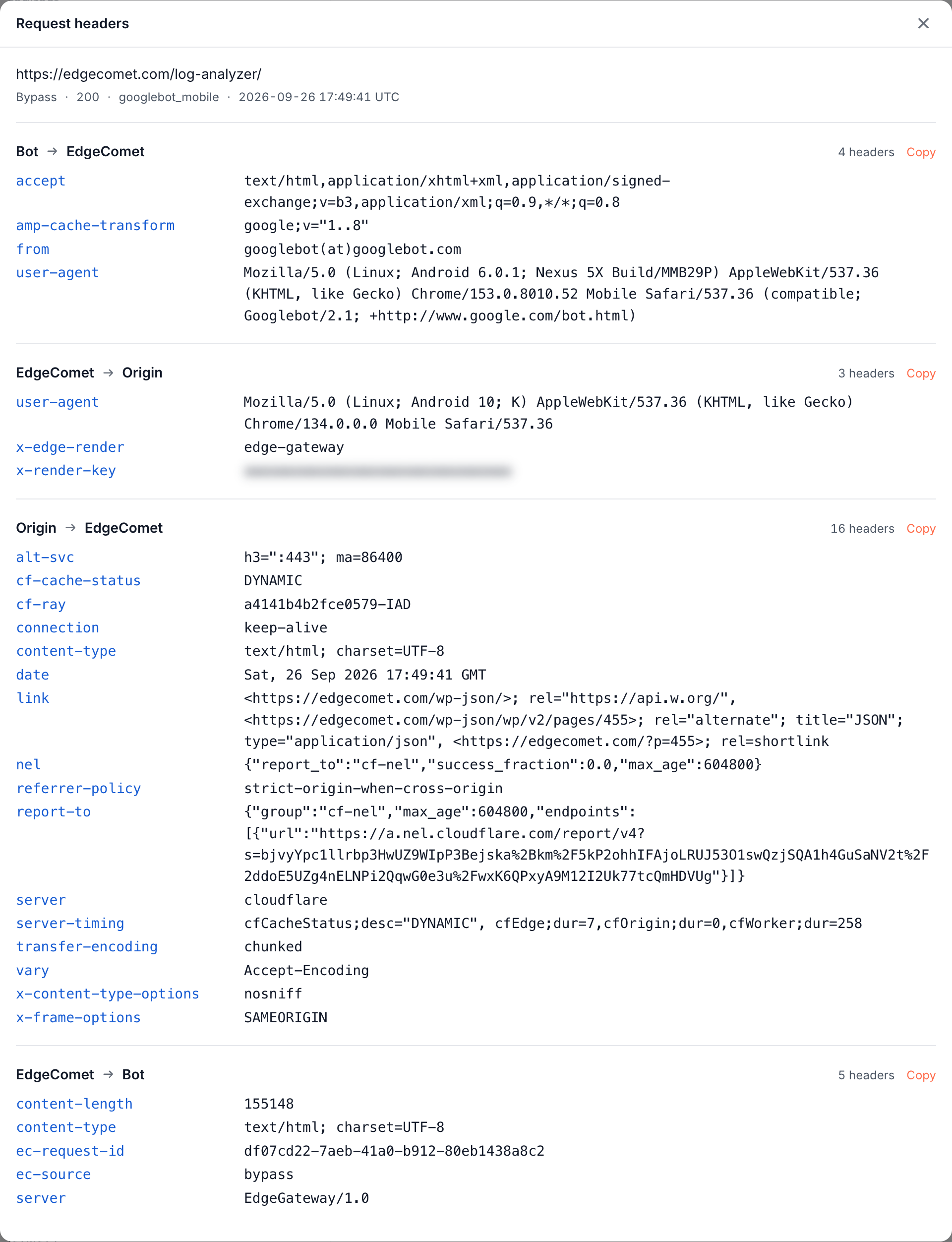
To see them, add the Headers column under Columns in Data Explorer > Bot log. Each cell shows four counts, one per step. Click it to open Request headers. On a Cache Hit or Bypass Cache request, EdgeComet did not contact your server, and the two origin steps are empty.
To find requests by header, use the filters Bot Request Header, Origin Request Header, Origin Response Header and Served Response Header in the Requests view. Each takes a header name and a condition: Exists, Does not exist, Equals, Contains, Does not contain or Is present but empty.
Header names are stored in lower case. Requests recorded before September 7, 2026 have no headers.
How Log Analyzer differs from server log file analysis
A server log line tells you that a bot came and which status code it got. A Log Analyzer record also shows what the bot received and how EdgeComet served it, with no files to collect.
Each record holds what a log line cannot:
- The page the bot received. Its title, meta tags, canonical, headings, structured data and links, as EdgeComet served it, rendered or not. See Log Analyzer sees page content.
- Failures that still answer
200. A JavaScript error that blanks the content, or a third-party script that fails, still shows as a200in a server log. EdgeComet records the console errors and failed requests of each render. See Monitor renders and JavaScript errors. - Requests your server never sees. EdgeComet answers cache hits itself, which keeps them out of your server's log, and records each one.
- A verdict on every bot. Each request carries its IP verification result, checked against the ranges the bot's operator publishes. EdgeComet refreshes those lists every 24 hours.
- What your Edge SEO rules changed. The page before and after your Edge SEO rules, on the same record.
- The headers of every step. What the bot sent, what your server answered and what the bot got. See HTTP headers of each bot request.
- Your own fields. Custom extractions, such as price or stock, read from the page.
You do not build the analysis yourself either. In your first days, EdgeComet groups your URLs into segments by page type and writes crawl budget rules from your site's own data. Every Log Analyzer report filters by those segments, most show a table per segment, and the Efficiency tab sorts crawls by those rules. See What EdgeComet configures on its own.
The same records feed Alerts, Evergreen Crawl, Data Explorer and the Action Board.
Server logs see what does not pass through EdgeComet, such as human visitors, and go back as far as you kept them. See log files, crawlers and request-path capture compared for the full comparison, and EdgeComet compared with an SEO platform that combines a crawler and log analysis.
Periods, comparisons and filters
Every Log Analyzer page has the same controls in its header: a period, a filter and an Ask button.
- Period: Last 24h, 7 Days, 14 Days, 30 Days (the default), 90 Days or Custom, up to 365 days. Presets include today so far.
- Comparison: every change figure compares with the period of the same length just before, shown under Compare To. No change figure appears when the previous value was zero or when the previous period starts before your first verified bot visit.
- Filter: pick a saved segment, such as product pages, or build a filter by hand. Every card, chart and table narrows to it, comparison included.
- Drill down: almost every number opens Data Explorer > Bot log with the same period and filter, listing the requests behind it.
- One page: Page Analysis shows one page's status and tags, their change history and its bot visits per family. Open it from the magnifier icon beside a URL in report tables and Data Explorer, or type the URL in Search and ask (⌘K).
- Annotations: dots under a chart's date axis mark Google ranking updates, EdgeComet notes such as the day EdgeComet was installed, and your team's own notes. The chart tooltip for that date shows the note. To add a note, Cmd+click (Mac) or Ctrl+click the chart. Configuration > Annotations lists your notes. See Annotations.
- Chart export: the three-dot menu (⋮) on a chart card offers Export, to save the chart as a PNG, and Table data, to copy the numbers or download them as CSV.
- Ask: opens Ask, EdgeComet's chat about your data, with starter questions for the report, such as "Which bot drives most requests?"
How far back bot data goes
Bot data starts when your routing is active, and EdgeComet keeps it for as long as your subscription is active. When you connect Search Console, EdgeComet imports the 180 days before the connection. See Can I import historical logs into EdgeComet? For how often each source updates, see Data sources, freshness and retention.
Export bot data, API and MCP
You can take every Log Analyzer record out of EdgeComet three ways:
- Data Explorer export: any Bot log view downloads as a CSV file, or opens in Google Sheets for up to 10,000 rows. See Export Data Explorer tables to CSV or Google Sheets.
- API: the Data Explorer API returns the bot log one row per request, as JSON or CSV.
- MCP: connect Claude, ChatGPT or another AI client to the EdgeComet MCP server and ask about your bot data in plain language.
What Log Analyzer does not do
Log Analyzer records bot requests as EdgeComet serves them, which sets what it covers:
- It does not need your log files. EdgeComet does not read or import server log files, and you do not have to collect them: every bot request is recorded as it is served. See Do I need to upload my server log files?
- It records only requests that pass through EdgeComet. Human visitors, files your routing sends straight to your server, and bots that skip your CDN are not recorded. See What EdgeComet can and cannot see.
- It does not crawl. A page appears once a bot requests it. To find pages no bot has requested, see Does EdgeComet find pages bots never visit?
Where to find it
In the dashboard: Log Analyzer > Overview, with the tabs Overview, Status Codes, Loading Time, Page Size and Bot Breakdown. The other pages are Log Analyzer > AI Bots, Googlebot, Bing and Bad Bots, which has the tabs Overview and Security.