

Search reports overview
EdgeComet Search turns your Google Search Console data into reports on clicks, rankings, the searches AI assistants run, traffic decay and keyword cannibalization. Every report reads the same URLs as EdgeComet's bot data, which puts Google clicks next to what Googlebot and AI bots received from the same pages. Also called Search Console reports or GSC reports.
The reports work as soon as Search Console is connected and the first days are imported, before EdgeComet is installed on your CDN. See Connect Google Search Console.
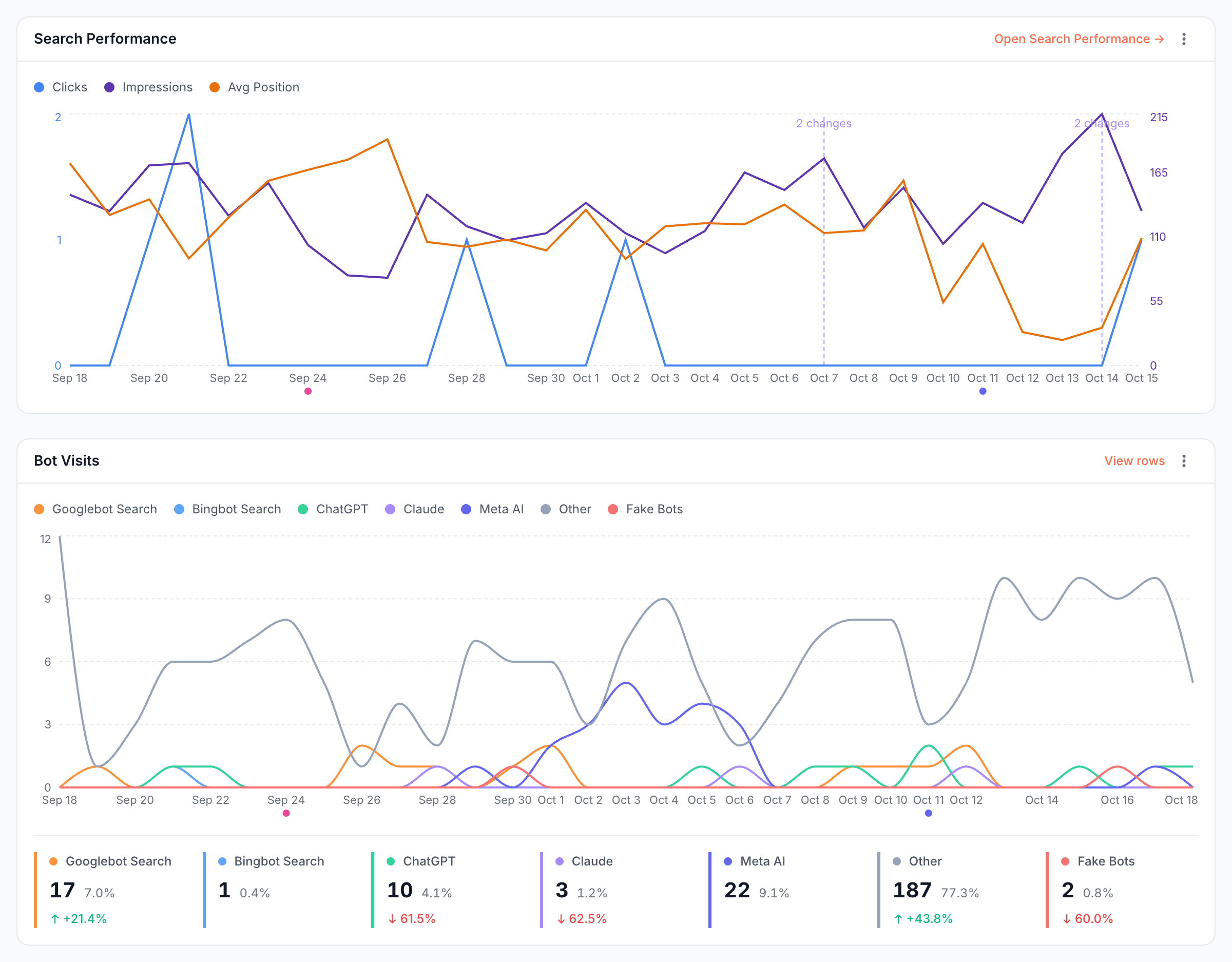
How Search works
EdgeComet imports your Search Console performance data read-only, starting with 180 days of history, and adds each new day as Google publishes it, about 3 days late. See What EdgeComet imports.
EdgeComet then builds on the import with no setup from you:
- Branded keywords: EdgeComet suggests your branded keywords with AI after the first import, and every brand split uses them.
- Segments: EdgeComet creates segments from your own data after the first import, such as blog articles or product pages, and every report can break down or filter by them. You can edit them under Configuration > Segments.
- Fan-out keywords: EdgeComet detects the searches AI assistants ran on Google for people, the fan-out keywords, and classifies them with AI.
Where the data comes from
The Search Console numbers in the Search reports come at three levels of detail: the whole site, each page, and each page and query. Reports end at the last complete Search Console day, shown as "Data as of {date}" on the Keywords and Traffic Decay reports.
EdgeComet's numbers can differ from the Search Console interface for the same dates. See Why numbers differ from the Search Console interface.
Anonymized queries
Anonymized queries are the rare searches Google withholds from query-level data. Google says: "Some queries (called anonymized queries) are not included in Search Console data to protect the privacy of the user making the query." (Google Search Central blog, 2022-10-19)
Their clicks and impressions count in site and page totals, but no keyword row carries them. This is why keyword totals in EdgeComet, and in Search Console itself, are lower than page totals.
The Keywords and Traffic Decay reports show the withheld share next to the date, such as "Google anonymizes ~46.1% of query clicks". Fan-out counts are labeled as floors for the same reason.
What you can see
Five reports under Search and one tab in Page Analysis read the same data. Each answers one question.
Search Overview: are you winning or losing Google search?
Search Overview shows clicks, impressions, pages in search results and average position against the previous period. Its cards cover keyword movement, position buckets, your brand split, desktop against mobile, the CTR each position earns on your site, and each segment. See Track Google search performance: clicks, impressions, CTR and position.
Keywords: which keywords rank, and which are worth work?
Keywords counts your keywords in the top 10 and in striking distance, on page two of Google. It sorts keyword opportunities into four buckets with the clicks you could recover, and lists every keyword and page in full tables. See Track rankings, striking distance keywords and opportunities.
Fan-out Queries: what do AI assistants search for about you?
Fan-out Queries finds the Google searches AI assistants, such as Google AI Mode and Gemini, ran while answering people, and groups them into the question a person most likely asked. It files the questions under topics and lists the vendors, products and technologies the keywords name, your own brand included. See Fan-out queries: what AI assistants search for about you and the concept page Query fan-out.
Fan-out coverage: does a page answer the questions AI asks?
The Fan-out tab of Page Analysis lists the questions AI assistants searched for when Google showed them one page. Its coverage check reads the page as EdgeComet serves it to bots and grades each question as Answered, Partly answered or Not answered, with quotes. See Check if a page answers the questions AI assistants ask.
Traffic Decay: which pages and keywords are losing clicks?
Traffic Decay finds pages and keywords that are decaying: at least 10 clicks in the previous period and down 20% or more. It splits the loss by cause (position, impressions or click-through rate) and tells a sudden drop from a slow slide. See Find pages and keywords losing traffic.
Cannibalization: which of your pages compete for the same keyword?
Cannibalization finds keywords where two or more of your pages rank together or take turns leading. It counts the clicks the split sends away from the leading page and ranks conflicts by priority. See Find keyword cannibalization in Search Console data.
Where else Search data appears
Search Console data also drives the Action Board, alerts, Ask and the MCP server:
- Action Board: the Action Board turns Search Console data into findings, ranked by the search traffic at stake.
- Alerts: Search alerts tell you when pages or queries lose their clicks.
- Ask: Ask answers questions about your search performance in plain language, and AI clients read the same data through the EdgeComet MCP server.
Search data next to bot data
The Search reports use the same URLs as EdgeComet's record of every search engine and AI bot request, which puts a drop in clicks next to a change in what bots received:
- Page Analysis: for one URL, the Search Performance chart marks the dates EdgeComet saw the page change, such as its title, meta description, robots directives or canonical, next to the page's bot visits by bot family. See Track SEO changes on one page against its Google traffic.
- Data Explorer: the Search Console tables accept Bot log columns and filters, such as Googlebot requests or AI bot fetches for each page, next to clicks and impressions.
- Evergreen Crawl: every crawl issue shows the Google impressions on its pages, and within each severity, issues with more traffic come first.
- Cache: GSC Re-cache keeps your top Search Console pages, by clicks or impressions, cached and refreshed for bots.
Filter, drill down and ask
Every Search report has the same controls in its header:
- Period: 30 Days by default, compared with the previous period of the same length. The period always ends at the last complete Search Console day.
- Filter: a saved segment, such as product pages, or a filter you build. It narrows the report to those pages.
- Drill down: almost every number opens the pages or keywords behind it in a Data Explorer table, with the same filters and a link back to the report. You can export the tables.
- Charts: the menu on a chart exports it or its table data. Chart annotations, such as a release you marked, show on time charts.
- Ask: the Ask button opens a chat about the report, with starter questions such as "Did impressions or CTR fall?" on Search Overview.
How Search differs from the Search Console interface
Search reports read the same data as the Search Console Performance report and use the same definitions, such as average position. What EdgeComet adds is the analysis around the numbers:
- Bot data on every URL. Clicks and rankings sit next to what Googlebot and AI bots received from the same pages, from status codes to rendered content.
- Your sections and your brand. Segments and branded keywords are set up for you after the first import. Every report breaks down by segment, and Search Overview and Keywords split brand from non-brand.
- Full tables, not the first 1,000 rows. Google says Search Console data "has limits of 1,000 rows via the interface or up to 50,000 via API per day" (Google Search Central blog, 2022-10-19). EdgeComet imports through the API, and its Search Console tables page through every imported row with filters and export.
- The searches AI assistants run. Fan-out keywords are grouped into questions and topics instead of hundreds of single rows with a few impressions each.
- Analysis already done. Opportunities, decay causes and cannibalization conflicts are computed for every page and keyword, with no exports or spreadsheets.
- A path to a fix. Findings flow to the Action Board, and fixes such as new titles or canonical tags ship as Edge SEO rules without a release.
Where to find it
In the dashboard: Search, with Overview, Keywords, Fan-out Queries, Traffic Decay and Cannibalization. The fan-out coverage check is on the Fan-out tab of Page Analysis. The Search Console connection and branded keywords are under Configuration > Connections > Search Console.