

Check one page's status, indexability, SEO tags and bot visits
The Overview tab of EdgeComet Page Analysis shows the state of one page as bots received it: status code, index status, robots directives, canonical, title, meta description, headings, links and structured data. Below them, Bot Visits charts the bots that requested the page.
Every field comes from a copy EdgeComet served to bots, not from a separate fetch. A small count beside a field label means the field changed; click it to see the old values.
The tab's Search Performance and Recent changes cards are covered in Track SEO changes on one page against its Google traffic.
Which copy of the page the Overview tab describes
The Overview tab describes the newest copy of the page that EdgeComet rendered or fetched for a bot or for the pre-cache:
- On a site EdgeComet renders: the newest rendered copy. A newer copy from the bypass dimension, which carries your server's raw HTML, does not replace it. On a JavaScript site that raw HTML is often an empty app shell.
- On a cache-only site, or for a URL EdgeComet has never rendered: the newest copy of any kind, which is your server's HTML.
The change history reads the same copies, and the fields and their history always agree. Until a copy with SEO data exists, the tab shows "No data found for this URL" with "This URL has not been processed by EdgeComet yet. It will appear here once bots start visiting it."
Page Overview: can the page be indexed?
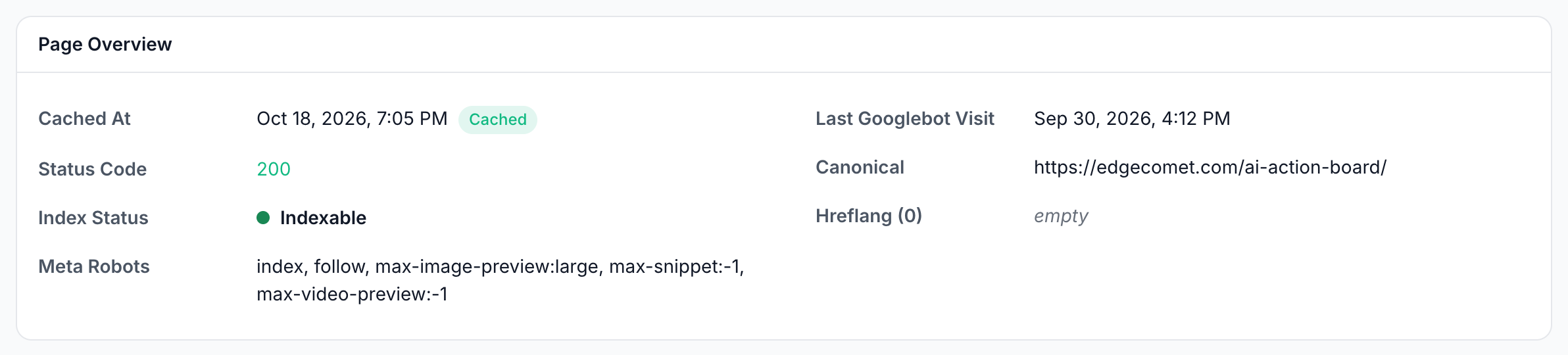
The Page Overview card answers whether the page can be indexed and when Google last fetched it:
- Cached At: when EdgeComet stored the cached copy, with a badge: Cached, Cache expired, Not cached or Recaching....
- Status Code: the status bots received. An error shows its type, and a redirect shows "Redirects to:" and the target.
- Index Status: Indexable, Non-200, Blocked by robots, Canonical points elsewhere or Unknown. It is EdgeComet's reading of the copy it received, from the status code, robots directives and canonical. It is not a report of whether Google indexed the URL.
- Meta Robots: the robots meta tag of the page.
- Last Googlebot Visit: the most recent request from Googlebot, desktop or mobile, over all time and not only the period. Requests from fake bots are left out. A page Googlebot never requested reads "never".
- Canonical: the canonical URL the page declares.
- Hreflang (N): each language code with its URL.
A lightning icon titled Modified by Edge SEO marks Status Code, Meta Robots, Canonical, Title and Meta Description when an Edge SEO rule for the URL sets that field. The Edge SEO tab lists those rules.
Content: what do the title, description and headings say?
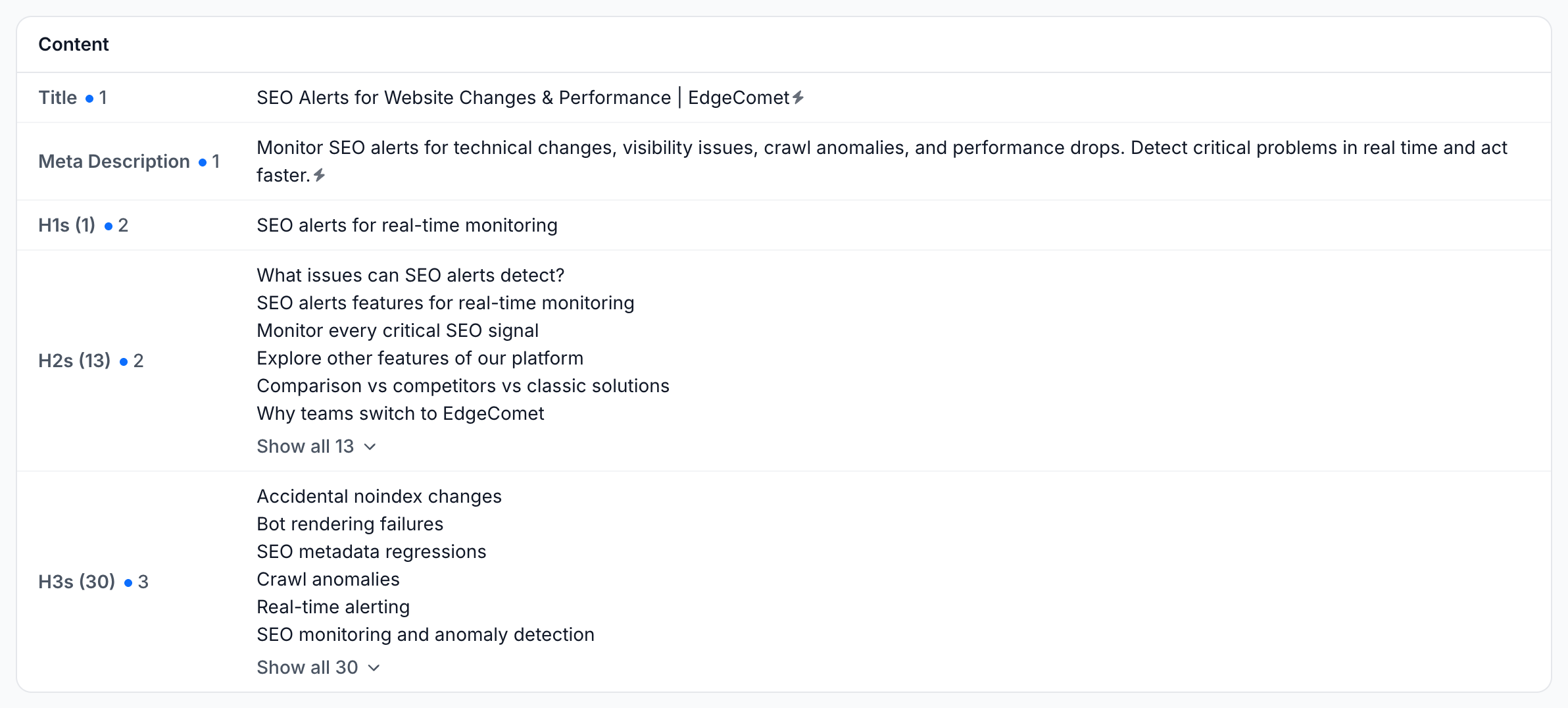
The Content card shows the Title, Meta Description, H1s, H2s and H3s of the page, each heading list with its count, such as H2s (13). A long list shows its first headings and Show all N. A field the page does not have reads "empty".
Change history for one field
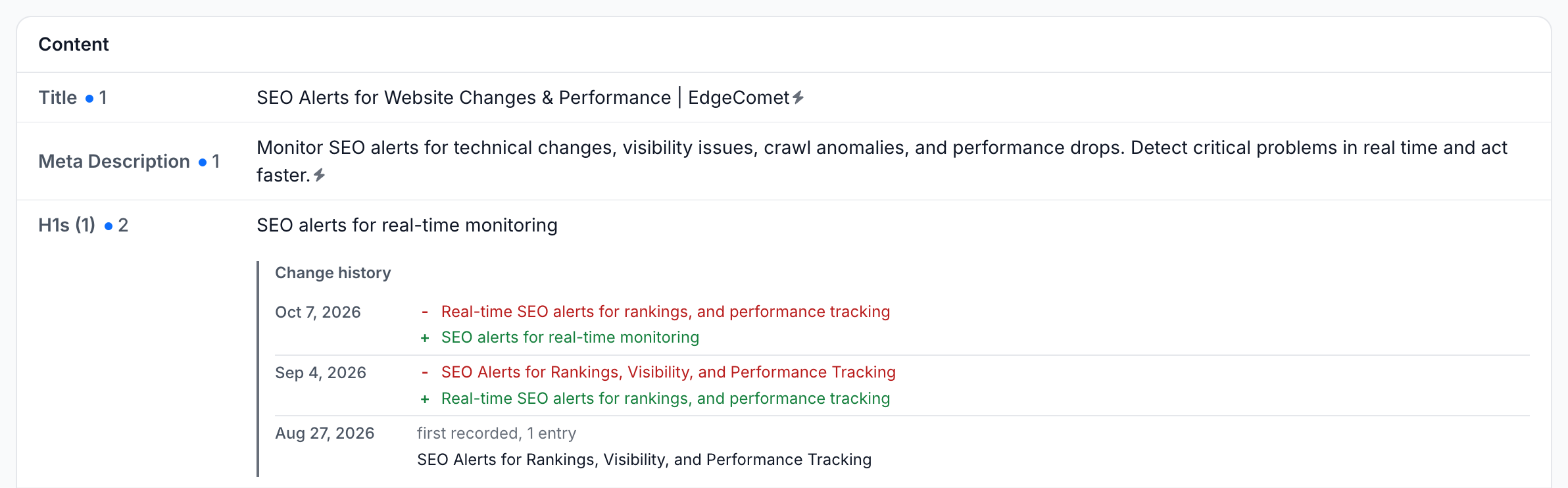
Click the count beside a field label to open its Change history. Each entry is a date with the old value marked "-" and the new value marked "+". The oldest entry reads "first recorded" with the value EdgeComet saw first. For every change across the site, see the Change log.
Status Code, Index Status, Meta Robots, Canonical, Hreflang, Title, Meta Description, H1s, H2s and H3s show a change count. Structured data changes appear in Recent changes. To see every field's changes on one timeline, with the page's Google traffic, see Track SEO changes on one page against its Google traffic.
Links & Resources: how many links and images does the page have?
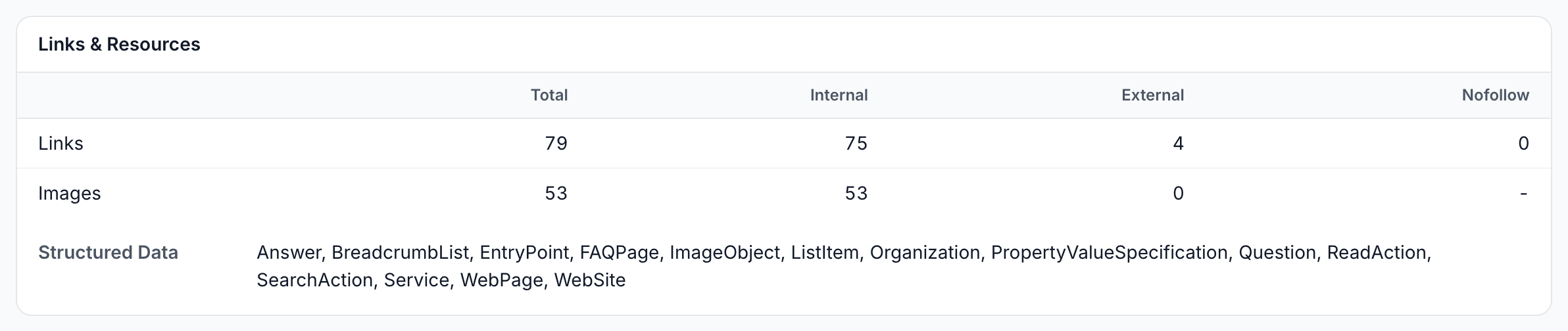
The Links & Resources card counts the page's links and images:
- Links: Total, Internal, External and Nofollow.
- Images: Total, Internal and External.
- Structured Data: the schema.org types the page declares, such as
BreadcrumbList,FAQPageorOrganization. To check that the markup is valid, see Validate structured data across your site.
Bot Visits: which bots request the page?
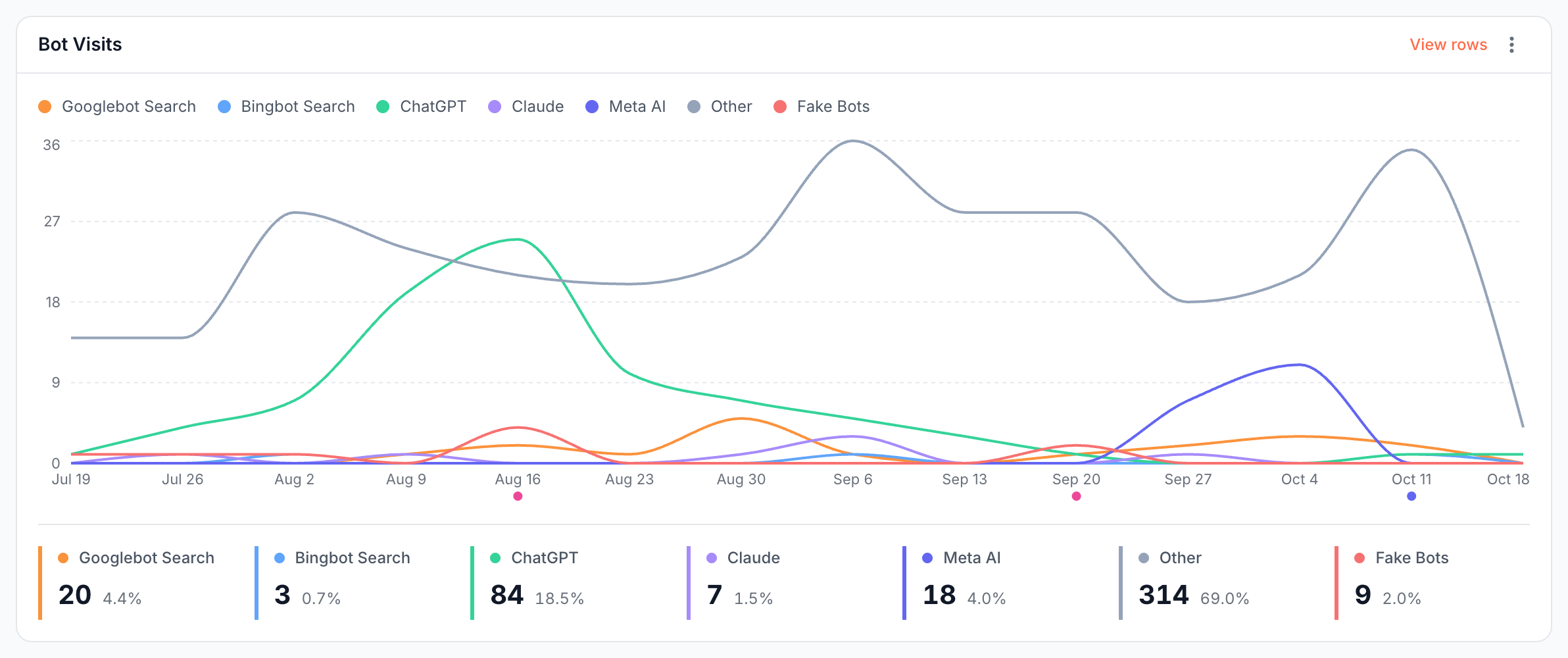
The Bot Visits card draws the page's requests over the period, one line per bot family: Googlebot Search, Bingbot Search, ChatGPT, Claude, Meta AI, Other and Fake Bots. A card per family gives its requests, its share of the page's requests and the change against the previous period.
View rows opens every request for the URL in Data Explorer > Bot log, and a family card opens that family's requests. With no requests in the period, the card reads "No bot visits recorded for this URL in the selected period".
Re-cache: store a new copy and see what changed
Re-cache renders or fetches a new copy of the page at high priority and shows what changed. Use it right after you publish a change, instead of waiting for the next bot:
- Publish the change on your site, or publish an Edge SEO rule.
- Open Page Analysis for the URL and click Re-cache. The button reads Sending..., then Added to queue, and Recaching... shows while EdgeComet stores the new copy.
- When the new copy is stored, every card reloads. On the Overview tab, the fields that changed are highlighted for a few seconds: Title, Meta Description, headings, Canonical, Meta Robots or Status Code.
When you publish an Edge SEO rule and open Page Analysis from it, the page shows Recaching... for the recache the publish started and reloads when the new copy is stored. To refresh many pages at once, see Recache, invalidate and flush cached pages.
What to do next
- The page is not indexable: find every page with the same cause in Find pages Google cannot index, or set the robots directives at the edge with Rewrite titles, meta descriptions and robots tags.
- The canonical points elsewhere: check the target in Find canonical issues, or change it with Set canonical, hreflang and other link tags at the edge.
- A title or description is wrong: rewrite it without a release with Rewrite titles, meta descriptions and robots tags.
- Googlebot rarely visits: see how Googlebot spends its crawl in Analyze how Googlebot and Bingbot crawl your site.
Where to find it
In the dashboard: Page Analysis > Overview for a URL. Open it from Search and ask (Cmd+K or Ctrl+K, type the URL, choose Analyze) or from the magnifier icon beside a URL in a report.