

Data Explorer overview
EdgeComet Data Explorer is the row-level view of your site's data: every bot request, Search Console page and keyword, crawled page and link, sitemap URL and product feed item, as tables you filter, sort and export. Also called raw data or data tables.
The tables share the URL. A Bot log table can show each page's Google clicks, a Search Console table each page's bot requests, and a crawl table both. You join the sources with a column, not with SQL, spreadsheets or a data warehouse.
Almost every number on an EdgeComet report opens Data Explorer with the rows behind it.
Custom builds a table from a question in plain words. See Custom: which table do you need?
How Data Explorer works
Data Explorer reads the same data as the EdgeComet reports, row by row:
- Bot requests: every request a search engine or AI bot made through EdgeComet, recorded in the request path as it is served, with the page the bot received. No log files to collect or upload. See How EdgeComet collects data.
- Search Console: your clicks, impressions, CTR and position per page and keyword, imported from Google. See Connect Google Search Console.
- Evergreen Crawl: every page and link of a crawl built from bot and pre-cache fetches. See Evergreen Crawl overview.
- Sitemaps and feeds: the URLs of your XML sitemaps and the items of your Merchant Center feed, fetched on your schedule. See The sources EdgeComet reads.
Each table reads a period, a crawl or a fetch. On every table you add filter rows, choose columns, sort and export. See Filter Data Explorer tables by period, field and segment.
What you can see
Data Explorer has four sources with eleven tables, plus Custom:
| Source | Tab | One row is | Reads |
|---|---|---|---|
| Bot log | Requests | One bot request | A period |
| Bot log | Pages | One URL, with its requests added up | A period |
| Bot log | New and lost URLs | One URL requested in only one of two periods, or in both | Two periods |
| Search Console | Pages | One URL | A period and a compare window |
| Search Console | Keywords | One keyword and URL pair | A period and a compare window |
| Evergreen Crawl | Pages | One URL of the crawl | One crawl |
| Evergreen Crawl | Links | One link and where it sits | One crawl |
| Evergreen Crawl | Crawl comparison | One URL in two crawls | Two crawls |
| Feeds | Sitemap | One URL in your sitemaps | The latest fetch |
| Feeds | Sitemap comparison | One URL in two sitemap fetches | Two fetches |
| Feeds | Merchant feed | One product feed item | The feed as it is now |
Bot log: what did bots request, and what did they get?
The Bot log lists every Googlebot, Bingbot and AI bot request with its status code, serve time, the page's SEO tags, IP verification, WHOIS and HTTP headers. Pages adds them up per URL, with SEO changes and Google clicks. See See every Googlebot and AI bot request in the Bot log.
Search Console: how do pages and keywords perform in Google?
The Search Console tables list every page and keyword with clicks, impressions, CTR and position against the previous period, filters for brand, opportunities, fan-out and decay, and the Bot log columns of the same page. See Search Console pages and keywords joined with bot requests.
Evergreen Crawl: what state is every page and link in?
The Evergreen Crawl tables list every page of a crawl with more than 100 columns, from indexability and canonicals to inlinks, issues, clicks and bot fetches, and every link with its anchor and region. See Filter every crawled page and internal link in a table.
Feeds: what do your sitemaps and your product feed list?
The Feeds tables list every sitemap URL next to its last Googlebot fetch, its cached copy and its impressions, and every Merchant Center item with its price, availability and issues. See Check sitemap and Merchant feed URLs against Googlebot.
Comparisons: what is new, lost or missing?
New and lost URLs, Crawl comparison and Sitemap comparison compare two periods, two crawls or two fetches. See Find new, lost and missing URLs across periods and crawls.
Custom: which table do you need?
Custom is EdgeComet's AI agent, Ask, set up to build tables: "Describe the rows and the numbers in plain words." It lists your recent tables, example questions and a Data sources card that links every ready-made table. See Start from Data Explorer.
Combine sources in one table
Most tables bring in columns from the other sources, joined by URL. The main joins:
- Bot log > Pages: a Search Console group with clicks, impressions, CTR, position and their change, and GSC: ... filters on Requests and Pages. See Put Google clicks next to bot requests.
- Search Console: a Bot log group with each page's requests, serve time, errors and SEO changes, and Bot log: ... filters. See Add bot data to Search Console rows.
- Evergreen Crawl > Pages: clicks, impressions and bot fetches for the crawl's dates, plus In sitemap and In feed. See Pages: one row per URL.
- Feeds > Sitemap: the last cached copy, the last Googlebot fetch and the URL's Search Console numbers. See Sitemap: every URL in your sitemaps.
Custom extraction fields, such as price or author, add a column to the Bot log, crawl and Search Console tables too.
Open the rows behind a report number
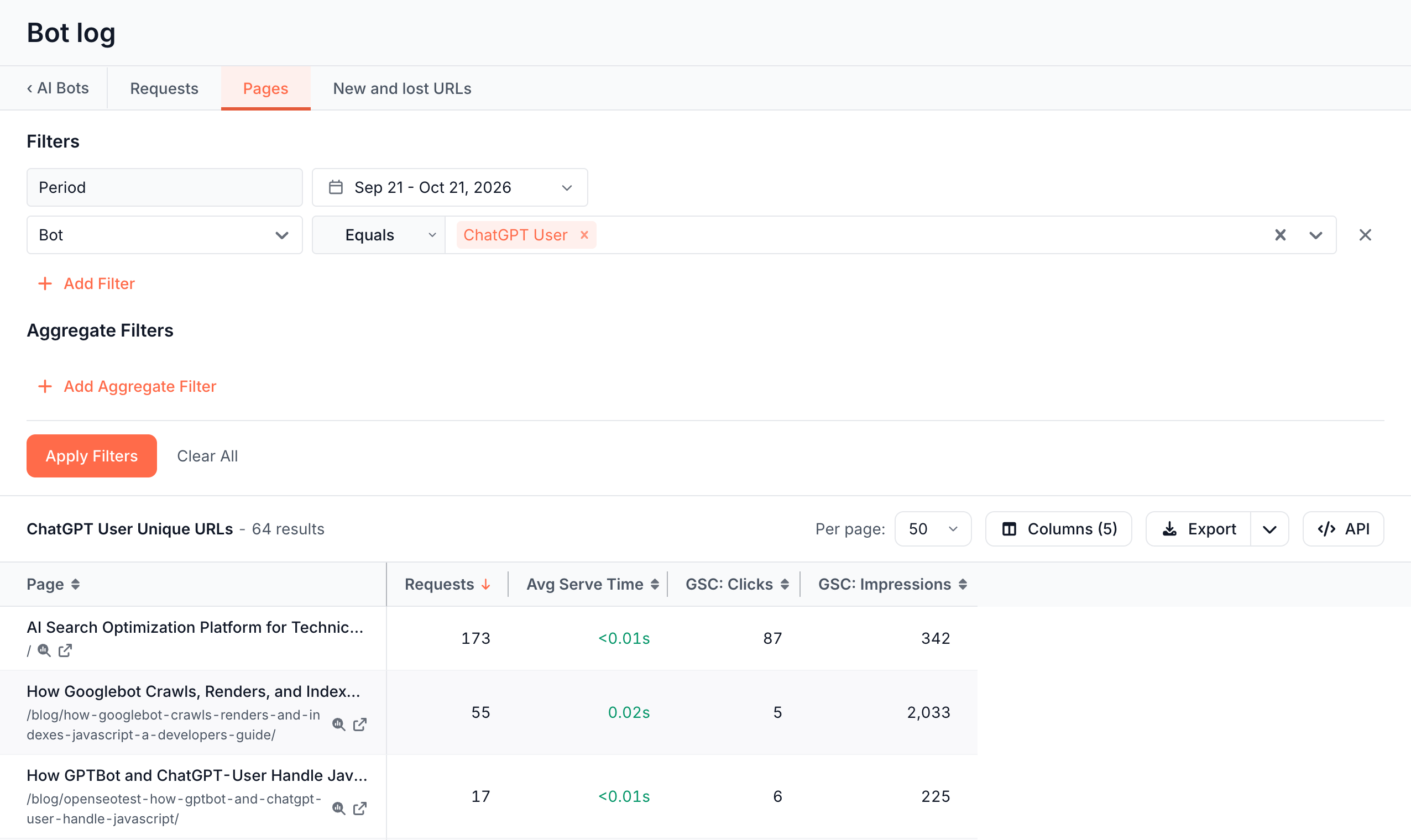
Click a number or View on a report card, and Data Explorer opens in the same tab with the rows behind it. It carries the report's period, its filter or segment as filter rows, and the columns and sort that fit.
The view is named after the figure, such as ChatGPT User Unique URLs - 64 results, and the browser tab shows it with the table, such as "ChatGPT User Unique URLs - Bot log". The name goes away once you change the filters. A back link at the left of the tabs, such as ‹ AI Bots, returns to the report.
Several report tabs are Data Explorer tables themselves, with the same filters, columns and export:
- Search > Keywords: Keywords, Pages and Opportunities.
- Search > Traffic Decay: Decaying pages and Decaying keywords.
- Search > Fan-out Queries: Keywords.
- Search > Cannibalization: Cannibalized keywords.
- Changes: Change log.
- E-commerce > Products: Product pages. See Product pages: every product as a row.
- E-commerce > Listings: Listing pages. See Listing pages: every listing as a row.
- E-commerce > Product Feed: Feed items.
Take the data elsewhere
You can take Data Explorer data out of EdgeComet three ways:
- Export: any table downloads as a CSV file or opens in Google Sheets. See Export Data Explorer tables to CSV or Google Sheets.
- API: the Bot log and Search Console tables have an API button that shows the request for the same view. See Data Explorer API.
- MCP: Claude, ChatGPT and other AI clients connected to the EdgeComet MCP server query the same data in plain language.
How Data Explorer differs from log analyzers, crawler exports and Search Console
Each of these tools gives you one source. Data Explorer keeps the sources together, row by row, for the same URLs:
- A log file analyzer needs log files exported, uploaded and parsed, and a log line holds no page content. The Bot log records each request as EdgeComet serves it, with the page the bot received, its IP verification, the IP owner and the HTTP headers. See Log files, crawlers and request-path capture compared.
- A crawler export is one run of the crawler's own visit. The Evergreen Crawl tables come from the pages bots and the pre-cache fetched through EdgeComet, rebuilt every day, with clicks and bot fetches in the same row.
- The Search Console interface shows Google data only, and Google says Search Console data "has limits of 1,000 rows via the interface or up to 50,000 via API per day" (Google Search Central blog, 2022-10-19). The Search Console tables list every imported row with the bot data of each page. See How Search differs from the Search Console interface.
Joining these sources yourself usually takes exports, a spreadsheet or a warehouse such as BigQuery, and SQL. In Data Explorer the join is a column you add.
For product comparisons, see EdgeComet compared with an SEO platform that combines a crawler and log analysis and with a site crawler.
Where to find it
In the dashboard: Data Explorer, with Custom, Bot log, Search Console, Evergreen Crawl and Feeds. In Search and ask (Cmd+K or Ctrl+K), typing "export", "csv" or "raw data" finds them too.