

Invite your team and manage access
Team Access shares your EdgeComet websites with other people. You invite someone by email, choose a role, and give them all your websites or only some. Also called user management or adding team members.
A role applies to a whole website: reports, Ask, the Action Board, Edge SEO, alerts and settings, each within what the role allows. See Team roles and permissions.
Choose All websites (current and future), and every website you add later is shared too, with no new invitation.
Before you start
- You own at least one website. The website owner is the account that added it. Team Access appears in the account menu once you own one.
- Decide the role: Read-only, Manager or Admin. See What each role can do.
Invite a teammate
- Open the account menu at the bottom of the left strip, then Team Access.
- Click Invite Member.
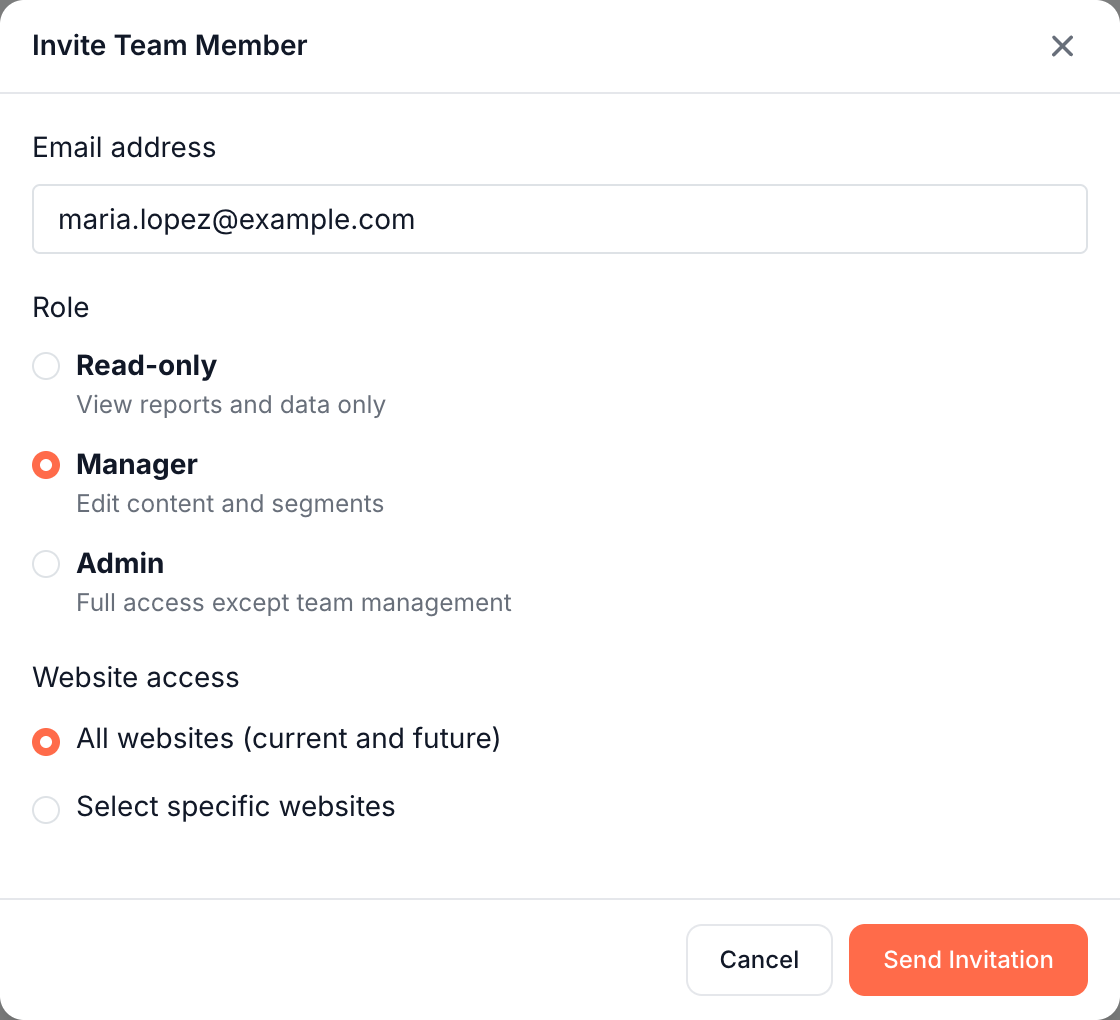
- Enter the Email address.
- Under Role, choose Read-only, Manager or Admin.
- Under Website access, choose All websites (current and future), or Select specific websites and tick at least one.
- Click Send Invitation. The page confirms "Invitation sent."
Team Access gives one role on all the websites you pick. To give someone a different role on one website, use that website's Sharing page. See Share one website.
What the invited person gets
An invited person who already has an EdgeComet account gets access at once. A new person gets an email to create an account, valid for 7 days.
- They already have an account. There is no step to accept. They get an email, "{your name} shared websites with you on EdgeComet", with a View Dashboard button. Your websites appear in their website selector, marked "Shared by {your name}".
- They are new to EdgeComet. The email, "{your name} invited you to EdgeComet", names the role and the websites. Create Your Account opens sign-up with their email filled in and no verification code to enter. After sign-up, they land on the first website you shared.
Pending invitations
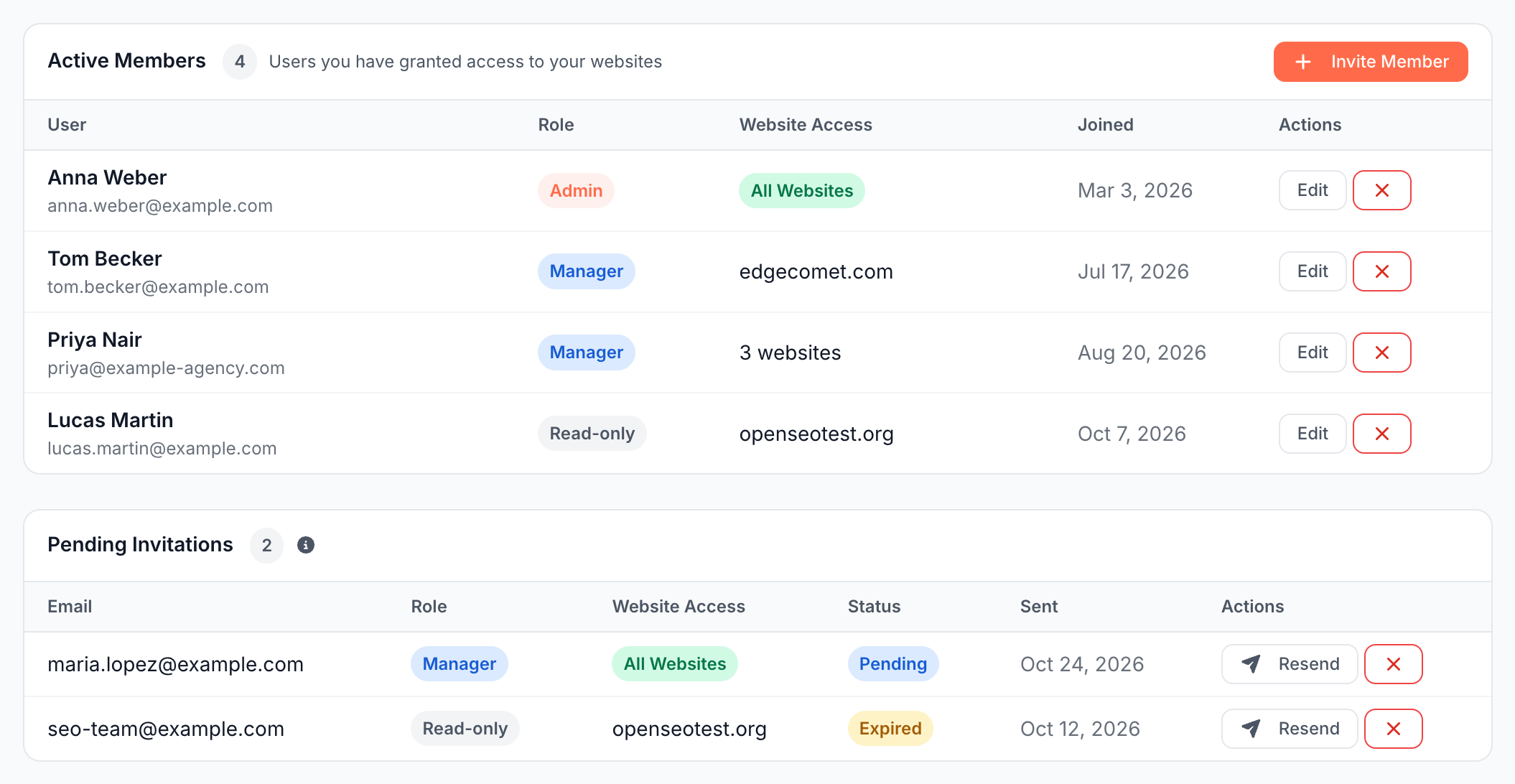
Pending Invitations lists invitations nobody has accepted yet, with the email, role, websites, status and the date sent. The status is Pending or Expired.
- Resend emails a new link that is valid for 7 days, and the old link stops working. The page confirms "Invitation resent."
- The cross button cancels it after the question "Cancel invitation for {email}?"
Change a member's role or websites
- In Active Members, click Edit on the member's row.
- In Edit {name}, change Role or Website access.
- Click Save Changes. The page confirms "Member updated."
The member gets an email when their role changes, "{your name} updated your access on EdgeComet", or when you add websites, "{your name} shared new websites with you on EdgeComet". Taking websites away sends no email.
A member whose roles differ between websites shows Mixed in the Role column. Those per-website roles come from each website's Sharing page. Saving a role here replaces them: "This person has different roles on their sites. Saving sets the same role on all {n} sites, replacing per-site differences."
Remove a member
Click the cross button on the member's row and confirm "Remove {name} from your team? They will lose access to all websites you have shared with them." The page confirms "Member removed."
The member gets an email, "{your name} removed your access on EdgeComet". To take away some websites and keep the rest, click Edit and untick them under Select specific websites. For one website, you can also use its Sharing page. See Remove someone from one website.
Members and your plan
What a member can use on your websites follows your plan, not theirs. Billing stays with you: only you can subscribe or change your plan.
Rows marked Managed
A row marked Managed is the agency that created your account, with Admin access to all your websites. It has no Edit or remove button. See What the client sees.
If it does not work
"This user already has access"
The person is already a member. Click Edit on their row to change the role or add websites.
"An invitation is already pending for this email"
Find the invitation under Pending Invitations and click Resend, or cancel it and invite again with other settings.
"You cannot invite yourself"
The email address is your own. As the owner, you already have full access to your websites.
"Invitation expired"
The page reads "The invitation from {your name} to {email} has expired. Please ask the sender to resend it." Click Resend under Pending Invitations.
"Wrong account"
The invited address has an EdgeComet account, and the link was opened while signed in to another account. Choose Log out and switch accounts and sign in with the invited address.
The invitation email did not arrive
Ask the person to check their spam folder for an email from EdgeComet, then click Resend. A person who already has an account does not need the email: the websites are in their website selector.
Team Access is missing from the account menu
Team Access appears only for accounts that own a website. If you work on websites someone shared with you, ask their owner to invite others.
Where to find it
In the dashboard: the account menu at the bottom of the left strip, then Team Access. It also sits in the account settings sidebar.