

Group pages by type with segments
A segment in EdgeComet is a named group of URLs, such as product pages, category listings or blog articles, defined by filter rules. Reports, Data Explorer, alerts and Ask can narrow to one segment, and the Segments page compares all of them side by side. Also called a saved segment or a page group.
EdgeComet creates a first set of segments from your own bot traffic after the first Search Console import completes. You can edit them, add your own, or let AI refine the set. See Generate and refine segments with AI.
What a segment is
A segment is a set of filter rules with a name. Every rule must match for a request or page to belong to the segment. A rule with several values matches any of them, and a negative rule with several values, such as Not contains, excludes all of them.
Each segment also has:
- Group: a section name, such as Catalog, Content or Technical. Groups sort segments into sections in the Segments table and the report Filter.
- Color: one of 8 colors, or Pick automatically, which takes the color your segments use least.
- Archetype: the page type the segment stands for, such as Product pages. See Page types.
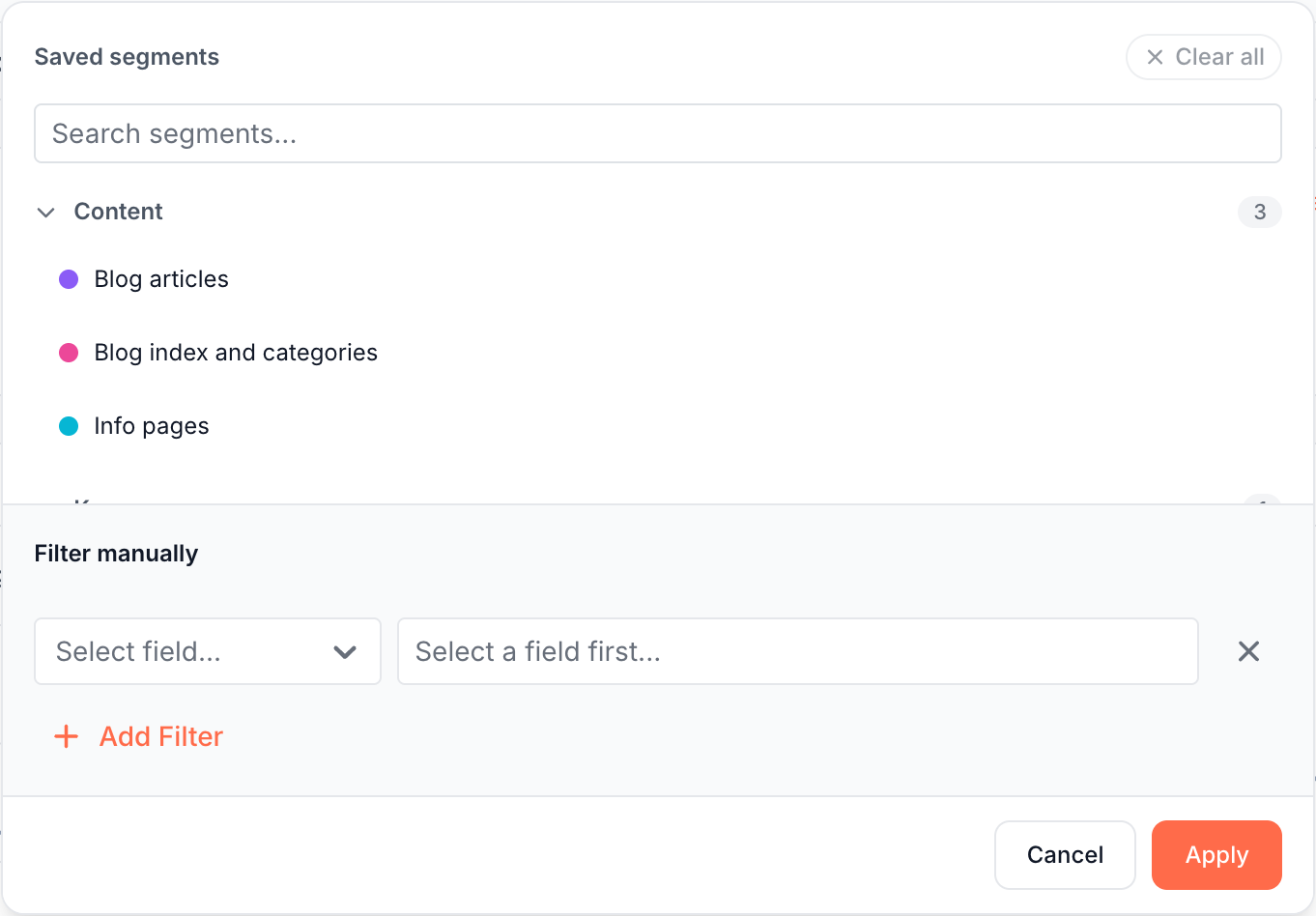
In the report Filter, Saved segments are the segments on the Segments page. Rules you build under Filter manually have no name and apply only to the view you are on.
Page types (archetypes)
The Archetype tells EdgeComet which kind of page a segment holds. The dropdown lists each type with its group, such as "Product pages (Catalog)", and starts at Unclassified.
| Group | Archetypes |
|---|---|
| Catalog | Product pages, Category and listing pages, Brand pages |
| Technical | Search results, Parameters and facets, Cart and checkout |
| Content | Blog index and categories, Blog articles, Info pages |
| Key pages | Homepage |
| Editorial | Section fronts, Articles, Tag and topic archives, Author pages |
| Marketing | Marketing pages, Pricing |
| Product | Documentation, Changelog and releases |
A segment with an archetype and at least one rule on the URL becomes a page type in Changes. In Shelf Edge, every rule of the segment must be on the URL. A segment without an archetype still filters reports.
What the segments list shows
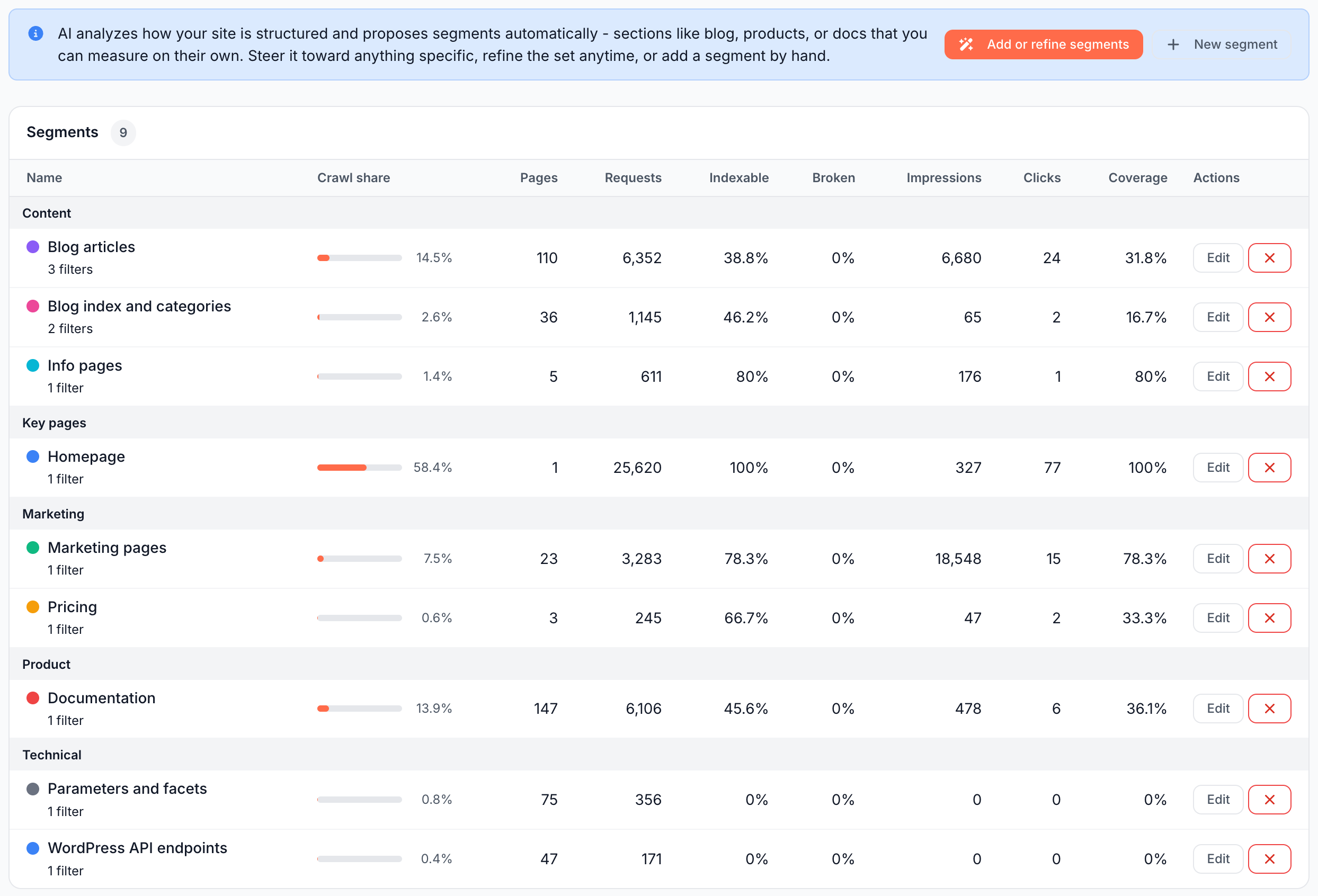
The Segments page lists every segment with its crawl, indexability and Search Console numbers for the last 30 days, or since the first recorded request on a newer website. Rows sit under their group, ungrouped segments last under Ungrouped, and the busiest segment of each group comes first.
| Column | What it shows |
|---|---|
| Name | Color, name and the number of rules. Click N filters to read the rules in words. The name opens the segment's requests in Data Explorer |
| Crawl share | The segment's requests as a share of the requests of all segments together. A request two segments match counts in both, and requests no segment matches are left out |
| Pages | Distinct URLs of the segment that EdgeComet served or pre-cached |
| Requests | Bot requests to the segment, without fake bots |
| Indexable | Share of the segment's pages with a known index status that are indexable |
| Broken | Share of the segment's fetches, renders and pre-cache refreshes that failed or returned a server error |
| Impressions, Clicks | Google Search Console totals for the segment's URLs, up to the last complete Search Console day |
| Coverage | Share of the segment's pages with at least one impression |
| Actions | Edit and a delete button |
Most numbers open their rows in Data Explorer. For a segment with rules on other fields, such as the bot, the Search Console columns count pages that had a matching request in the period.
Without Search Console, the card reads "Connect Google Search Console to see impressions, clicks, and ranking coverage per segment.", and the three Search Console columns show a lock and "-". See Connect Search Console.
Create a segment
You create a segment on its own page, with the filter builder of Data Explorer.
- Open Configuration > Segments and click New segment.
- Enter a Name, such as "Product pages".
- Optionally type or pick a Group, choose a Color, and choose an Archetype.
- Under Filters, click Add Filter and set at least one rule, such as URL Starts with
https://example.com/products/. - Click Load Preview to check what the rules match.
- Click Save Segment.
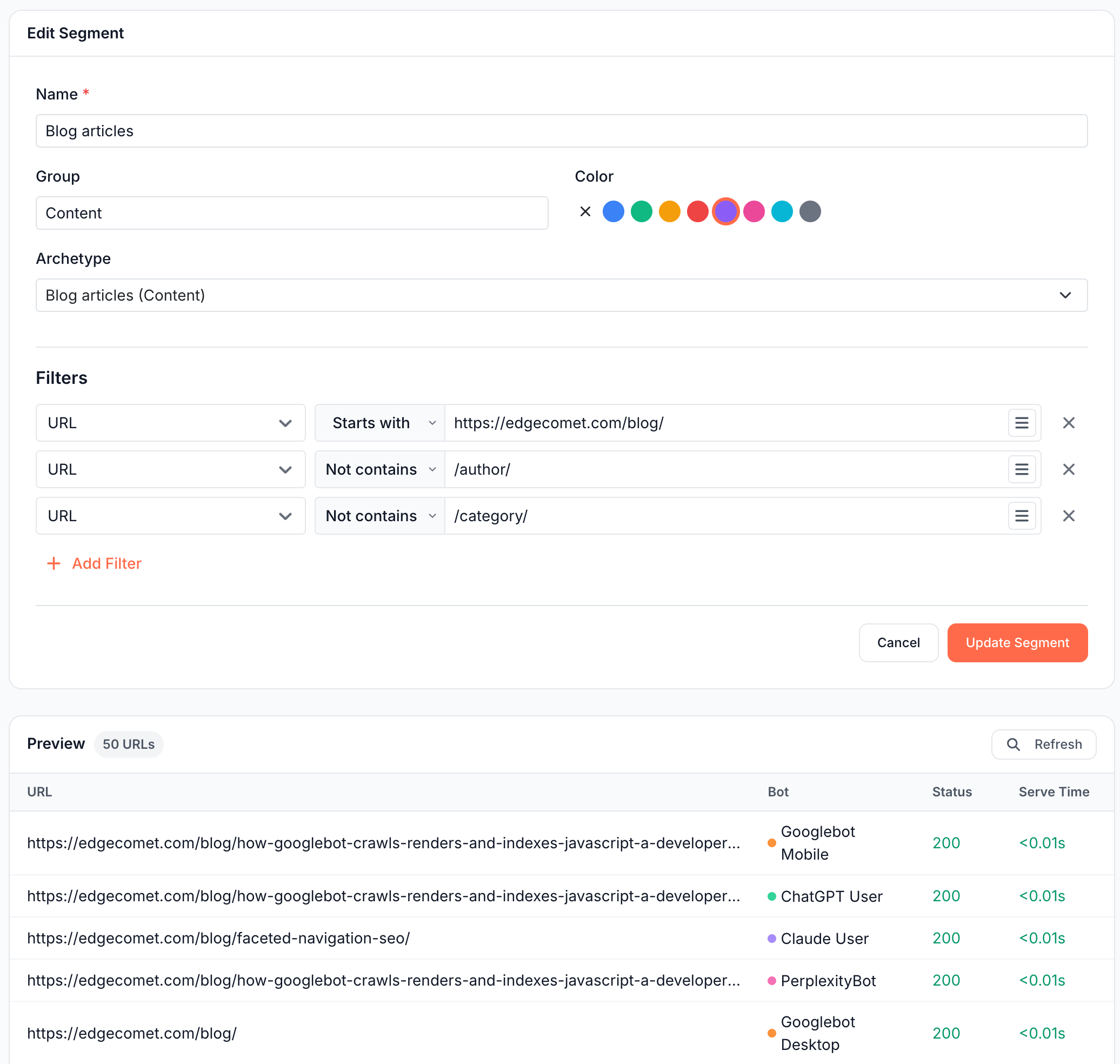
The URL field holds the full address. To match a section, use Contains with the path, such as /blog/, or Starts with with the full address. To build the rules in Data Explorer first, use Save as Segment.
Preview the matching requests
Load Preview lists the 50 most recent matching requests from the last 30 days, with URL, Bot, Status and Serve Time. One URL can appear more than once, and the badge counts these rows. With no match, the card reads "No matching URLs found."
Fields and operators a segment can use
A segment can use the fields of the Bot log filters, grouped as URL, Bot, Response, Performance, Event, Headers, Errors, Content and Links & Media. Each field offers the operators for its kind.
Three things stay out of segments:
- Custom extraction fields. Saving reads "Custom extraction fields cannot be used in segments or alerts yet."
- SEO checks, such as Is missing or Has multiple H1s on Page Title, H1 Headings and other fields with SEO checks. Saving reads "This filter operator cannot be used in segments yet."
- The period, Budget Allocation and aggregate filters.
Build segments on the URL when you can. Rules on other fields, such as Bot or Status code, apply in full when you filter a report or Data Explorer by the segment. Other features handle them in one of two ways:
- Alerts, skill runs and page types in Changes: read only the segment's URL rules, and skip a segment that has none. See Create an alert.
- Ask and MCP queries, Shelf Edge and the Internal Linking link flow: take only segments whose rules are all on the URL.
Edit or delete a segment
Click Edit on a row, change the fields or rules, and click Update Segment. When you edit a segment EdgeComet created, it is marked as edited by a person, and later AI runs propose any change to it unchecked.
To delete a segment, click the cross button on its row, then Delete in "Delete Segment". Deleting cannot be undone. Alert rules scoped to the segment stop until you pick another scope, and its page type leaves Changes and Shelf Edge.
Where segments apply
Every segment works as a filter across EdgeComet, and segments with an archetype also define page types:
- Report Filter. Filter in a report header lists Saved segments, searchable with "Search segments...", by group and with ungrouped ones under Other. The report's cards and charts narrow to the segment. See Periods, comparisons and filters.
- Cmd+K. Apply segment applies a segment to the report you are on. See Search the dashboard and ask with Cmd+K.
- Segment tables. Segment Performance on the Googlebot, Bing, AI Chatbots and AI Crawlers reports, and Segments on Status Codes, Loading Time and Page Size. They show the 10 busiest segments, or all of them when your segments have groups. Search reports have their own segment tables.
- Data Explorer. Load Segment adds a segment's rules to the filter. See Save filters as a segment, or load one.
- Alerts. A saved segment scopes an alert to the segment as it is defined at each check. See Create an alert.
- Ask, skills and MCP. Ask and AI clients filter and group by your segments, and a skill can run on one. See What Ask can read, Run a skill and the MCP query guide.
- Changes. Each page type groups changed pages and is named after its segment. A URL two page types match goes to the one earlier in a fixed order, which starts with Homepage, Parameters and facets and Search results, and ends with Product pages, Blog articles and Articles. See Page types.
- Shelf Edge. Crawl allocation vs demand has one row per archetype. See Page types.
- AI Attention Map. AI activity by page type splits AI bot requests by segment. See AI Attention Map.
- Internal Linking. The Changes tab draws link flows between segments. See Link flow.
How EdgeComet creates segments for you
Within an hour after the first Search Console import completes, EdgeComet reads your bot traffic and creates segments for the page types it finds. They apply without a review step, and the run only adds segments: it never changes or removes yours. See The automatic first run and What EdgeComet configures on its own.
If it does not work
"This filter operator cannot be used in segments yet."
The rule uses an SEO check, such as Is missing or Is duplicated. Use a text operator instead, or keep the check in a Data Explorer view.
"Custom extraction fields cannot be used in segments or alerts yet."
The rule filters on a custom extraction field. Filter on the URL instead, or keep the field in a Data Explorer view.
Search Console columns show a dash
Search Console is not connected for this website. See Connect Search Console.
A segment is not a page type in Changes or Shelf Edge
The segment needs an Archetype and at least one rule on the URL. Shelf Edge also leaves out a segment with rules on other fields, or one that matches every page. Edit the segment to fix it.
The buttons to add or edit segments are missing
Your role on this website lets you view segments but not change them. See Team roles and permissions.
Where to find it
In the dashboard: Configuration > Segments, at /websites/{id}/segments. On a report, segments are under Filter in the header.